
Law firms must treat document comparison as a crucial risk-control activity, understanding that while Microsoft Word is the convenient default for routine reviews, its inability to grasp legal meaning makes it insufficient for complex contracts. Specialized AI-assisted tools are emerging to address this, leveraging context to efficiently identify and flag higher-risk substantive changes that Word treats as mere formatting edits.
When tracking and reviewing key revisions to a contract or legal brief, knowing how to compare two Word documents in Microsoft Word has become an essential component of modern legal work. And it’s more than a mere clerical task.
For law firms, document comparison should be viewed as one of the most crucial risk-control activities, as even a single missed clause, inaccurate date, or a poorly defined term can result in significant material changes to legal exposure, particularly when it comes to high-stakes contractual negotiations, court filings, and regulatory submissions.
In this guide, we’ll provide step-by-step instructions on how to compare two Word documents using Microsoft Word, highlight some important practical limitations of this approach, and explore how emerging AI-assisted document comparison tools can make the review process clearer and more efficient.
When legal documents get too complex for manual review, AI-assisted comparison tools like Clio Work provide lawyers with an easier way to compare changes across multiple document versions. Book your free demo today to see AI-assisted document comparison in action.
Why document comparison matters in legal practice
Document comparison matters a great deal in legal work, particularly given the wide range of serious risks associated with the accuracy and consistency of legal documentation. For one, amendments to a contract that are missed during the review process can significantly alter an agreement and result in the inadvertent acceptance of unfavorable terms. Moreover, the formal process of document comparison allows lawyers to collect and preserve data that may be useful in addressing future claims related to document errors.
Beyond the legal risks, having an efficient document comparison process is becoming increasingly crucial as the volume and complexity of modern legal documentation continue to increase, with many law firms now looking for new ways to reduce the time spent on manual document review, including through the integration of emerging AI-assisted document comparison tools.
Tip: Document comparison also plays a practical role in preparing documents for automation.
For example, Word’s compare feature can be used to consolidate multiple versions of a document into a single, standardized template using conditional logic. This makes it easier to create automation-ready templates, which can then be uploaded into a document automation tool like Clio Draft to streamline future drafting and reduce rework.
When lawyers use Microsoft Word to compare documents
Microsoft Word is currently the default document comparison tool for many lawyers. This is primarily because, in addition to Word’s straightforward and intuitive user experience and built-in “compare” feature for review and version control, many law firms already utilize the platform to draft and format legal documents, often making it the most familiar, convenient, and cost-effective option for document comparison.
Leveraging Word’s “compare” tool for document comparison can be sufficient and appropriate in certain legal scenarios, such as tracking and verifying changes made by both parties in a contractual negotiation or verifying the language contained in a final draft version of a compliance document before submission. However, while Microsoft Word performs well when executing routine legal reviews, more advanced and specialized tools may be necessary when comparing larger or more complex legal documents.
How to compare two Word documents using Microsoft Word
Featured summary: When working in Microsoft Word, lawyers can compare two documents by clicking the “Review” tab > “Compare” tab > “Compare documents…” tab, before selecting an original document as the baseline and a revised document for comparison and analysis.
Step 1: Open the compare tool in Microsoft Word

After opening Microsoft Word, click the “Review” tab. Then click the “Compare” tab located on the right side of the features bar and select “Compare documents…” Once the tool is launched, you’ll be prompted to select an “original” and “revised” document for comparison.
Keep in mind that rather than modifying either file, Word will create a third comparison document by default. This is an important feature for preserving evidence of original modifications and maintaining audit trails.
Step 2: Select the original and revised Word documents

Select and upload an “Original” document and “Revised” document for comparison. When comparing, any text that appears in the revised but not the original will be labeled as “insertions,” whereas text appearing in the original but not the revised will be displayed as “deletions.”
Because the original document will be treated as the baseline, make sure you have chosen the correct document before you begin, as selecting the wrong baseline may reverse the meaning of changes during comparison (i.e., deletions will be displayed as insertions, and vice versa).
Step 3: Choose comparison settings for legal documents
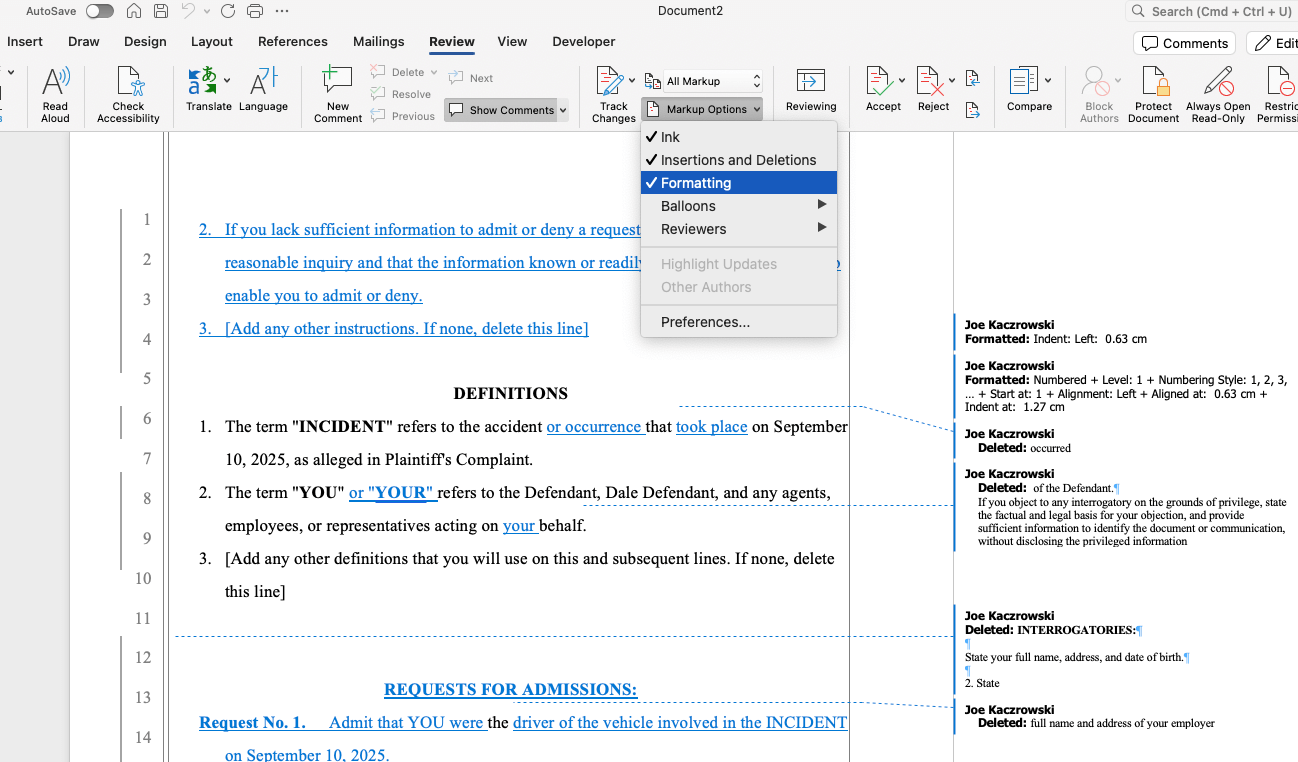
Once both documents are uploaded, you can customize your comparison settings based on the objective of your review. For example, by disabling the “formatting” setting, Word will only highlight substantive edits via the “text changes” feature. You can also enable or disable the display of comments and tracked changes, as well as enable the “text moves” feature to identify all text that has been moved from one section of the document to another, as opposed to revised or deleted.
Critically, these default settings may not be entirely adequate for the efficient comparison of particularly complex or voluminous contracts or filings, and in any case lawyers should always internally document which comparison settings have been used to ensure consistency across review processes.
Step 4: Review differences between two Word documents
At this point, you’re ready to compare and review differences between the original and revised documents. You’ll be able to clearly see all underlined insertions and deleted (or struck-through) text, as well as text labeled as “moved to/moved from” when working with the text moves feature.
While Word provides the mark-ups based on your comparison settings, it is up to the lawyer to manually review and compare the documents for any substantive edits to the text and relocated terms and clauses which may have a considerable impact on legal obligations.
It’s crucial to always remember that Word does not understand legal meaning or interpretation. For example, while swapping the word “may” for “shall” often represents a significant alteration of a legal agreement, Word is not designed to see the difference beyond viewing it similarly to a basic font or formatting change. Unlike purpose-built legal document comparison tools, Word treats all textual changes equally, regardless of their legal significance.
Common issues lawyers encounter when comparing documents in Word
While used frequently for routine document review and comparison, there are still several common issues lawyers face when leveraging Microsoft Word’s compare feature.
For example, substantive edits to text can often be obscured or hard to track in documents which have undergone significant formatting changes. Also, Word is often unable to accurately identify and correctly mark revisions in legal contracts containing visual components such as tables and numbered lists.
More broadly, Microsoft Word will almost always be insufficient when working with highly complex or heavily revised legal documents. Even more commonly manageable documents that already contain multiple tracked changes can compound visual noise and make it harder to review accurately and efficiently.
This is where Vincent AI changes the equation.
Best practices for comparing legal documents
To better mitigate the risks of missed changes and other review errors, lawyers should always implement the following best practices when comparing legal documents:
- Confirm (and re-confirm) the correct baseline has been selected before comparing documents when using Microsoft Word.
- Avoid running comparisons before all original tracked changes have been resolved.
- Focus on substantive legal revisions, not just formatting.
- Prioritize high-risk sections and items first (i.e., definitions, dates, obligations, and payment terms).
- Always use consistent file naming and version control tools.
- Adjust your approach to comparison based on the complexity of the documents.
- Preserve all comparison settings and outputs as part of the matter record to support defensibility and institutional knowledge.
Additionally, lawyers should consider implementing a “stop rule” or otherwise be able to identify when Word’s compare feature is insufficient for comparing two legal documents, such as when dealing with a high volume of text or documents containing multiple complex revisions from several collaborators.
When this becomes a common issue, the best course of action may be to invest in a specialized, purpose-built alternative document comparison tool, the cost of which is likely to be far less than that of a missed change in a consequential legal contract, filing, or regulatory submission.
A clearer way to review legal document changes using AI
Thanks to recent breakthroughs in AI-powered legal technology, lawyers can now gain access to more advanced tools that offer a clearer, more accurate and efficient way to review and compare legal documents.
Unlike Word’s exclusively rule-based “redlining” approach to document review, AI-assisted document comparison tools have been designed not only to analyze higher volumes of complex legal text but also to incorporate legal meaning and context when comparing two files. Put simply, rather than merely flagging changes, AI-powered solutions know how to immediately identify and highlight higher-risk substantive changes to legal documents.
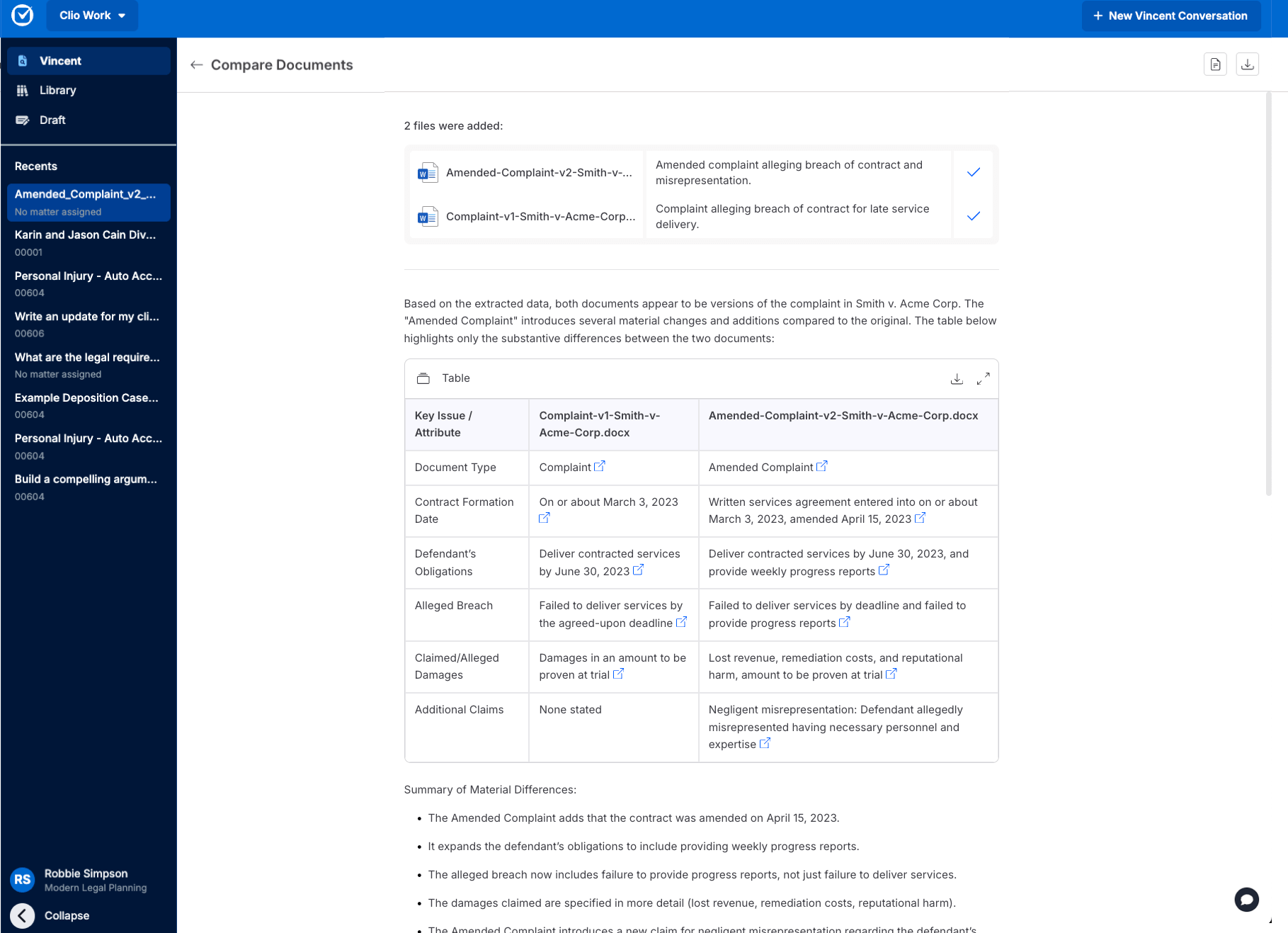
Another advantage is that AI-assisted review tools like Clio Work leverage structured outputs to present the results of comparison in a clear, easily digestible format. For example, with Clio Work, lawyers can automatically generate a legal document comparison table that organizes all changes based on the type of information and clearly marks and displays all relevant citations and missed data for comparison. This is a task that might otherwise require hours of manual review and organization.
Finally, in addition to supporting virtually all other relevant document formats being used across the legal industry today, it’s critical to note that AI-assisted document comparison platforms have been carefully designed to work with and not as a replacement for Microsoft Word, enabling seamless integration with already well-established legal drafting and review processes.
Final thoughts on comparing legal documents in Word
As the pace of digital transformation rises alongside the volume and complexity of legal documents, traditional manual approaches to document comparison are increasingly being replaced by more structured, auditable workflows enabled by AI-assisted review and comparison tools.
But knowing how to compare two documents in Microsoft Word is still relevant and valuable. What’s changing is that lawyers need a better understanding of when Word’s built-in compare feature may be insufficient for their needs.
Regardless of the solution you choose, the bottom line is that you now have a considerably wider range of options for mitigating key risks and improving the accuracy and efficiency of legal document review and comparison processes.
Looking for an easier, faster, and more accurate way to review and compare legal documents across your practice? Book your free Clio Work demo today.
Book a Clio Work demoHow do I compare two Word documents to see differences?
Two Word documents can be compared by clicking the “Review” tab, opening the “Compare” feature, and selecting and uploading an original and revised document for review.
Why is Word unable to compare two documents?
While Word can compare two documents, its functional limitations often make it insufficient for working with larger, more complex, and highly revised documents.
How to view two different Word documents side by side for legal review?
After selecting and opening both documents, click the “View” tab and select “View by Side by Side”.
Can ChatGPT compare two Word documents for legal work?
Yes, ChatGPT can compare two Word documents. However, as a generic rather than specialized tool, it should not be relied upon to recognize or interpret legal meaning and context.
Is Microsoft Word reliable for comparing legal documents?
Microsoft Word is typically reliable for routine legal document comparison tasks, but more specialized tools may be needed to compare larger, more complex, or highly revised documents.
Are there better tools than Microsoft Word for document comparison for lawyers?
There are a variety of emerging legal-specific tools that can more accurately and efficiently compare complex legal documents, including AI-assisted solutions like Clio Work.
Subscribe to the blog
-


Software made for law firms, loved by clients
We're the world's leading provider of cloud-based legal software. With Clio's low-barrier and affordable solutions, lawyers can manage and grow their firms more effectively, more profitably, and with better client experiences. We're redefining how lawyers manage their firms by equipping them with essential tools to run their firms securely from any device, anywhere.
Learn More