About This Template
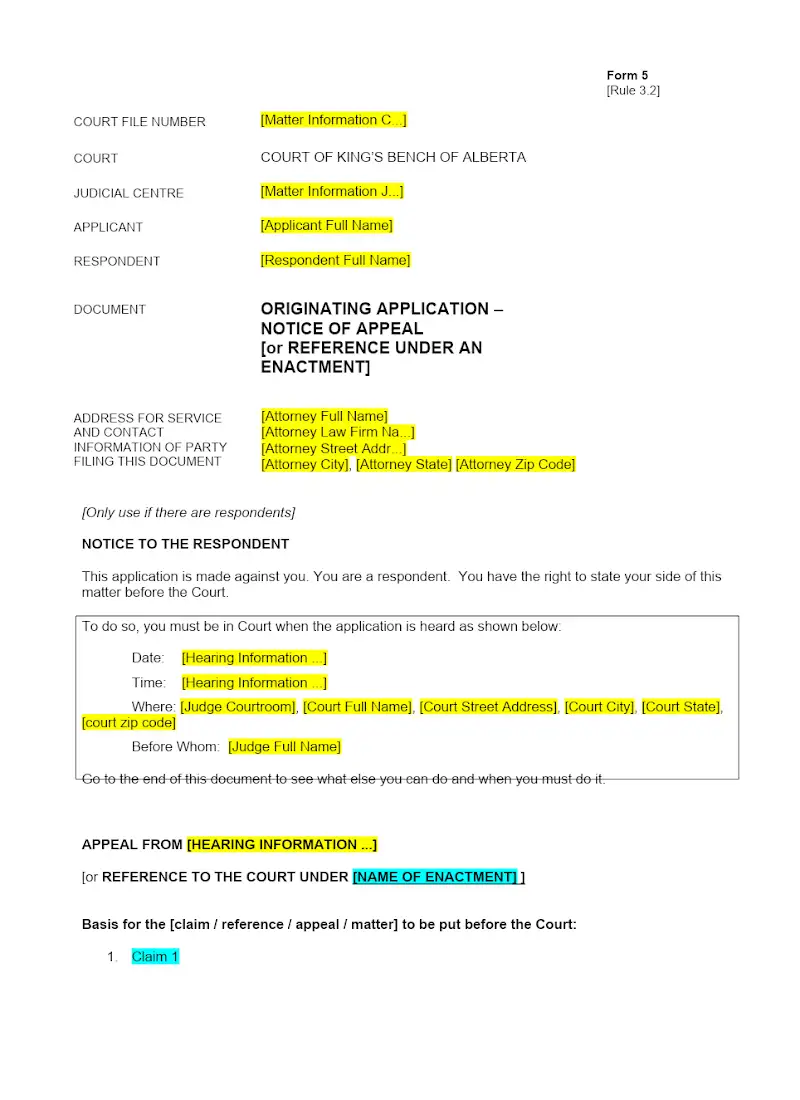
Appealing a court decision requires strict adherence to jurisdictional deadlines and filing requirements to preserve the client’s right to review. This Alberta Notice of Appeal (Form 5) template is the legally mandated document for initiating the appellate process. Using the correct, compliant form is critical to establishing jurisdiction and starting the timeline for filing necessary records and factums. This template helps your firm ensure procedural accuracy from the outset of an appeal, maintaining a compliant litigation workflow.
AVAILABLE FOR DOWNLOAD IN:
Clio Draft
Customize in Clio Draft
Autofill client data
Populate the fields of any legal document template with client and matter details from your Clio account. Reduce manual entry and cut errors.
Clause library
Build a reusable clause library and insert the right language every time. Keep templates current without hunting through old files.
E-signature
Send documents for secure e-signature, track status, and file the signed copy back to the matter automatically.
How to Customize
With Clio Draft

If this template is available in your region, you can activate it in your Clio Draft account. It will then be pre-filled with information from your contacts and matters, helping you save time.
- Click Request Template, and complete the Request Information form.
- Open the activation email to activate the template in Clio Draft.
- In Clio Draft, go to Library and select the Court forms subtab.
-
Select a category to view all the court forms associated with that
category.
- Find the form that you need. You can use the search bar to search by form number or form title.
- Optional: To preview the form, click the Actions dropdown and then select Preview.
- Click the Actions dropdown and then select Create form template.
-
At this stage, you can configure any fields on the template that will
remain consistent across multiple matters and specific practice areas.
- Purple fields: These fields are highlighted in purple because they are connected to linked fields that will automatically insert information entered on the Populate page. If you fill in a purple field, the data in that field will always populate when you draft a document from this form template and will not be overwritten by text entered on the populate page.
- Blue fields: These fields are highlighted in blue because they are unique to a specific matter. You will enter this information after you generate the form template, on the Populate page.
For detailed instructions for drafting form templates and more information about Clio Draft, see Clio Draft: Form Templates and Clio Draft: Draft and Manage Documents.