

Many legal document templates include conditional clauses, such as jurisdiction-specific language, optional provisions, or client types. Ensuring all conditions remain accurate and consistent can require a lot of manual effort. To solve this, lawyers often turn to leveraging conditional logic in Microsoft Word, which automates the inclusion of conditional language using a combination of macros, field codes and mail merge logic.
However, while feasible on a small scale and for simple templates, conditional logic in Microsoft Word has been known to break and become harder to maintain as document complexity increases, leading to incorrect clause insertion, formatting errors, fragile nesting logic, and an accumulation of valuable time and resources being spent on document cleanup. On top of this, MS Word’s conditional logic is also often not supported with more advanced document automation tools like Clio Draft.
In this article, we’ll explain how conditional logic works in Microsoft Word, when lawyers use it, how conditional templates are designed, and when and why conditional logic tends to hit a breaking point for law firms.
Need a template you can use right now? Get our free MS Word legal templates, ready to download and customize.
How conditional logic works in Microsoft Word
Conditional logic in Microsoft Word refers to how the program automates the inclusion of varying clauses and legal language across a legal document template. At a high level, conditional logic is controlled by field codes, which check for values like client type or state before deciding which text should be included, and continue to work behind the scenes in Word to evaluate these rules whenever a document is updated.
Here’s a simple example:
- If county = Suffolk → insert Suffolk County-based clause.
- Otherwise → insert standard clause.
How to create conditional logic in Microsoft Word on a Mac
Conditional logic in Word is built using IF field codes, which evaluate a condition and display one block of text if the condition is true and another if it is false. The basic syntax looks like this:
{ IF [condition] “[true text]” “[false text]” }
In practice, conditions typically reference merge fields pulled from a data source, such as a spreadsheet or contact list, so the document can populate dynamically based on client or matter details.
Here is how to build a conditional field from scratch in Word on a Mac:
Step 1: Open your document and enable field code display
Open the Word document you want to use as your template. Before inserting any field codes, turn on the field code display so you can see and edit the underlying syntax as you work.
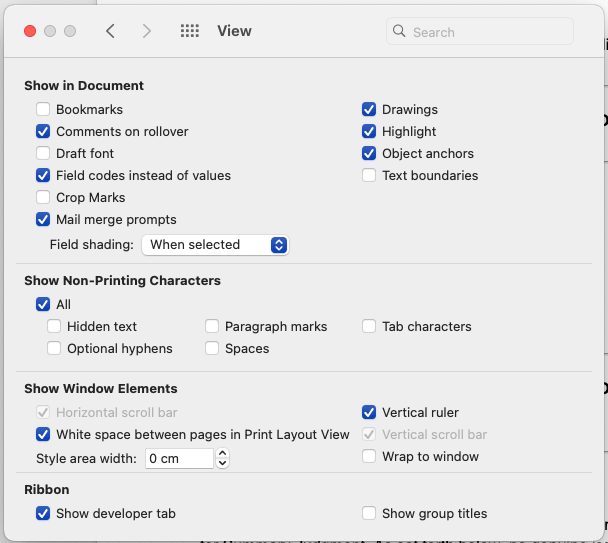
Go to Word in the menu bar, select Preferences, then click View. Under “Show in document,” check the box next to Field codes. Click OK.
Step 2: Position your cursor
Click to place your cursor in the exact location in the document where you want the conditional clause to appear.
Step 3: Insert a field code
On Mac, field code brackets cannot be typed manually. You must insert them using the keyboard shortcut function + ⌘ + F9, which inserts a pair of field code brackets: { }. Your cursor will automatically be placed inside the brackets.

Step 4: Write your IF condition
Inside the brackets, type your IF statement. A basic example using a mail merge field looks like this:
{ IF { MERGEFIELD ClientType } = “Corporation” “This agreement is entered into by [Client Name], a corporation duly organized under the laws of [State].” “This agreement is entered into by [Client Name], an individual.” }

Breaking this down:
- { MERGEFIELD ClientType } pulls the value from a field called “ClientType” in your data source
- = “Corporation” is the condition being evaluated
- The first quoted block is the text that appears if the condition is true
- The second quoted block is the text that appears if the condition is false
Note that the inner { MERGEFIELD ClientType } field also requires its own set of field code brackets, inserted using Command + F9 before typing MERGEFIELD.
Step 5: Update and preview the field
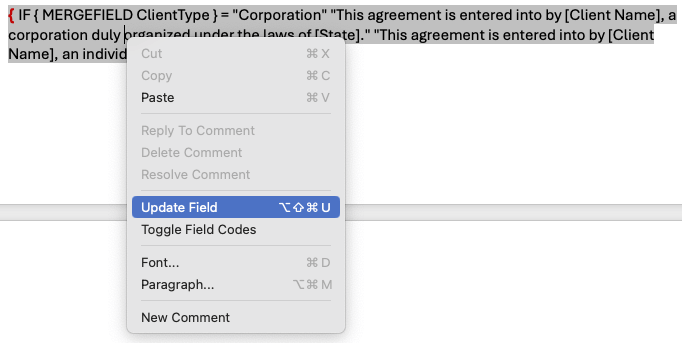
Once your field code is written, right-click anywhere inside the field code and select Update Field. Then, to preview how the conditional output will look in the document, use the keyboard shortcut Option + F9 to toggle between field code view and the rendered document view.
Step 6: Test your conditions
Before using the template on a real matter, test it thoroughly by running the merge with records that cover every possible condition. Check that each variation of the conditional clause appears correctly, that formatting is consistent, and that no stray punctuation or extra spaces have been introduced by the field code inputs.
What conditional logic does in legal document templates and where lawyers use it most
Conditional logic allows legal templates to automatically include or even remove clauses based on specific inputs. This is a crucial capability for lawyers and firms, as it allows one template to adjust itself based on conditional details, instead of needing to create and maintain multiple versions of the same document.
In practice, conditional logic is typically used by lawyers in documents that vary based on client or matter details, with common examples including:
- Engagement letters
- Contracts with optional clauses
- Estate planning
- Pleadings with jurisdiction differences
- Regulatory disclosures
Let’s look at a few more examples to see how conditional field code inputs aim to alter a legal document.
Conditional logic examples
- If court = probate court → include probate-specific notice language
- If client type = corporation → add corporate language
- If contract includes a guarantor → add guarantor section
- If case is resolved → add settlement language
Using nested conditional logic in legal templates
As document complexity increases, some legal templates will need to enforce several conditions at once and require the use of “nested conditional logic,” in which one rule is programmed to contain multiple conditional layers.
For example, a compound condition might look like this:
- If client = corporate AND court = probate court → add corporate probate language
A nested conditional rule, by contrast, might look like this:
- If client = corporate
→ then check court type
→ if court = probate court, add probate-specific corporate language
→ otherwise, add standard corporate language
Otherwise, add individual language.
Importantly, the above example represents nested conditional logic in one of its simplest and most easily managed forms when using Microsoft Word. In practice, conditional logic can often compound within nested rules across the document lifecycle, and maintaining accuracy and consistency often becomes progressively more difficult as the complexity of nested logic increases.
Designing conditional legal templates
Beginning with a thoughtfully and meticulously designed template can go a long way toward minimizing errors and breaks in conditional logic across the documents lifecycle. And while style and structure will vary between firms and document types, there are at least three best practices lawyers can apply when designing conditional legal templates in Microsoft Word.
1. Separate static text, variables, and conditional clauses
Keeping different components of the legal template separate when designing is crucial to maintaining clear rules and document structure. More specifically, the static, non-conditional text that serves as the core legal language should remain unchanged, while variables such as client type and jurisdiction are inserted as placeholder fields, separate still from specific conditional clauses, which are programmed to appear only when relevant based on conditional and/or nested logic.
2. Use clear, consistent variable names
In addition to making the template easier for all contributors to understand and work with, using clear and consistent variable names is crucial to supporting the proper execution of conditional logic. Put simply, using slightly different versions of the same variable name can create redundant data fields—for example, “Birthdate” and “Date of Birth” may require the same information to be entered twice. If both fields appear in a template, the conditional logic must reference the one actually being used in the document, and if the duplicated fields contain inconsistent values because of typos or entry errors, the logic may trigger different clauses depending on which field is tied to the condition.
3. Keep logic as simple as possible
Finally, because conditional logic in Microsoft Word is significantly more fragile and harder to manage when legal templates become too complex, it’s important to ensure the logic being introduced is in the simplest form possible, avoiding the inclusion of multiple layers of nested conditions whenever feasible.
Above all, to better mitigate the functional limitations associated with Word field codes, keeping to a deliberately simple, consistent, and clearly defined structure will make conditional legal templates less prone to errors and much easier to maintain across the document lifecycle.
Mastering MS Word and AI
Register now for the September 8 (CLE-eligible) webinar, 2 p.m. ET | 11 a.m. PT, and get Barron Henley's walkthrough of Word's revision tools, AI-assisted review, and a bonus Clio Work demo.
Register now
Why conditional templates break
Conditional logic in Microsoft Word is known to break frequently, and the reason typically has much less to do with a user’s skill level than the way Word handles field codes. In simple terms, Word’s logic tools were never designed to manage the complexities of legal document automation, and even small edits during typing can easily break the logic and result in multiple issues.
Incorrect or missing syntax
Because Word’s automation tools aren’t capable of contextual understanding and rely solely on text-based manual inputs, even the slightest typo or missing punctuation or syntax can lead to missing or incorrectly displayed conditions.
Broken nested conditions
As logic becomes more complex, Word field codes become even more structurally fragile, sensitive to inconsistency, and difficult to maintain manually, causing nested conditions to break frequently across editing cycles and contributors.
Unexpected data from merge fields
Because Word views field codes as plain text and interprets all inputs literally, an extra space or stray punctuation like a period or comma entered incorrectly into a merge field will often appear within the template rather than being discarded, causing awkward breaks or syntax in the document or even changing the meaning or interpretation of a clause.
Formatting conflicts
Similarly, as legal templates move through editing cycles, basic changes to field codes can often disrupt the broader formatting, throwing off the paragraph structure or breaking the order and consistency of numbered lists across the document.
When Word reaches its conditional logic limits
For many law firms, there comes a point when using conditional logic in Word becomes more of a hindrance than a help. Instead of saving time through automation, they end up spending additional time attempting to fix recurring errors and broken logic in their legal templates.
In other words, they begin to realize that while Word can work well for simple conditional templates, it struggles greatly with managing complex contract logic, enforcing multiple dependent conditions, and supporting most forms of large-scale document automation, all of which are becoming increasingly essential in today’s rapidly evolving legal ecosystem.

This is why more firms today are moving to purpose-built document automation systems like Clio Draft, which make it easier to manage conditional logic, variables, and clause libraries from a single centralized location. This is a contrast to MS Word’s code-heavy implementation, as Draft is a visual point-and-click application of conditional logic.
More specifically, rather than relying on fragile, plain text inputs tethered to a single document, advanced legal document automation allows conditional logic to be maintained and standardized within its own separate controlled environment. From this system, conditional legal templates can be easily designed to enforce the desired rules, however layered or complex, and then automatically generated and reused across matters, eliminating time spent wrestling with field codes and enabling consistent and reliable outputs throughout the firm.
Overall, MS Word conditional logic may still have a place in drafting simple legal documents, but it also doesn’t take long for it to reach its conditional logic limits. And once this point arrives, firms looking to manage complexity at scale, promote standardization, and cut back on manual document cleanup will inevitably require more efficient and legal-specific automation tools.
Looking for a more reliable system for managing complex conditional legal templates in your firm? Book a demo with Clio Draft today.
Conditional logic in Microsoft Word FAQs
What is conditional logic in Microsoft Word?
Conditional logic in Microsoft Word, including Word mail merge conditional logic, refers to how the program automates the inclusion of varying clauses and legal language based on relevant variables, such as client type and jurisdiction, across a legal document template.
How do you create conditional logic in legal Word documents?
Conditional logic is created in Word by inputting specific variables and conditional clauses into field codes, which will automatically include specific language depending on which conditions are relevant to the document (e.g., client type, jurisdiction).
Can Microsoft Word use conditional logic with mail merge?
Yes, mail merge is frequently used to create conditional logic in Word-based legal document templates.
Why does conditional logic fail in Word legal templates?
Conditional logic often fails in Word legal templates due to the functional limitations of Word field codes, which weren’t designed for legal document automation and become increasingly fragile as conditional logic grows in complexity.
Can conditional logic automate legal contracts?
While conditional logic in Word is built around simple, text-based inputs and can’t reliably automate legal contracts, conditional legal contracts can be automatically generated and reused through the support of legal document automation systems.
What is the difference between Word conditional fields and legal document automation?
Whereas Word conditional fields rely on manual text inputs enforced inside individual documents, conditional logic in legal document automation systems is built on structured data and managed from a centralized location, enabling the automatic generation, standardization, and reuse of complex legal contracts across the firm.
Mastering MS Word and AI
Register now for the September 8 (CLE-eligible) webinar, 2 p.m. ET | 11 a.m. PT, and get Barron Henley's walkthrough of Word's revision tools, AI-assisted review, and a bonus Clio Work demo.
Register now