You sit down at your computer and pull up a contract that needs a new clause. Easy enough, you think. You’ll just pull the language from a similar agreement you worked on recently.
Copy, paste, and… wait, why did it do that?
The spacing has shifted, the numbering looks nothing like it did before, and you spend the next half hour trying to figure out what went wrong.
Lawyers are told to use styles in Microsoft Word, but rarely told why they stop working. And they often stop working. Legal style numbering shifts after a clause is inserted, headings disappear from the Table of Contents, Table of Authorities references break, and defined terms lose formatting consistency across a long contract. Signature blocks misalign. Pasted clauses arrive with their own spacing and refuse to conform to the surrounding document.
Styles break because legal documents evolve through reuse, clause insertion, negotiation edits, and collaboration. A style system that holds together cleanly for one document can fall apart completely when someone makes the smallest edit to the next draft.
So let’s cover common Microsoft Word styles legal documents issues, how to diagnose structural corruption, how to repair style systems in briefs and contracts, and how law firms prevent recurring breakdown at scale.
One pasted clause can override your styles and reformat an otherwise clean contract. Explore how Clio Draft helps you generate documents from standardized templates instead of rebuilding formatting by hand.
What is a style in Word?
Microsoft Word styles are pre-set combinations of formatting that you can apply to text in one click. Think of them as saved formatting rules that keep your document consistent and easy to manage.
Style example: creating a “clause heading” style for contracts
Imagine you’re drafting contracts regularly (NDAs, service agreements, retainers). Each document includes sections like:
- Confidentiality
- Termination
- Governing Law
- Indemnification
Instead of manually formatting each heading every time, you create a custom style called: “Clause Heading”
This style might include:
- Bold text
- Small caps or all caps
- 12pt font
- Extra spacing before/after
- Numbering (e.g., 1.1, 1.2, etc.)
How to create a new style (Mac)
When creating styles in Word, you can choose from a few different methods:
Create from formatted text (fastest)
- Format your text exactly how you want (font, size, spacing, etc.).
- Highlight the text.
- In the Styles section, click the Styles Pane button.

- Click New Style.

- Name your style (e.g., Clause Heading).
- Click OK.
Method 2: Create from scratch (Mac)
- Go to Home → Styles Pane.
- Click New Style.
- Choose:
- Style type (Paragraph or Character).
- Font, size, spacing, alignment, etc.
- Click OK.
How to create a new style (Windows)
When creating styles in Word on Windows, follow the four steps outlined below.
Create from formatted text
- Format your text exactly how you want it (font, size, spacing, numbering, etc.).
- Right-click the formatted text.
- In the mini toolbar that appears, click Styles, then click Create a Style.
- In the Create New Style from Formatting dialog box, name your style (e.g., Clause Heading).
- Click OK.
Your new style will now appear in the Styles gallery on the Home tab.
Why styles break in legal briefs, pleadings, and contracts
Microsoft Word styles legal documents errors rarely start in the template. They emerge later, when documents are adapted, negotiated, and passed between contributors. By that point, small edits and manual workarounds have started to undermine the structural logic that once worked.
In this section, we’ll take a look at the most common failure patterns you might encounter.
Style-linked numbering is not properly configured
Headings can look perfectly fine on screen while remaining completely disconnected from the document’s multilevel numbering definition underneath. When that linkage breaks, inserting a new clause or promoting a heading level produces unpredictable results: legal style numbering restarts, sequences skip, or sublevels appear where none were intended.
It’s one of the hardest failures to catch visually, because the document looks fine right up until an edit exposes the problem.
Clause reuse imports hidden styles
When you copy and paste provisions from prior agreements or precedent files into a Word document, they bring their own style definitions with them. Those definitions may share names with your template’s styles while containing completely different formatting, spacing, or numbering logic.
When the names match, Word doesn’t flag the discrepancy. It simply applies the incoming definition, which can silently alter the behavior of every paragraph using that style name throughout the document.
Direct formatting overrides style hierarchy
Manual bolding, spacing adjustments, and indentation applied during drafting or negotiation sit on top of the underlying style rather than within it. The paragraph looks correctly formatted on screen, but the underlying style has been quietly overridden.
When Microsoft Word styles are later updated or reapplied, those overrides either persist unexpectedly or strip out in ways that produce inconsistent results across the document.
Template variants drift over time
Most firms have four or five versions of the same template circulating at any given time, and nobody is quite sure which one is current. Each copy accumulates local modifications over time. Contributors may be applying Microsoft Word styles that share names but contain different definitions, with no way of knowing their version has drifted from everyone else’s.
The document looks consistent across sections, but it behaves differently under editing depending on which template version it started from.
Multi-author editing introduces structural conflicts
Track Changes captures who’s written what, but it doesn’t resolve conflicts between the style definitions each contributor was working with. When edits from multiple contributors are accepted, they can introduce legal style numbering logic or style assignments from an entirely different version of the template.
Opening a document in Google Docs introduces another layer of risk: the conversion process can strip or alter Word styles entirely, meaning a document that looked structurally sound before sharing may come back with broken formatting that isn’t immediately visible.
How to diagnose broken style systems in legal documents
Unfortunately, style corruption isn’t always visible at first glance. These checks help you dig beneath the surface and identify where the structural breakdown is occurring before it causes problems at filing or execution.
- Reveal formatting pane review: Before you start manually fixing anything, Mac users should press the View menu, click Reveal Formatting, and click through the paragraphs that look off.
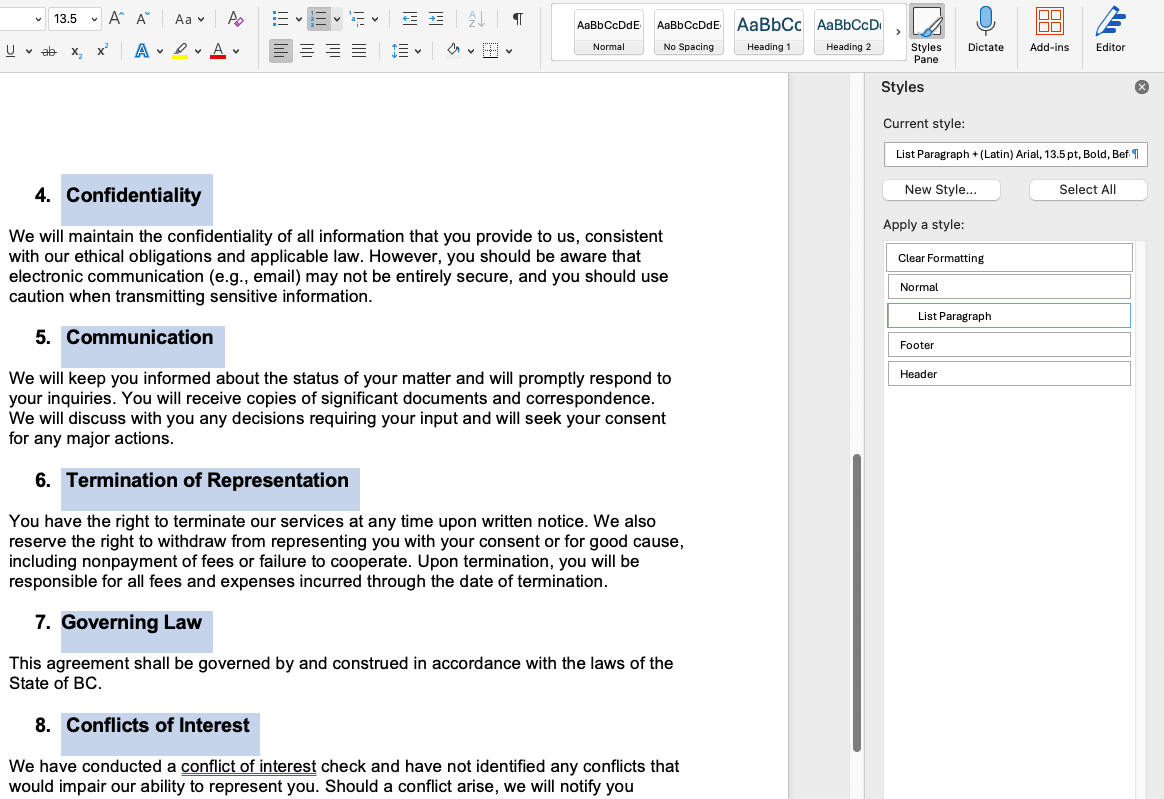
For Windows users, open the Reveal Formatting pane (Shift+F1 or Format → Reveal Formatting).
What you’re looking for is direct formatting sitting on top of styles, paragraphs that share a style name but show different spacing or indentation, and list definitions that don’t match the surrounding numbering level. This is where most hidden corruption lives.
- Inspect the navigation pane: Switch to the headings view and look at what’s actually there. Any heading missing from this view isn’t using a TOC-linked style, regardless of how it looks on the page. If it’s not here, it won’t be in your Table of Contents either.
- Check for duplicate or imported style names: Open the Style Pane and enable “Show All Styles”. Then, look for style names appearing more than once, or names with suffixes Word has added to resolve import conflicts. Those suffixes mean foreign style definitions have entered the document and may already be overriding your template logic.
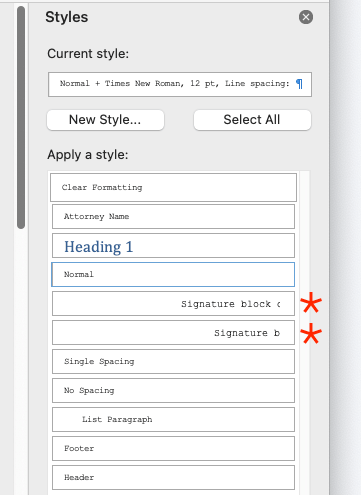
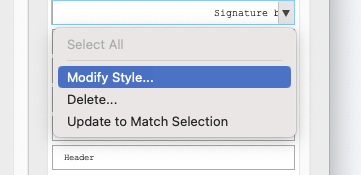
Click the dropdown arrow to the left hand side of the style and select Modify Style.
- Test renumbering continuity: Insert a placeholder paragraph at several points within your numbered sections and watch what the sequence does. If numbering restarts or skips anywhere, the multilevel list definition has lost its style linkage at that point.
- Look for parallel numbering sequences: If a section is opening its own legal style numbering sequence rather than continuing the established scheme, list definitions have forked somewhere. This typically happens through clause insertion from an external source.
- Check for inconsistent indent levels: Open the Reveal Formatting pane and check indent levels across the section. If they’re inconsistent, someone has manually indented paragraphs instead of using the style. This approach will break the moment anyone edits nearby text.
- Verify cross-reference integrity: For Mac users, run CMD+A (Ctrl+A if using Windows), then press F9 to update all fields, and check whether your cross-references still resolve correctly. References returning error codes or pointing to the wrong clause number are a reliable sign that the underlying numbering structure has shifted since they were inserted.
How to fix broken Microsoft Word styles in legal documents
Once you’ve diagnosed where the corruption is, the next question is how far it’s spread. Localized failures can usually be repaired within the existing file. But when style definitions have fragmented across multiple sections or the template architecture has been fundamentally altered, a rebuild is often faster and more reliable than attempting a repair.
Re-link multilevel numbering to styles
Legal style numbering that looks correct until someone inserts a clause and everything shifts is almost always a linkage problem.
- Open the Multilevel List menu.
- Select Define New Multilevel List.

Now work through each level to confirm it’s linked to the correct heading or paragraph style. Reconnecting those links restores automatic numbering behavior across the entire document.
Strip direct formatting safely
The temptation when a paragraph looks wrong is to select it and hit Clear Formatting. Resist that instinct. Clear Formatting removes everything, including intentional style properties you actually want to keep.
Instead, select Reveal Formatting. For Mac users, this is found in the main navigation under View → Reveal Formatting.
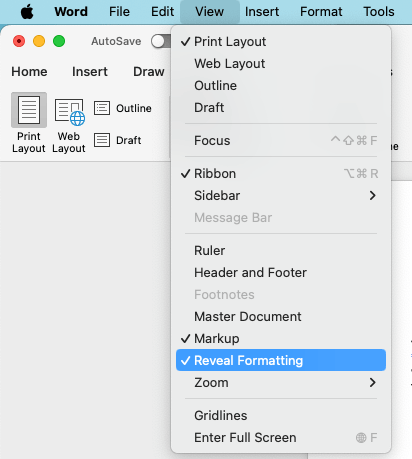
You can click through different sections of your document to review formatting, identify the specific overrides causing issues, and remove them selectively.
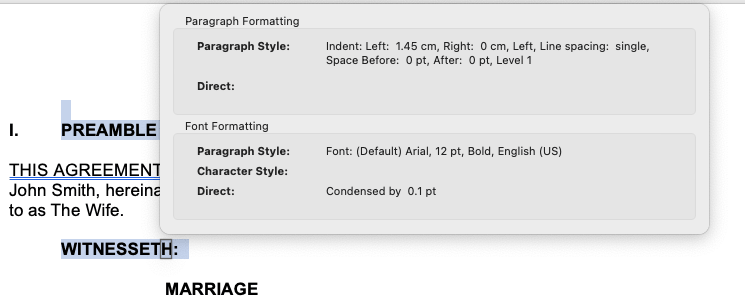
For Windows users, you can do the same thing by opening the Reveal Formatting pane. Check the Compare to Another Selection box and select another paragraph if you want to see why a certain part of your document looks wrong. If you want the section to follow the same style as the correct paragraph, click Apply Formatting of Original Selection.
Normalize pasted clauses
Pasted content is one of the most reliable sources of style corruption in legal documents, and the fix needs to happen before you continue editing around it, not after. Select the pasted content, reapply the correct destination styles manually, and confirm it’s behaving consistently with the surrounding document before moving on.
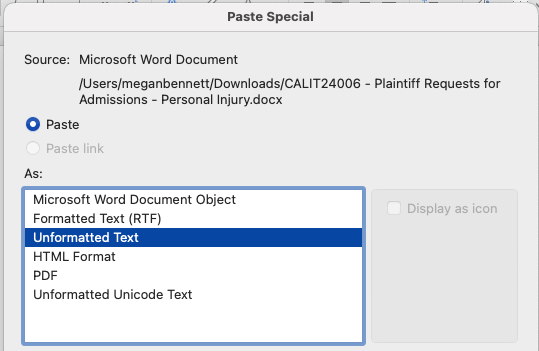
For large volumes of pasted content, using Paste Special (Right-Click → Paste Special…) with “Merge Formatting” or “Keep Text Only” on entry reduces imported style definitions you’ll need to correct afterward.
Rebuild corrupted templates
When should you rebuild a corrupted template versus repair what’s there? Use this table to help you identify which route is best in which scenario.
| Repair | Rebuild |
| Corruption is confined to identifiable sections. | Numbering definitions have forked across multiple sections. |
| The core template architecture is still sound. | Imported styles have overridden template logic throughout. |
| You know the file’s structural history. | The document’s history is unclear. |
| Direct formatting overrides are isolated rather than widespread. | Correcting styles would require altering the majority of paragraphs. |
If you do need to rebuild, take the process step by step. Copy content across in sections, reapply styles as you go rather than pasting with formatting intact, and verify numbering continuity after each section is transferred.
What Word styles actually control in legal documents
Most legal professionals think of styles as a formatting convenience: a faster way to apply consistent fonts and spacing without doing it manually every time. In practice, styles are the structural backbone of a legal document. They control:
- Clause hierarchy, determining how provisions at Level 1, 1.1, and 1.1(a) nest and relate across the numbering scheme.
- Multilevel numbering, so clauses sequence correctly as provisions are inserted, deleted, or reordered.
- Table of Contents generation, meaning any heading not using a TOC-linked style simply won’t appear, regardless of how it looks on the page.
- Cross-reference integrity, so clause references update correctly when the document changes.
- Caption formatting, defined term consistency, and signature block alignment.
The stakes vary by document type but are significant across all of them. For example:
- In an appellate brief, a broken style linkage can mean a Table of Contents that misrepresents the document’s structure to the court.
- In a pleading, legal style numbering might restart mid-document.
- In a commercial contract, clause cross-references can silently point to the wrong provision after a negotiation edit.
When Microsoft Word styles are treated as formatting shortcuts, the document looks fine right up until it doesn’t, and problems tend to appear at the worst possible moment.
The lifecycle of style corruption in legal drafting
| Stage | What happens | What goes wrong | Why it’s missed |
| Template & initial drafting | Document starts with clean styles, structured numbering, and a well-configured template. | Clause insertion introduces conflicting style definitions; direct formatting is applied. | The document still looks correct, so early issues go unnoticed. |
| Clause reuse & iteration | Content is copied from prior agreements and multiple sources. | Inconsistent styles and embedded formatting begin to accumulate. | Visual consistency masks structural inconsistencies. |
| Negotiation & redlining | Edits from opposing counsel are introduced via tracked changes. | Conflicting numbering logic and style environments merge; pasted content lacks style linkage. | Changes are accepted without reviewing underlying formatting. |
| Collaboration & revision | Multiple contributors edit and refine the document. | Numbering diverges, TOC integrity weakens, defined terms become inconsistent. | Each edit is reasonable in isolation, but issues compound. |
| Finalization & filing | The document is reviewed as a whole before completion. | Accumulated formatting issues surface all at once. | Problems only become visible at the final stage—when time is limited. |
How law firms prevent recurring style failures
Fixing a corrupted document solves the immediate problem. However, it doesn’t prevent the same issues from appearing in the next matter, and the one after that. Style stability has to be built into the firm’s environment, not left to whoever happens to be working on the document.
Here are four tips to help your firm avoid recurring style failures.
1. Centralized style architecture
Every pleading, motion, and contract should draw from a single master style system rather than from whatever template happened to be on hand when the matter opened. When style definitions live centrally rather than embedded in individual files, updates spread consistently across the firm.
2. Locked multilevel numbering definitions
Numbering definitions that contributors can redefine locally are a persistent source of corruption. Locking list definitions within templates prevents individual edits from altering the numbering logic for everyone working in the same document.
3. Template version control
Circulating multiple versions of the same template without a single source of truth inevitably leads to style conflicts. Having an approved version, stored centrally and updated through a controlled process, fixes this issue.
4. Training on structural editing
Many style failures come from habits that feel completely intuitive, like applying manual formatting instead of styles. Telling contributors to “use styles” won’t change those habits. Training that explains why those habits cause structural problems, and demonstrates what happens downstream when they do, tends to produce more durable behavior change.
When these controls are in place, style consistency stops being something the firm hopes for and starts being something the document environment produces automatically, whether that’s through disciplined template governance or a structured drafting environment like Clio Draft.
How Clio Draft helps maintain style consistency across your firm
Even with strong processes, maintaining style integrity manually can be difficult, especially across multiple contributors, matters, and document types.
Clio Draft helps standardize formatting at the system level by embedding structure directly into your drafting workflows. Instead of relying on individual users to apply Microsoft Word styles correctly, documents are generated from centralized templates with predefined formatting, numbering, and clause logic already in place.
This means:
- Documents start with consistent styles every time.
- Numbering and formatting remain intact across edits and collaborators.
- Template updates can be managed centrally, reducing version conflicts.
The result is a more reliable drafting environment where style consistency is built in, not something your team has to fix after the fact.
Move beyond manual formatting with document automation
At a certain point, Microsoft Word styles legal documents issues stop being a drafting problem and start being a systems problem.
You can standardize Microsoft Word styles legal documents templates and train your team, but as documents move across matters, contributors, and negotiations, structural drift is hard to avoid. The effort to maintain consistency only grows over time.
That’s where document automation makes the difference.
Tools like Clio Draft embed structure directly into the drafting process. Documents are generated from centralized templates where formatting, numbering, and clause logic are already defined, so they stay consistent, no matter who’s working on them.
Use AI to turn your firm’s Microsoft Word documents into smart templates that auto-populate with case information. You can also generate structured, context-aware content directly within those templates, reducing reliance on copy and paste while speeding up drafting.
The result is a shift from fixing formatting at the end to maintaining consistency from the start. Ready to streamline your drafting and eliminate formatting issues? Book a Clio Draft demo.
MS Word styles in legal documents FAQs
Why do my headings stop appearing in the Table of Contents in legal documents?
Headings must use styles that are linked to TOC field definitions, typically Heading 1 through Heading 9 in Word’s default configuration. A heading formatted manually, or using a custom style disconnected from the TOC field definitions, won’t register regardless of how it looks on the page.
Why does numbering restart unexpectedly in legal contracts?
The multilevel list definition has lost its linkage to the paragraph style at that point in the document, typically through a clause inserted from an external source or a manual numbering override somewhere in the document’s history. Re-linking the list definition to the correct style through the Multilevel List menu usually fixes it.
Can copying clauses from another contract corrupt my style system?
Yes. Pasted content carries its own style definitions, and when those share names with your template’s styles but contain different formatting or numbering logic, Word may allow the incoming definition to override yours. Normalizing pasted content to destination styles immediately on entry is the most reliable way to prevent this.
Is it better to repair broken styles or restart from a clean legal template?
If the corruption is contained and the core template architecture is intact, repair is faster. If style definitions have fragmented across the majority of the document, numbering has forked across multiple sections, or the document’s structural history is genuinely unclear, rebuild from clean. The extra time upfront is almost always less than the time you’d lose patching a fundamentally compromised file.
Why do styles behave differently after Track Changes revisions?
Accepting tracked changes merges the contributor’s style environment into the document alongside their edits. If they were working from a different template version, their accepted revisions can introduce competing style or numbering definitions that won’t surface until a subsequent edit exposes them.
How can law firms ensure consistent style usage across multiple contributors?
Centralized templates, locked numbering definitions that contributors can’t locally redefine, and training that explains the structural consequences of manual formatting habits rather than just telling people to use styles. Consistency is a product of the environment, not individual discipline.
Do Word add-ins fix broken style systems?
Some add-ins are genuinely useful for style cleanup and numbering repair. However, they can’t override fundamentally corrupted style architecture. If the underlying template structure is broken, an add-in will help you find the problem faster, but it won’t fix the root cause. That requires repair at the style definition level or a rebuild from clean.
At what point should law firms move beyond manual style management?
When style repair has become a routine part of the drafting process rather than an occasional one. Repeated numbering failures, TOC corruption, and style drift across matters are reliable signals that contributor discipline alone can no longer maintain structural integrity. That’s when centralized template governance and structured drafting environments become the more sustainable path.
Master Microsoft Word for Legal Drafting
This is just one piece of the puzzle. Explore the Master Microsoft Word for legal drafting hub for all our Word resources for legal professionals.
MS Word Hub