

Track Changes is one of those Microsoft Word features that looks simple until you use it on a complex legal document under deadline pressure. Then the problems start.
Lawyers rarely use Track Changes with brand new text files. They use it on briefs with nested numbering, motions with section breaks, contracts with multilevel clauses, and pleadings repurposed from prior matters. In this environment, every redline touches the document’s underlying structure.
Unfortunately, the effects of this are easy to miss and difficult to fix.
You might find that numbering shifts after accepting a deletion or a Table of Contents that breaks mid-negotiation. Opposing counsel might return a document with altered styles, and before you know it, it gets harder to clean with every round of revisions.
Let’s explore how Track Changes in legal documents actually work. We’ll go over why redlines destabilize structure, how to prevent formatting drift during negotiation, how to get rid of Track Changes in Word, best practices for managing Track Changes consistently across a team, and when manual redlining stops being a scalable option.
A heavily redlined document is where structural problems hide, shifted numbering, a broken Table of Contents, altered styles from opposing counsel. Explore how Clio for Word reviews redlined documents and surfaces those risks before you finalize.
What Track Changes actually does inside a legal Word document
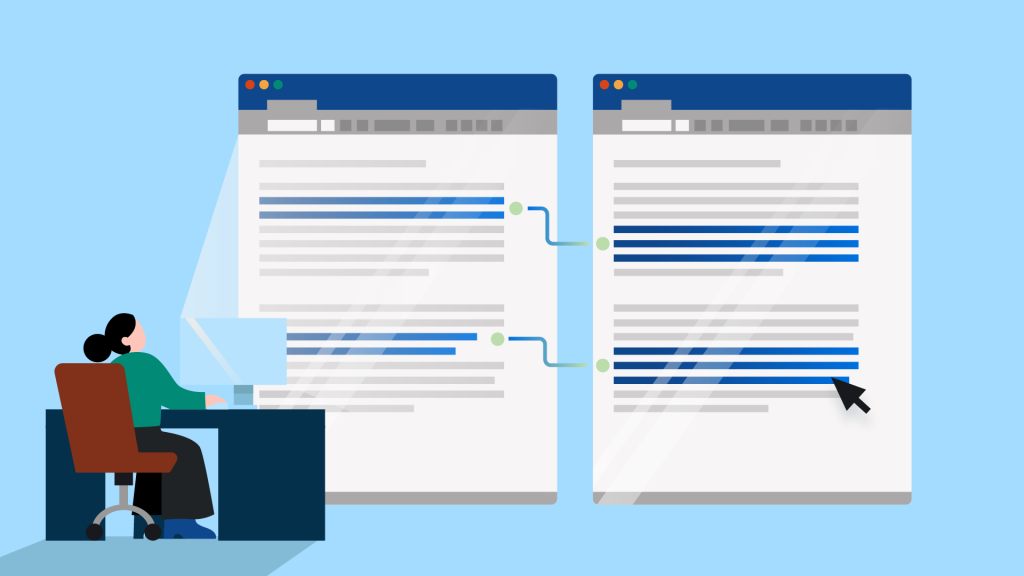
Most attorneys and paralegals think of Track Changes in legal documents as a visual markup tool. It shows what was added, what was deleted, and who made the change.
That description is reasonably accurate, but it undersells what’s actually happening inside the file.
Word’s Track Changes goes beyond just annotating text. It records insertions as new content with its own formatting attributes, records deletions without immediately removing structural definitions, interacts with paragraph styles and numbering logic, alters list hierarchy during clause edits, and affects cross-references and fields throughout the document.
In practice, this means:
- Editing a numbered clause can affect the numbering definitions for every clause that follows.
- Deleting a heading in a motion removes the visible text, but the structural definition may linger in the document until changes are accepted (affecting the TOC and any cross-references that point to it).
- Inserting a new subsection in an appellate brief potentially introduces new formatting attributes, especially if the content was pasted from another document.
In summary, Word’s Track Changes modifies the entire document structure and not just the text you see on the page. Understanding that distinction will help you understand what’s happening beneath the surface, and how you can fix it.
Where redlines break legal document structure
Most redline problems in Word are predictable. They’re structural interactions between the markup and the document hierarchy, and they have nothing to do with user error.
Here are some of the most common issues you might encounter when redlining a legal document.
Numbered clauses shifting during negotiation
Multilevel numbering in Word is held together by list definitions linked to paragraph styles. If you delete a numbered clause under Track Changes, that definition lingers until the deletion is accepted. When it’s finally accepted, the numbering system has to recalculate, and it doesn’t always do so correctly.
Delete Section 2.3 and accept the change, and you may find that Section 2.4 doesn’t automatically become 2.3. Or that sublevel items under a renumbered clause have reverted to a parallel numbering structure that conflicts with the rest of the document.

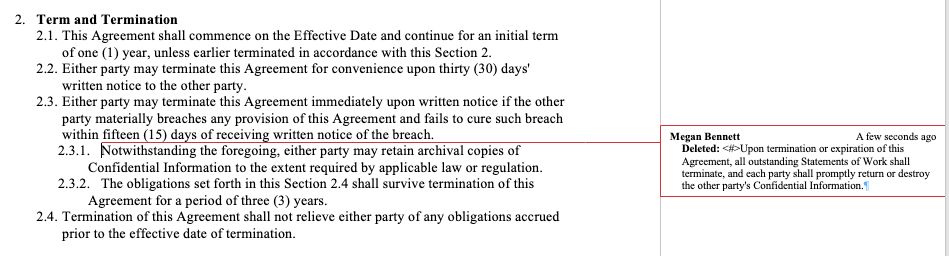
The screenshots above illustrate this: when clause 2.4 was deleted, its subsections shifted up and nested under 2.3 instead of updating to reflect the new structure.
After multiple rounds of negotiation, these inconsistencies compound in ways that are tedious and time-consuming to fix.
Styles overridden by inserted redlines
When opposing counsel inserts a clause, they’re inserting it from their own document environment, with their own style definitions.
That clause may arrive formatted in Normal style rather than your firm’s contract clause style. It may use a heading level that conflicts with your document’s hierarchy. If the inserted content includes a heading, it can silently break the TOC structure by introducing a heading level that sits outside the expected sequence.
The style override is often invisible on the surface as the text looks right on the page. Therefore, the structural damage remains hidden until someone regenerates the TOC or tries to accept all changes and finalize the document.
TOC and cross-references breaking after edits
A Table of Contents in Word reads heading styles and compiles them into a list. However, it doesn’t update itself when those styles are corrupted during tracked edits. If a heading style changes during a tracked edit, the TOC will continue to be wrong until you fix the style and regenerate it.
Cross-references have the same problem. A cross-reference that pointed to Section 4.2 before a round of edits may point to the wrong section after numbering shifts. Section breaks moved during tracked deletions can alter pagination without any visible warning.
These issues tend to surface at exactly the wrong moment, such as when you’re racing against the clock under serious deadline pressure.
Hidden formatting embedded in tracked insertions
Pasted language is a common source of structural contamination during collaborative legal drafting. When a lawyer pastes a clause from a prior matter or a precedent document into a tracked insertion, that clause carries its own list definitions, style assignments, and formatting attributes.
Accepting the change brings all of these external attributes into the document. The inserted text may look identical to the surrounding content, but beneath the surface, it’s running on different structural rules. For example, numbering lists that appeared to survive the insertion may start behaving unpredictably in the next revision round. Cleanup becomes manual, repetitive, and a continued source of frustration.
Track Changes vs. Compare: When to use each in legal workflows
While Track Changes and Compare are both revision tools, they serve different purposes and behave differently inside a legal document. Choosing the wrong one for the situation creates more work, not less.
In this section, we’ll take a look at how (and when) to use Track Changes on Word versus Compare.
When to use Track Changes

Use Word’s Track Changes if you’re doing any of the following:
- Collaborating in real time within a shared draft
- Making targeted clause edits inside a stable template
- Reviewing internal revisions before external circulation
- Iterating controlled updates where the document structure has already been verified
The last bullet is particularly important—Track Changes works best when the underlying document structure is clean and stable before collaboration begins.
When to use Compare

Compare is the safer choice when structural reliability is uncertain. Use it when you’re:
- Receiving a returned ‘clean’ version from opposing counsel
- Verifying differences between two full drafts
- Rebuilding markup after structural edits were made without tracking
- Resetting review history while preserving content differences
- Evaluating whether structural definitions have changed between versions
Compare generates markup from two stable documents, rather than layering edits into a working file. That makes it the safer option when you’re uncertain what opposing counsel changed or how deeply they altered the document.
The key difference is that Track Changes edits a working file, whereas Compare analyzes differences between files. The choice of which one to use during the legal drafting process comes down to the document’s condition and your workflow, rather than personal preference.
Managing redline rounds in legal negotiations
A single round of Track Changes is manageable. However, in legal practice, most documents go through several.
Typically, legal documents move through a series of steps: initial draft, internal redline, opposing counsel markup, counter-revisions, additional negotiation cycles, and final clean copy.
At each stage, insertions, deletions, and moved clauses interact with numbering, styles, and fields beneath the surface. The document may look stable visually while carrying layered revision history that affects hierarchy and cross-references in ways that only surface later.
Structural complexity compounds, accumulating faster than most lawyers expect. A numbering inconsistency introduced in round two and missed before round three will be embedded deeper in the document and harder to isolate.
Producing a clean filing copy from a heavily revised document takes deliberate work: accepting changes in the right order, updating fields, and verifying structure before it goes out. That process takes longer on a document that has been through five rounds of unmanaged revisions than on one that was validated after each round.
Many lawyers understand how to use Track Changes in Word but underestimate how the revision lifecycle affects document structure over time. The answer is to build validation into each round rather than leaving it all for the end.
Mastering MS Word and AI
Learn how to put AI to work on your final review, from finding errors buried in long documents to knowing where your judgment still has to come first.
Watch on demand
Version control during redline negotiations
Redline stability depends on both what happens inside a document, and on how files are managed outside it. Even a structurally sound document becomes difficult to work with when file governance breaks down.
There are a few common version control failures that occur during legal negotiations: working from the wrong draft, making edits in a branch that wasn’t the active version, or losing track of which file represents the current agreed state of the document.
Thankfully, clear file governance isn’t complex. It comes down to a handful of consistent practices:
- Establishing consistent naming conventions across negotiation stages, so that every contributor knows which file is current.
- Maintaining a clean, unmarked master copy separate from active redline versions.
- Avoiding simultaneous edits in separate file branches without a clear process for reconciling them.
- Generating a fresh comparison document when revisions diverge significantly, rather than attempting to manually reconcile two marked-up versions.
- Restarting from a stable template when structural integrity is uncertain, instead of continuing to build on a compromised file.
Getting the structure right inside a document is only half the job. The other half is managing the files themselves. Without that, things get lost, confused, and hard to finalize.
How to accept tracked changes safely in legal documents
Accepting changes is where many formatting failures occur, particularly under deadline pressure.
Clicking “Accept All” feels efficient in the moment. However, it’s also one of the fastest ways to introduce structural errors that might be invisible on the surface but can have a serious impact on your document.
Instead of simply clicking “Accept All,” work through this structured 7-step approach:
- Accept deletions before insertions in numbered clauses: Deletions affect the numbering definitions that insertions build on. Getting the order wrong can produce numbering conflicts that are difficult to diagnose.
- Accept changes section by section rather than using “Accept All”: This gives you the opportunity to verify numbering and styles in each section before moving to the next.
- Confirm that numbering levels remain correct after acceptance: Insert a test clause at each level to confirm that the numbering updates automatically and correctly.
- Update fields after structural edits: Accepting changes that affected headings, numbering, or section breaks means the TOC, cross-references, and page numbers all need to be refreshed.
- Regenerate the TOC or TOA after structural edits: Always regenerate your TOC or TOA. Existing versions reflect the structure at the time it was last updated, which may have been several rounds ago.
- Verify that section breaks remain in the correct location: Accepted deletions near section breaks can shift them without any visible indication.
- Reapply heading styles if they were overridden during revisions: Check heading levels throughout the document before finalizing.
Accepting changes removes visible markup, but the underlying structure still needs to be verified and normalized manually. Final review should confirm hierarchy, references, and pagination before filing or sharing.
Removing hidden markup before filing or sending final documents
Knowing how to get rid of Track Changes in Word is only half the job. A document that looks clean on the surface can still contain tracked changes, comments, and metadata that weren’t intended for circulation. In litigation and transactional work, that’s a significant professional risk.
Thankfully, this is easy to avoid if you follow the right process. Work through these steps before filing or sending a final document:
- Turn off Track Changes and remove all revisions. Turning off Track Changes stops new edits from being recorded, but it doesn’t remove existing markup. Accept or reject all outstanding changes before proceeding.
- Run Document Inspector. This surfaces hidden comments, revision data, personal information, and embedded metadata that may not be visible in the document view.
- For Windows: Go to File > Info > Check for Issues > Inspect Document.
- For Mac: Tools > Protect Document or Tools > Check Accessibility.
- Remove comments and annotations. Check that all comments have been resolved or deleted, including any that may have been hidden by display settings.
- Verify no hidden revisions remain. After running Document Inspector, do a final check by temporarily enabling “Show All Markup” in the Review tab to confirm that no tracked changes are hidden by the current display settings.

- Convert to PDF for filing. Converting to PDF after completing the above steps produces a clean, static version without embedded revision history. Only convert to PDF after you’ve completed the cleanup.
Ensure that the latest copy is completely clean before it leaves your hands. Invisible markup is still markup.
Preventing formatting drift during collaboration
Formatting drift is much easier to prevent than to fix. Apply the following habits consistently and you’ll prevent most formatting drift before it has a chance to accumulate.
Confirm structure before sharing
Before sending a draft for review, take a few minutes to verify the document is structurally sound. For example:
- Check that headings use firm-approved styles rather than direct formatting
- Confirm that multilevel numbering is style-based rather than manually created
- Update the TOC, cross-references, and page numbers
- Remove any direct formatting overrides that accumulated during drafting
Collaborators should receive a structurally stable document. If you share a draft that already has structural problems, these issues will only worsen throughout the review process.
Share from an approved template lineage
Documents that originate from reused prior matters (rather than current firm templates) are common sources of structural drift.
Before sharing a document, confirm that it aligns with the latest approved template. Remove unused styles and legacy formatting, and verify that section breaks and page numbering logic are correct. Starting from a stable template reduces the correction work that will accumulate across a matter.
Standardize review settings across contributors
Following consistent review settings decreases the amount of time and energy spent on normalization after each round.
Agree on consistent author names before collaboration begins. Align on markup display settings so that all contributors are reviewing the same view of the document. Avoid creating new custom styles during tracked review, and limit manual formatting inside tracked insertions.
The more consistent the inputs, the less cleanup is required on the output.
Normalize inserted content before continuing edits
Stabilize pasted or inserted content the moment it enters the document. For example, convert pasted text to destination formatting immediately before applying the correct style level. Confirm that numbering alignment is correct and update fields before starting the next revision round.
Addressing structure at the moment of insertion stops problems from compounding. A formatting issue that takes two minutes to fix when content is first inserted can take twenty minutes to diagnose and repair three rounds later.
However, manual redline management has a ceiling. Eventually, most firms hit it. This is where tools like Clio Draft can help.
Clio Draft enforces document structure at the system level rather than relying on individual habits. This ensures that clause hierarchy and formatting remain consistent regardless of how many people touch the document or how many rounds of revision it goes through.
Note: Track Changes (as well as auto-save) can also break Clio Draft templates. That’s why it’s important to migrate to a solution like Clio Draft completely, so that all documents and styles continue working as intended.
When manual Track Changes stops scaling in law firms
The approaches that we’ve outlined in this guide are very useful for smaller firms working on a handful of documents at any one time. However, as firms grow, the volume of matters increases, more people touch the same documents, and template variations start circulating across the firm.
Cleanup stops becoming an occasional task and is instead a daily reality for legal staff.
Track Changes becomes reactive rather than preventative. Structural repair consistently consumes non-billable time. Consistency depends on individual discipline instead of system control.
Firms at this stage shift towards using structure drafting systems like Clio Draft, which automatically handles clause hierarchy and version control. The goal stops being “use Track Changes better” and becomes “build a document environment where these failures don’t happen in the first place.”
The result? These firms spend less time on structural cleanup and more time on the legal work itself.
Book a demo to learn more about Clio Draft.
Track Changes in legal documents FAQs
Why does numbering change after I accept tracked deletions in a contract?
Multilevel numbering in Word is held together by list definitions linked to paragraph styles. When you delete a numbered clause under Track Changes, that definition persists until the deletion is accepted. However, when it recalculates, it doesn’t always resolve correctly, especially if multiple deletions are accepted at once. Accept deletions one section at a time and verify numbering after each one.
Should I use Compare instead of Track Changes during contract negotiations?
It depends on the document’s condition. Track Changes works well when you’re making controlled edits inside a structurally stable draft. Compare is the safer choice when you’ve received a version back from opposing counsel and aren’t certain what changed, or when structural edits were made without tracking. Compare analyses differences between two stable files rather than layering edits inside one evolving one.
How do I prevent opposing counsel’s edits from changing my document styles?
Send a structurally clean document in the first place. Before circulating, confirm that headings use firm-approved styles, that multilevel numbering is style-based rather than manually created, and that there are no direct formatting overrides. When you receive a marked-up version back, normalize any inserted content immediately. Convert pasted text to destination formatting, reapply the correct style levels, and update fields before the next round begins.
Why does my Table of Contents break after redlined edits?
A TOC is a field that reads heading styles. If a heading style is overridden during a tracked edit, the TOC won’t reflect the correct structure until the style is repaired and the TOC is regenerated. After any rounds of edits that touched headings, regenerate the TOC once changes are accepted and styles are verified.
What is the safest way to produce a clean final version after multiple redline rounds?
Accept changes section by section rather than using Accept All, starting with deletions before insertions in numbered clauses. Then update all fields, regenerate the TOC and TOA, verify cross-references, and confirm section breaks are in the right place. Run Document Inspector to surface hidden comments or metadata, and do a final check with Show All Markup enabled to confirm nothing has been missed.
How do multiple contributors editing in Track Changes affect document integrity?
Each contributor brings their own style definitions and formatting habits into the document. Insertions may use conflicting styles, introduce competing list definitions, or carry formatting from other document environments. Over multiple rounds, this accumulates into structural drift that’s often invisible on the surface. Standardize review settings across contributors, normalize inserted content immediately, and validate structure after each round.
Is it safe to reuse a heavily redlined document for a new matter?
Generally, no. A heavily redlined document carries accumulated structural baggage: residual list definitions, style overrides, and potentially hidden revision history. The safer approach is to restart from a current firm template and transfer only the content you need, normalizing formatting as you go. If reuse is unavoidable, run Document Inspector, accept or reject all outstanding changes, remove unused styles, and validate the structure before treating it as a clean starting point.
When should a law firm move beyond manual redlining in Word?
The threshold is when structural repair shifts from an occasional task to a recurring cost. If your team is regularly spending non-billable time cleaning up numbering, normalizing styles, or chasing formatting errors after negotiation rounds, the manual workflow is no longer scaling effectively. At that point, the question is whether the investment in a structured drafting system is smaller than the ongoing cost of manual cleanup. For firms handling high document volume or complex multi-party negotiations, it usually is.
Mastering MS Word and AI
Learn how to put AI to work on your final review, from finding errors buried in long documents to knowing where your judgment still has to come first.
Watch on demand