

It’s Wednesday afternoon. Co-counsel from another firm has just sent back the latest draft of an appellate brief due Friday, and you open it for a final pass through the argument. A few pages in, you see it: “Error! Reference source not found,” in red, in the body of the brief. You keep scrolling and find seven more, scattered across 40 pages, each one where an exhibit should be named.
How did this happen?
Co-counsel added two exhibits at the front of the set and renumbered everything behind them. The inline references in your argument still point to the old bookmarks, but nobody refreshed the fields before sending the draft back, which means the brief is still showing the old exhibit numbers.
The fix is simple once you know it. The harder part is creating cross-references that survive several rounds of edits from multiple contributors.
So let’s dive into how to cross-reference exhibits in Word. We’ll cover how cross-references work in legal Word documents, how to set them up so they hold across revisions, how to update all cross-references in Word when a document changes, and how to fix them when they break.
Fixing one broken cross-reference is simple. Keeping references intact as co-counsel redlines the document is the hard part. Explore how Clio for Word reads your live document and surfaces the structural risks a redline round leaves behind.
Why cross-references break in long legal documents
Most cross-reference failures trace back to one of four causes:
- Nobody refreshed the fields after editing: This is the most common cause (and the most avoidable). A cross-reference doesn’t update on its own when its source changes. It keeps showing the old value until someone tells Word to recalculate, which is how a brief goes to the printer with last week’s exhibit numbers still in it.
- The bookmark or heading was deleted during revision: This is the cause behind the error message itself. The reference points at something that no longer exists, so Word has nothing to display and shows “Error! Reference source not found” instead.
- Pasted content overwrote a field: Text pasted from another document arrives with its own field codes, which can collide with the references already in yours. Nothing visible changes, so the break goes unnoticed until much later.
- Tracked changes shifted the field: Accepting or rejecting tracked changes around a reference can move or alter the field region in ways you would not predict, leaving the reference pointing at the wrong place.
All four causes come down to the same thing: a cross-reference is a field, not text. When you type “See Exhibit C” yourself, those words just sit there. When you insert a cross-reference instead, Word stores an instruction (point at this bookmark and show its label), and displays the result. Page numbers, tables of contents, and tables of authorities all work the same way.
The catch is that the instruction only runs when you tell it to. Change the thing it’s pointing at, and the display stays frozen on the old answer until you refresh.
That’s why documents with broken cross-references usually have other problems, too. If you haven’t refreshed your fields, your table of contents will also display the wrong page numbers. Your table of authorities may also be missing a citation.
This is the same problem appearing in different ways, and it gets worse the longer the document is.
Imagine you’re producing a 40-page motion with 20 inline cross-references, edited over three rounds, and you need to check every one of them before it goes out. Manually poring over each cross-reference is time-consuming and dull. Still, it’s necessary if you want to keep the judge from stumbling across an “Error! Reference source not found” message in your document.
This is just one piece of the puzzle. Explore the Master Microsoft Word for legal drafting hub for all our Word resources for legal professionals.
How to create cross-references that hold up across revisions
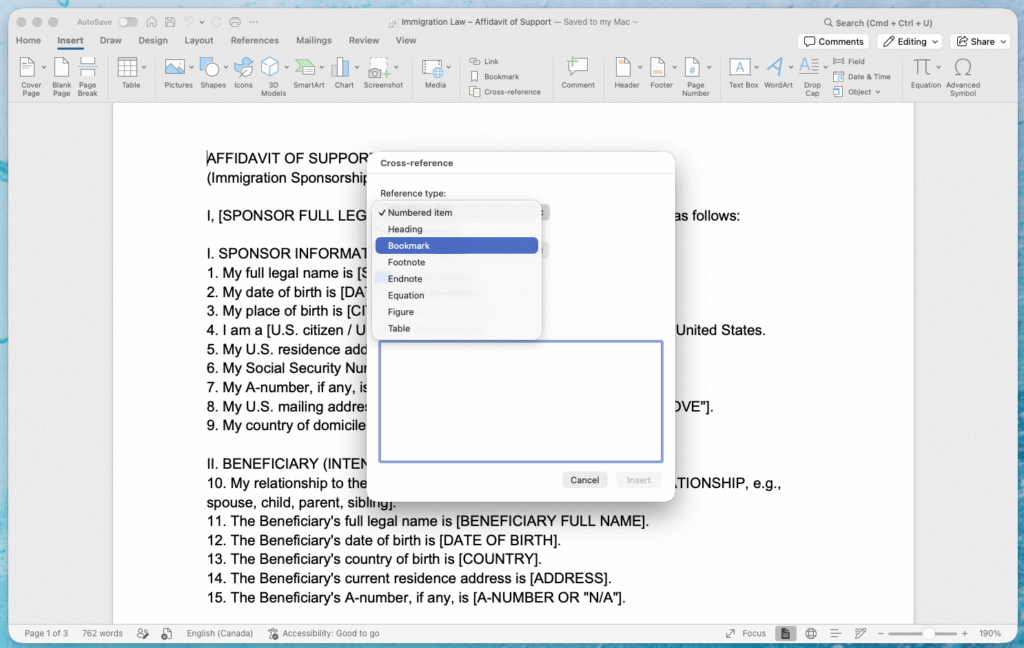
Creating cross-references is easy: Insert > Cross-reference. (In Word for Windows, you’ll find it under the References tab, or also under Insert > Cross-reference.) A dialog opens. This is where you make every choice that decides whether your references survive the next round of edits, so it’s worth knowing what each option does before you start inserting.
The first choice is the Reference type dropdown, which asks what kind of thing you’re pointing at. You’ll see eight options: Numbered item, Heading, Bookmark, Footnote, Endnote, Equation, Figure, and Table.
In practice, four of them do most of the work in legal drafting. Bookmark is what you’ll use for exhibits, and Heading covers argument sections. Numbered item handles anything that draws its number from Word’s automatic numbering, which is most often contract clauses in a multilevel list. Although in a fully styled document with outline-numbered headings, it can reach much more than that. Footnote is for pointing one footnote at another.
The second choice is the “Insert reference to” dropdown, which asks what you want the reference to say. Pick Heading as your type and you can display the heading text, the page number, the heading number, or just “above” or “below.” The same source can show up in your text three different ways. Your Section II.A heading can appear as “Section II.A,” as “page 14,” or as “the argument above,” depending on what the sentence around it needs.
Leave “Insert as hyperlink” checked. It’s on by default, and it makes every reference clickable. So when a partner reviewing your brief hits a citation to Exhibit F, they can jump straight to it instead of scrolling through the appendix.
Then comes the choice that matters most for stability: what you point your references at. Point them at bookmarks. A bookmark survives heading edits, renumbering, and pasted content. As long as the bookmarked text itself stays in the document, every reference to it keeps working. For exhibits, that means bookmarking each label with a name you’ll recognize when you see it in a list six weeks from now: ex_A for Exhibit A, ex_B for Exhibit B.
Here’s the setup with the dialog open in front of you:
- Select the exhibit label where the exhibit first appears, the words “Exhibit A” themselves. Go to Insert > Bookmark, name it ex_A, and click Add.
- Repeat for every exhibit: ex_B, ex_C, and so on.
- Put your cursor where the in-text reference belongs, for example “See ___ at p. 6.”
- Go to Insert > Cross-reference and set Reference type to Bookmark.
- Pick ex_A from the list.
- Under “Insert reference to,” choose Bookmark text, and check that “Insert as hyperlink” is on.
- Click Insert, then repeat for every citation in the document, each one pointed at its own bookmark.
Cross-reference types for legal use cases
The workflow you just set up for exhibits handles most references in a legal document. All you have to do is select a different reference type depending on what you’re pointing at, and everything else works the same way.
Exhibits in litigation briefs and motions
Bookmark each exhibit label, then point every inline citation at the bookmark. When co-counsel adds two exhibits at the front and Exhibit A becomes Exhibit C, update the bookmarked labels, refresh the fields, and every reference in the argument follows. The renumbering scenario that broke the brief in this article’s introduction becomes a 30-second fix. The same method works for any object you reference elsewhere, from tables to figures, to schedules. So if a label was typed by hand rather than inserted as a Word caption, bookmarking it is the way to make it hold.
Defined term references in contracts
Bookmark each definition, def_Affiliate, def_Confidential_Information, and cross-reference it from every clause that uses the term. If a reviewer clicks the term, they land on its definition. And if the definitions section is reorganized during negotiation, nothing breaks.
Clause references in contracts and agreements
Use the Numbered item type when your clauses are auto-numbered through a multilevel list. For example, “See Section 3.2(b)” becomes a field that updates itself when Section 3.2 moves or renumbers. In a credit agreement or an asset purchase agreement, where you might renumber during every round of revisions, this is the difference between a clean draft and a redline full of stale section numbers.
Section references in briefs
When you’re pointing at your own argument, use the Heading type and reference the section by its text or its number. Instead of typing “Section II.A” by hand, insert a reference linked to the heading itself.
If the section is renumbered to II.B, a refresh fixes your sentence automatically. Above/below inserts the word “above” or “below” and flips it if the section ends up on the other side of your sentence.
Figure and table references
With figures and tables, which are common in expert reports, statements of fact, and disclosure schedules, use the Figure or Table type against captioned items. For example, “See Figure 3” links to the caption, so if figures are added or reordered and the numbers shift, a refresh keeps it pointing at the right one. This only works if the captions were inserted through Word, not typed by hand.
Footnote references
A footnote can point at another footnote. Use the Footnote type for a reference like “see note 17, supra,” and the number tracks when notes are added or deleted above it. Read our dedicated hub article to learn more about legal footnotes in Word.
This section covers the Word mechanic for pointing at an exhibit. How to format the exhibit citation itself, under the Bluebook, is a separate question that we cover in this article.
How to update cross-references in Word when legal documents change
A cross-reference shows you the last value it calculated, not the current state of the document. You can delete a section, renumber every exhibit, and move the entire argument around, and each reference will sit there displaying the same thing as before you started.
Word doesn’t recalculate on its own. Until you tell it to, the brief on your screen and the brief the fields describe are two different documents. You have to refresh the fields yourself.
Word gives you two ways to do this:
- Refresh a single reference: Click inside it and press F9 (the same key on Mac and Windows) or right-click and then “Update field.” This is useful when you’ve just amended a single bookmark and want to confirm it’s fixed.
- Update multiple references: After a large round of edits, you have no idea which references have gone stale, so checking them one at a time isn’t realistic. In this case, select the whole document (Cmd + A on Mac, Ctrl + A on Windows) and press F9, and every field will update at once. Because this is such a quick and easy process, it’s worth doing every time the document is about to leave your hands: before you file, before you export to PDF, before you send a draft to co-counsel, and so on.
Word can also do some of this for you. A setting refreshes fields automatically whenever you print or export. On Mac, go to Word > Settings > Print, and turn on “Update fields.” On Windows, go to File > Options > Display > Printing options > Update fields before printing. Turn this on for every legal document you produce just as an additional safeguard.
But this only works when you print or export, so it won’t update fields automatically when you email a draft to co-counsel. That’s why it’s important to develop the habit of running Cmd + A then F9 yourself before anything goes out.
Whose job should it be?
The natural owner is whoever closes out the drafting cycle. You might ask a paralegal to run the refresh and scan the document for error messages before it goes out.
No matter who does it, put it on the matter’s filing checklist so it happens on every filing.
When cross-references still break: Common scenarios and fixes
Your bookmarks are in place and you make a habit of refreshing cross-references before sending any legal documents. Yet your references are still breaking.
Don’t worry, there’s usually a simple fix, and the symptom usually points back to the cause. Find the one that matches what you’re seeing and take the steps below.
- “Error! Reference source not found” in the body of the document: The reference is pointing at a bookmark or heading that no longer exists, probably because it was deleted during revision. Open Insert > Bookmark to see which bookmarks the document still has. If the source survived under a different name, repoint the reference to it and refresh. If it’s gone, delete the broken reference and recreate it against a new source.
- An exhibit reference shows the wrong letter after renumbering: The bookmark still exists, but the exhibits have been reordered, so your text still says “Exhibit A” when the exhibit it points to is now Exhibit C. Edit the bookmarked label text to match the new order, or if the exhibits were physically rearranged, delete the old bookmarks and recreate them around the new labels. Either way, refreshing the fields is the last step.
- A section reference breaks after you paste in content: Text pasted from another document carries its own field codes, which can collide with the bookmarks and headings already in yours. Paste and match formatting to strip the incoming codes (Cmd + Shift + V on Mac, Ctrl + Shift + V on Windows), or paste as usual and run Cmd + A then F9 to surface anything broken so you can fix it on the spot.
- References look fine in Word but break in the PDF: What you see on screen can be a cached value the field calculated earlier. Printing and PDF export force Word to evaluate the field for real, which is when a hidden problem appears. Turn on “Update fields before printing,” refresh everything manually before you export, and read through the exported PDF for stray error messages before the document leaves your hands.
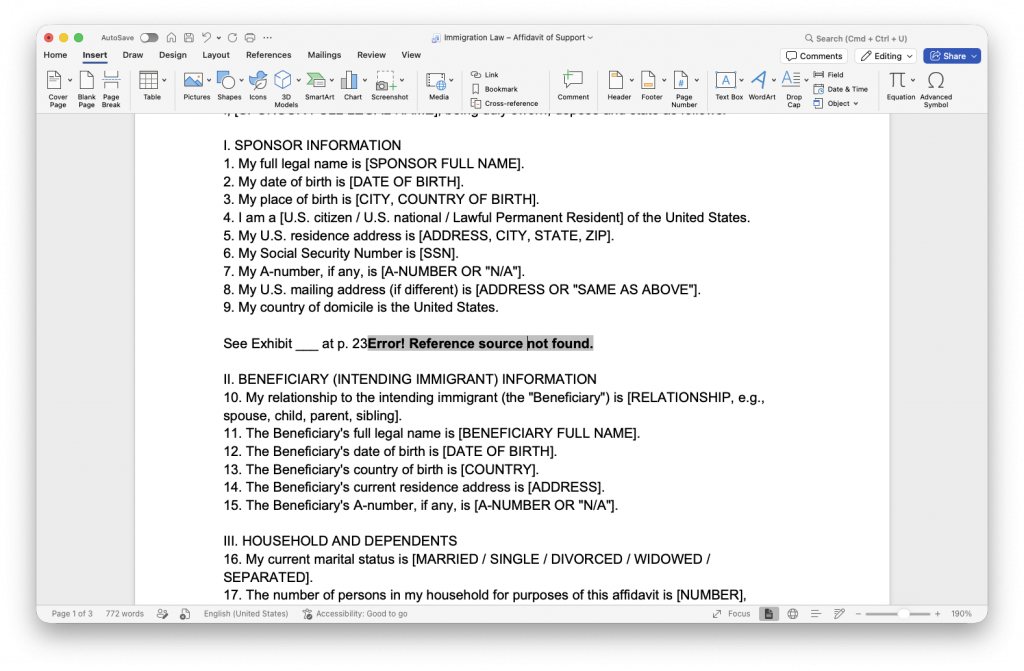
When a reference shows the wrong output and you can’t tell why, look at the code behind it. Show Field Codes (Option + F9 on Mac, Alt + F9 on Windows) toggles between the value a field displays and the instruction underneath, so you can see exactly what source it’s trying to reach.
Cross-referenced templates at firm scale with Clio Draft
Everything in this article relies on individual discipline. You bookmark the labels, point references at the bookmarks, and refresh before export. That works fine when one person controls the document, but it breaks down when the firm’s motion template passes through five drafters, each of whom builds references their own way.
One uses bookmarks, another points at headings, and a third types the labels by hand. Each saves their own version. Before long, the firm has five templates instead of one. Each handles references differently, with documents built from whichever copy the drafter happened to use.
With Clio Draft, you no longer have to rely on individual discipline. Firms set their cross-reference conventions once, when building the template, and every subsequent document automatically follows them. This means that exhibit numbering, clause references, and defined terms will be set up the same way every time.
However, while templates ensure documents are set up correctly, they don’t do anything to prevent broken references during the revision process. That’s where Clio for Word comes in.
Its assistant, Vincent, reads the live document, including its field codes, tracked changes, and comments, and proposes corrections as native Word tracked changes for the attorney to accept or reject one at a time. As a result, styles and field codes stay intact through multiple rounds of revisions.
Master Microsoft Word for Legal Drafting
This is just one piece of the puzzle. Explore the Master Microsoft Word for legal drafting hub for all our Word resources for legal professionals.
MS Word Hub
Building cross-references that survive a long brief
Cross-references are the connective tissue that holds a long legal document together. The feature itself is relatively easy to use, but there’s more to cross-references than simply using the feature.
You need to be disciplined to ensure your cross-references don’t break. Point your references at bookmarks, which survive revision when hard-typed labels don’t, and refresh the fields before anything leaves your hands.
The setup side of that discipline can be built in once. Clio Draft bakes the firm’s conventions into the template, so every document it generates starts with its references built correctly. However, documents still change throughout the drafting and revision process, so you need to remember to run Cmd + A then F9 before every export.
It only takes a few seconds, but it can save you from “Error! Reference source not found” messages ending up in filed briefs.
What is the difference between a bookmark and a cross-reference in Word?
A bookmark marks a location or piece of text so Word can find it again. A cross-reference is a field that points at a marked location and displays something about it, like its number, page, or text. The bookmark is the target, and the cross-reference is the pointer that updates when you refresh it.
How do I cross-reference an exhibit so it updates if the exhibits renumber?
Bookmark the exhibit label where the exhibit is introduced, then insert a cross-reference to that bookmark wherever you cite the exhibit in your argument. When the exhibits are numbered, update the bookmarked label and refresh all fields with Cmd + A then F9, and every citation in the brief follows. What makes this work is pointing each citation at the bookmark, so the label is never typed by hand.
Why does Word show “Error! Reference source not found” in my brief?
The cross-reference is pointing at a bookmark or heading that no longer exists, usually deleted somewhere in a round of edits. Word has nothing to display, so it prints the error in place of the reference. Open Insert > Bookmark to check what still exists, then repoint the reference to the right source or recreate it and refresh.
Can I cross-reference text inside a footnote?
Yes. Use the Footnote reference type in the cross-reference dialog to point one footnote at another, which is how you produce a reference like “see note 17, supra” that updates if the notes renumber. The footnote you point at has to already exist in the document before you can reference it.
Why do my cross-references look fine in Word but break in the PDF version?
Word can display a cached value the field calculated earlier, while export forces it to recalculate, which is when a broken reference surfaces. Turn on “Update fields before printing” in your settings, and run a manual Cmd + A then F9 before every export. Then read through the PDF itself for stray error messages, since the on-screen view won’t always show them.
Master Microsoft Word for Legal Drafting
This is just one piece of the puzzle. Explore the Master Microsoft Word for legal drafting hub for all our Word resources for legal professionals.
MS Word Hub