



Legal footnotes in Word are easy to insert and easy to get wrong. Inserting a footnote is a two-keystroke operation. Keeping the rest of the document accurate after that insertion, especially when supra and infra cross-references point to numbered notes that have now shifted, is where legal drafting in Word can become difficult. You can update those references by hand, or you can use Word’s Cross-Reference feature so the numbers update themselves.
The difficulty isn’t familiarity with Word. It’s that the right tools for legal footnote work aren’t obvious. Practitioner briefs and law review articles use footnotes differently, with different formatting rules, different numbering expectations, and different points of failure. Word’s default footnote behavior doesn’t account for any of it, and the Cross-Reference feature that solves the supra/infra problem sits well outside the normal drafting workflow.
In this article, we’ll cover how to set up, format, and fix legal footnotes in Word, how to handle supra and infra cross-references so they never need manual updates, and how to make that consistency scale.
Word can keep footnotes accurate in a single brief. Holding that consistency across every document your firm produces is where it strains. Explore how Clio Draft helps.
Two types of legal footnotes
Not all legal footnotes serve the same purpose, and the way you configure them in Word depends on the type of document you’re drafting.
Practitioner documents: Briefs, memos, motions, pleadings
Footnotes in litigation and transactional practice appear sparingly. A procedural history footnote, a string citation, a clarifying note that would interrupt the argument if placed in the body. Court rules typically specify font size (10 pt or 12 pt depending on jurisdiction), and in some courts footnote text counts toward page limits. Numbering runs continuously through the document. Formatting typically mirrors the body text.
Law review and journal articles
In academic documents, footnotes often exceed the body text on a given page. They carry full citations, commentary, and, critically, supra and infra references that point backward and forward to other notes. A law review article with 300 footnotes can generate dozens of cross-references. Managing those numbers manually across multiple revision rounds is where errors appear in published scholarship.
The supra/infra problem surfaces in both contexts, but it’s most acute in law review work. The formatting and numbering guidance in this article applies to both document types, and the cross-reference section is worth reading regardless of which one you’re working in.
How to add legal footnotes correctly in Word
Every legal professional who works with Word knows footnotes live on the References tab. What’s worth covering here is the set of habits that produce clean, consistent footnotes in legal documents, not just how to insert one.
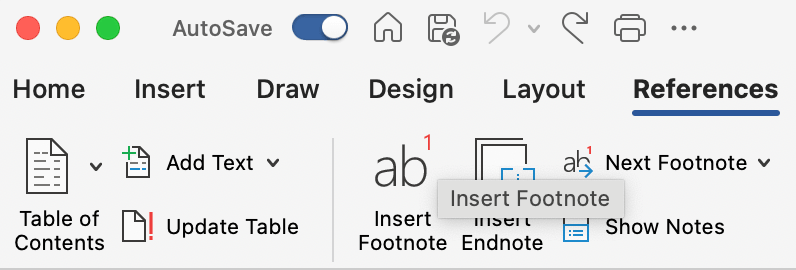
Use the keyboard shortcut. Alt + Ctrl + F on Windows inserts a footnote without leaving the keyboard. On Mac, the default shortcut is Cmd + Option + F. For attorneys and paralegals inserting footnotes throughout a drafting session, this is the faster workflow. Navigating to the References tab each time adds friction and interrupts drafting. Make the keyboard shortcut the default habit.
Place reference marks after punctuation. Bluebook convention puts footnote reference numbers after periods and commas, not before. This is a common source of inconsistency in documents drafted by multiple contributors. Establish it as a firm standard rather than leaving it to individual preference.
Convert endnotes to footnotes when needed. Footnotes are standard in both practitioner and law review legal writing. If you receive a document that uses endnotes (from co-counsel, a client, or a prior version), you can convert them in one step: References tab > Footnotes dialog launcher (the small arrow at the bottom right of the Footnotes group) > Convert > Convert all endnotes to footnotes.
Watch for protected templates. If your firm’s template has editing restrictions applied, footnote insertion behavior can vary depending on whether the footnote area falls within a protected region. See our guide on protecting Word document formatting for how formatting restrictions interact with footnote areas.
Formatting legal footnotes to meet court and style requirements
The most common footnote formatting mistake in legal documents is applying formatting manually: resizing a footnote’s font here, adjusting spacing there. The problem is that manual formatting doesn’t scale. Add 10 more footnotes to the brief, paste a section from another document, and the inconsistency compounds fast.
The correct approach is to modify the Footnote Text style once, globally. Every footnote in a Word document inherits its formatting from this style. Change the style, and every existing and future footnote updates automatically.
How to modify the Footnote Text style
- Open the Styles pane: Home tab > Styles panel launcher (the small arrow at the bottom right of the Styles group).
- In the Styles pane dropdown, change the list from “Recommended” to “All Styles.”

- Find Footnote Text in the list.
- Right-click Footnote Text > Modify.

- Set the font to match the document’s body font, typically Times New Roman for federal court filings, or whatever the applicable local rules specify.
- Set font size: 10 pt is standard for many federal court briefs. Confirm against your jurisdiction’s local rules or standing orders before filing.

- Set line spacing to Single. Set spacing after to 3–6 pt, enough to create visual separation between footnotes without double-spacing.
- Click OK.
All existing footnotes in the document update immediately. Any footnote added afterward inherits these settings automatically.
Two other formatting elements are worth knowing about, depending on your document type.
The footnote separator line. Word places a short horizontal line above the footnote area on each page. Most practitioners leave it as-is, but some courts and style guides have specific requirements. The separator is only editable in Draft view, which is not widely documented. To access it, go to View > Draft. A dropdown in the footnotes pane at the bottom of the screen lets you select the Footnote Separator, Footnote Continuation Separator (the line that appears when a footnote runs to the next page), and Footnote Continuation Notice. Edit or delete as needed.
Practitioner briefs versus law review articles. Federal court briefs typically use 10 pt footnotes. Law review and journal style sheets vary; check the journal’s author guidelines before modifying the style. Local rules and style sheets are the authoritative source, not Word’s defaults.
Supra and infra cross-references: How to stop updating them by hand
This is where most of the footnote-related rework in legal drafting originates.
You type “See Smith v. Jones, supra note 14.” Three weeks later, during the second revision round, a footnote is inserted on page 2. Note 14 is now note 15. If the document has 40 supra references, you now have 40 potential errors. In a law review article with 300 footnotes, this problem doesn’t just slow you down. It creates the kind of citation errors that appear in published work.
The fix is Word’s Cross-Reference field. Instead of typing the footnote number, you insert a live field that reads the note number from the document and updates automatically when the numbering changes.
How to insert a supra or infra cross-reference
- Place your cursor in the footnote text where the note number should appear, after “supra note” or “infra note,” for example.
- Go to References tab > Cross-reference.
- In the Reference type dropdown, select Footnote.
- In the Insert reference to dropdown, select Footnote number.
- Leave the “Insert as hyperlink” box checked.
- In the list at the bottom of the dialog, select the footnote you’re referencing.
- Click Insert, then Close.
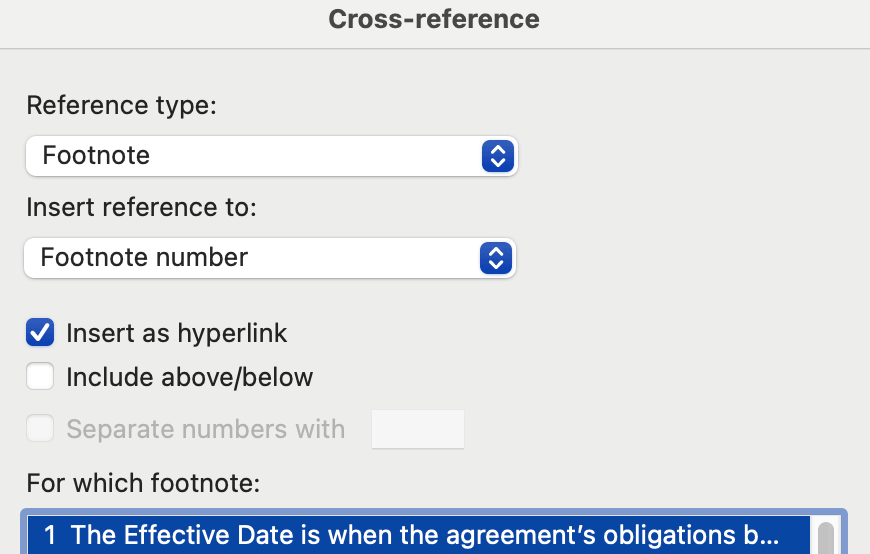
The note number now appears as a field, not typed text. It looks identical on the page, but it updates automatically when the document’s footnote numbering changes.
How to update all cross-references at once
After any editing session that adds, removes, or reorders footnotes:
- Click anywhere in the footnote area (below the separator line).
- Press Ctrl+A to select all footnote text. On Mac, press Cmd+A.
- Press F9 to update all fields.
Any cross-reference pointing to a footnote that no longer exists will display “Error! Bookmark Not Defined.” This is how you identify broken references. A collaborator deleted a footnote, or a section was cut. Find the error, update the reference, and run F9 again. Note that conditional logic can also remove a footnote. If the reference sits in a passage controlled by a condition that excludes it, the footnote disappears with the passage and any cross-reference pointing to it breaks. The fix is structural: wrap the cross-reference in the same conditional logic as the text it points to. This avoids the break.
After receiving an edited document
Fields don’t always update automatically when a document is opened. After receiving a revised document from a collaborator, run the Ctrl + A > F9 sequence in the footnote area before reviewing cross-references. What looked correct when the document was sent may have shifted based on edits made after the fields were last updated.
The infra case
The same technique works for infra references, footnotes that point to notes appearing later in the document. One limitation: the target footnote must exist before you can insert the cross-reference field. Create the target footnote first, then go back and insert the cross-reference.
Fixing footnote numbering when it breaks or restarts unexpectedly
Footnote numbering that resets to 1 mid-document, or that produces gaps in the sequence, almost always traces back to one of three causes.
Section breaks with restart settings
Word can be configured to restart footnote numbering at each section break. In legal documents that use section breaks for page numbering (a brief with Roman numeral prefatory pages, for example), this setting can trigger an unintended restart at every section boundary.
To check and fix:
- References tab > Footnotes dialog launcher (the small arrow at the bottom right of the Footnotes group).
- In the Footnote and Endnote dialog, find the Numbering dropdown.
- If it reads “Restart each section,” change it to “Continuous.”
- Click Apply.
Settings inherited from a received document
A document received from another firm or co-counsel may have its footnote numbering set to restart per section. That setting travels with the file. If numbering behaves unexpectedly in a document you didn’t build from scratch, the Footnotes dialog is the first place to check.
Custom footnote markers
If any footnote was inserted using a custom mark (a symbol or letter rather than an automatic number), it falls outside the automatic numbering sequence. This can create apparent gaps or inconsistencies. To locate custom markers: References > Show Notes. Scan the footnote pane for any marker that isn’t a number. Delete and re-insert as an automatic footnote if continuity is needed.
Continuation separators. When a long footnote runs to the next page, Word inserts a Footnote Continuation Separator, a longer horizontal line than the standard footnote separator. If this is missing or malformatted, it’s only editable in Draft view, using the same dropdown described in the formatting section above.
Master Microsoft Word for Legal Drafting
This is just one piece of the puzzle. Explore the Master Microsoft Word for legal drafting hub for all our Word resources for legal professionals.
MS Word Hub
Building footnote formatting into legal document templates
Configuring footnotes correctly in one document is useful. Building that configuration into a template means every attorney at the firm starts from the same baseline, without having to remember the steps each time.
A well-built legal document template should include:
- Footnote Text style modified to the correct font, size, and spacing for the document type and jurisdiction.
- Footnote numbering set to Continuous in the Footnotes dialog, not restart per section, unless the specific document type requires otherwise.
- Footnote separator confirmed in Draft view before the template is distributed.
- A model cross-reference footnote. Some firms include a hidden instructional footnote in their templates that demonstrates the supra cross-reference technique for attorneys who haven’t used it before.
One thing the template can’t control is how content arrives from outside it. When footnote content is pasted from another document, it often carries the source document’s Footnote Text formatting. The pasted footnotes may look different from the surrounding ones even after the surrounding ones are correctly styled. Use Paste Special > Keep Text Only when pasting footnote content from external sources, then allow the template’s Footnote Text style to apply.
When footnote management in Word stops scaling
For a single attorney drafting a brief with 20 footnotes, the techniques in this article are manageable. The keyboard shortcut, the Footnote Text style, the cross-reference fields: these are learnable habits that hold up in a controlled drafting environment.
The calculus changes at scale. A law journal editor managing a note with 300 footnotes across four revision rounds is working with a volume of cross-references that manual management can’t reliably handle. A firm maintaining consistent footnote formatting across dozens of templates and multiple practice groups faces a different version of the same problem: the gap between how the template was configured and how the documents are actually produced.
The signals that footnote management has become a workflow liability rather than a drafting tool are: attorneys manually renumbering supra references after every revision cycle; footnote formatting drifting across documents because the Footnote Text style isn’t locked into firm templates; associates and paralegals spending time on footnote cleanup that should be going toward substantive work.
These are workflow problems, solved at the template and automation level.
How Clio Draft removes footnote formatting from the equation
Getting footnotes right in Word is a learned skill. Consistency across every document and every attorney in the firm is a template problem. Clio Draft addresses that.
Clio Draft automates document generation from centrally controlled templates. Footnote style, numbering behavior, and separator settings are built into the template from the start, not reconfigured each time a new document is opened. Attorneys work with the substance of their citations rather than the mechanics of how footnotes are set up.
For firms dealing with high footnote volume like litigation departments, appellate practices, and law journal editorial teams, this removes the most persistent source of footnote inconsistency, which is the gap between how the template was set up and how documents are actually produced.
Get your footnotes right, every draft
Legal footnotes carry the citations your document depends on. When the Footnote Text style isn’t configured correctly in the template, every document built from it carries the same formatting problem, and fixing it requires manual intervention every time.
The supra/infra cross-reference technique in this article eliminates the most time-consuming footnote task in legal drafting. Insert the reference as a live field, update with F9, and the numbers stay accurate regardless of how many footnotes are added or removed between drafts.
For firms that want that reliability built into the drafting environment rather than managed document by document, Clio Draft is where to start.
How do I add footnotes in Word for a legal brief?
Use Alt + Ctrl + F on Windows to insert a footnote without leaving the keyboard. This is the most efficient method for attorneys inserting footnotes throughout a drafting session. Place the reference mark after punctuation, per Bluebook convention. Set footnote formatting through the Footnote Text style rather than applying it manually to individual footnotes. This ensures every footnote in the document stays consistent as the brief evolves.
How do I stop having to manually update supra and infra footnote numbers in Word?
Instead of typing the note number, insert it as a live field using References > Cross-reference > Footnote > Footnote number. Select the target footnote from the list and click Insert. To update all cross-references at once after any editing, click in the footnote area, press Ctrl + A, then press F9. Broken cross-references will display “Error! Bookmark Not Defined,” which identifies any reference pointing to a footnote that no longer exists.
Why is my footnote numbering restarting in the middle of my document?
The most common cause is a section break with footnote numbering configured to restart at each section. Fix it via the References tab > Footnotes dialog launcher > change the Numbering setting from “Restart each section” to “Continuous.” If the document came from another firm, the restart setting may have traveled with the file; check the Footnotes dialog regardless of whether you built the document from scratch.
What font size should footnotes be in a legal brief?
There is no universal rule. Many federal courts permit or require 10 pt footnotes, but local rules and standing orders vary. Always confirm against the applicable rules before filing. Set the font size by modifying the Footnote Text style, not by manually resizing individual footnotes, so the setting applies consistently across every footnote in the document.
How do I edit the footnote separator line in Word?
The footnote separator line is only editable in Draft view. Go to View > Draft. A dropdown in the footnote pane at the bottom of the screen lets you select the Footnote Separator, Footnote Continuation Separator, and Footnote Continuation Notice. Edit or delete the selected element as needed. The separator is not accessible for editing in the Print Layout view.
How do I format footnotes in Word to match my law firm’s template?
Modify the Footnote Text style: Home tab > Styles pane launcher > change the list to “All Styles” > find Footnote Text > right-click > Modify. Set the font, size, and spacing to match your firm’s requirements. Build this configuration into the template before distributing it so every document generated from the template inherits the correct settings automatically. When pasting footnote content from external documents, use Paste Special > Keep Text Only to avoid importing the source document’s Footnote Text formatting.
Master Microsoft Word for Legal Drafting
This is just one piece of the puzzle. Explore the Master Microsoft Word for legal drafting hub for all our Word resources for legal professionals.
MS Word Hub