
If you draft legal documents in Microsoft Word, you’ve probably saved a few AutoText entries: indemnification clauses, confidentiality provisions, or a set of recitals you use in every agreement. Instead of typing them out each time, you can drop them into your draft in a few clicks.
But it’s not always simple.
AutoText can create problems that take longer to fix than the time you plan to get back. For example, the clause you saved three months ago was formatted for a different template. When you insert it into today’s contract, the font, spacing, and paragraph styles don’t match. Perhaps it no longer even reflects your firm’s updated language.
These issues are manageable when one person drafts a handful of documents. However, they become a real source of inconsistency when a team relies on AutoText across dozens of matters.
In this guide, we explain how lawyers use AutoText in practice, where it breaks down, and when it stops being enough for scaling law firms.
Need a template you can use right now? Get our free MS Word legal templates, ready to download and customize.
What AutoText does in Microsoft Word (and what it doesn’t)
AutoText is part of Word’s Quick Parts feature. It lets you save a block of text, formatting included, and insert it into any document. On Windows, all you have to do is type the first few characters of the entry name (or press F3 to select it from the gallery), and the saved content appears at your cursor. On Mac, there’s no default shortcut (you can assign one through Tools > Customize Keyboard…), so use Insert > AutoText from the top menu.
That’s why it’s so appealing for busy legal professionals. Instead of drafting the same force majeure clause in every commercial contract, you can save it once and insert it wherever you need it. It’s a genuine time-saver for static, self-contained blocks of text that don’t change between documents.

Unfortunately, AutoText has certain limitations.
It stores static content, which means there’s no way to include variables, conditional logic, or fields that adapt to the document you’re inserting into. If your indemnification clause needs to reference a different party name in each agreement, AutoText will insert the same party name every time. You then have to manually edit it after insertion, which is exactly the kind of repetitive and error-prone task it was supposed to eliminate.
AutoText Microsoft Word also has no awareness of the document it’s modifying. It stores the formatting from the source document, but it doesn’t check whether that formatting matches the destination.
If you’ve saved a clause from a template that uses 0.5-inch paragraph indents and 10-point body text, and insert it into a document formatted with no indents and 12-point body text, AutoText delivers it exactly as saved. It’s your responsibility to fix this mismatch.
AutoText is a useful tool for inserting short, standardized text that rarely changes and doesn’t depend on the surrounding document. But if you need it for anything other than this, you’ll quickly run into issues.
How lawyers use AutoText in real drafting workflows
Legal drafting is inherently repetitive. Think about it: How many phrases do you repeatedly type, whether throughout one document or across several?
AutoText offers a straightforward way to cut that repetition. Here’s where it comes in handy across practice areas.
Litigation
In litigation, the reuse tends to center on procedural language and standard argument structures, including:
- Preliminary statements that frame the case
- Standard of review sections for summary judgment motions
- Sets of procedural history paragraphs that appear in every brief with minor variations
These blocks are often long enough to make retyping inefficient and stable enough that the core language rarely changes between matters.
Contract drafting
In contract drafting, Microsoft Word AutoText is useful for language you reuse selectively rather than always, such as:
- Alternative governing law clauses for different jurisdictions
- Optional indemnification carve-outs
- Industry-specific confidentiality provisions
- Pre-approved fallback positions on limitation of liability
The staple boilerplate that appears in every agreement usually lives in the template itself. AutoText handles the next tier: language that’s already been drafted and approved, but only gets inserted when the deal calls for it.
Real estate
In real estate, AutoText is useful for provisions that come up often but only in certain deals. For example:
- Environmental compliance representations for commercial or industrial properties
- Easement language for transactions involving shared access or utilities
- Lender-required provisions for financed deals
- Title exception carve-outs for unusual encumbrances
Standard covenants and closing conditions that appear in every transaction belong in the template. AutoText handles the deal-specific language practitioners insert when the situation calls for it.
Trust and estates
In estates work, standard phrasing tends to follow predictable patterns. This includes things like:
- Testamentary clauses
- Fiduciary appointment language
- Distribution provisions
The underlying legal requirements don’t change frequently, which makes this kind of language well suited to reuse.
The appeal across all of these contexts is the same. The language exists, and it’s already been reviewed and approved. There’s no point in repeatedly retyping it, especially if a better alternative (like using AutoText) exists.
Where AutoText breaks: Formatting, structure, and inconsistency

It’s easy to insert saved text. Where things get more complicated is what happens to AutoText language after it’s inserted.
AutoText stores content exactly as it was saved, which can present issues if the destination document doesn’t match the source.
Formatting conflicts
When you insert an AutoText Microsoft Word entry into a document that uses different formatting, the inserted text arrives exactly as it was saved. A clause saved in one template and inserted into another can look visibly out of place, whether that’s due to a font size mismatch, different line spacing, or unexpected indentation.
In a contract or brief going to a client or a court, that inconsistency is immediately noticeable.
Style mismatches
AutoText entries carry their own style definitions. If you save a clause that uses a “Body Text” style with specific formatting properties, and the destination document has its own version of “Body Text” with different properties, Word has to resolve the conflict.
Sometimes the inserted text adopts the destination style, but sometimes it doesn’t.
Numbering issues
AutoText entries containing numbered paragraphs or multilevel list formatting create risk. A saved entry may carry a list definition that conflicts with the destination document’s list hierarchy. Numbering might restart unexpectedly, or you may find that paragraphs now appear at the wrong outline level. Maybe the table of contents no longer reflects the actual document structure. In a contract with nested clause numbering, a single misaligned AutoText insertion can disrupt the numbering for every section that follows.
Style and formatting contamination
Microsoft Word AutoText insertions behave similarly to pasted text. Along with the visible text, an AutoText entry can import style definitions, list templates, and formatting properties that accumulate in the destination document over time.
After dozens of AutoText insertions across multiple drafting sessions, a document’s style gallery can contain redundant and conflicting definitions that make formatting increasingly difficult to control. This is the same problem that affects documents built through heavy copy-paste workflows, and it compounds with every insertion.
The practical impact
In a motion where consistent formatting demonstrates professionalism, a clause inserted with mismatched spacing or font creates a visual disruption that has to be fixed manually. In a contract where clause numbering establishes legal hierarchy, a corrupted list definition from an AutoText entry can quietly shift cross-references throughout the document. In a brief assembled from multiple AutoText blocks, accumulated style conflicts can make the document progressively harder to format cleanly as it grows.
The common thread is that AutoText handles text reliably but structure unreliably. The more a document’s structural integrity depends on precise formatting and consistent numbering, the more manual cleanup AutoText insertions require.
AutoText vs. templates vs. document automation: What to use when
Microsoft Word AutoText is one of several tools that lawyers use to reduce repetitive drafting work. Each one operates at a different level of the drafting process.
| AutoText | Templates | Document automation | |
| What it does | Saves and inserts reusable text blocks. | Defines complete document structure, styles, and layout. | Generates documents from structured inputs with variables and logic. |
| Best for | Short, static clauses and standard language that rarely changes. | Ensuring every document starts with correct formatting, styles, and hierarchy. | High-volume drafting where content needs to adapt to different matters and parties. |
| Legal examples | Signature blocks, jurisdictional statements, boilerplate confidentiality clauses. | Engagement letter frameworks, standard motion formats, commercial agreement structures. | Commercial leases with variable terms, employment agreements across jurisdictions, client-specific contract suites. |
| Limitations | No variables, no structural awareness, no cross-user management. | Static starting point only. It doesn’t control what happens during drafting and revision. | Requires setup and investment. More infrastructure than a single-user shortcut. |
| When it stops working | When content needs to adapt per document, when multiple users need the same entries, or when volume outgrows what one person can maintain. | When documents need conditional content or dynamic clause selection. | When drafting needs are simple enough that the overhead isn’t justified. |
Most legal teams use all three to some degree. However, the balance shifts as drafting volume grows and you need greater firm-wide consistency and control.
AutoText works fine if you’re reusing a handful of static clauses in straightforward documents. Templates are essential if you need every document to start from a reliable foundation.
But if you need software that assembles documents correctly from current, controlled language, that’s where document automation comes in.
Practical ways to use AutoText more effectively in legal drafting
AutoText works best when you’re deliberate about how you use it. These simple practices won’t eliminate every limitation, but they’ll significantly reduce the most common formatting and consistency issues.
- Use clean, style-based formatting before saving: Before saving any content as an AutoText entry, make sure every paragraph is formatted through a named style rather than direct formatting. If the text uses manually applied fonts, spacing, or indentation, those manual overrides will travel with the entry into every document you insert it into.
- Create consistent naming conventions: As your AutoText library grows, entries become difficult to find and easy to confuse. Establish a naming convention that identifies the content type and practice area, something like “Conf-NDA-Mutual” or “Boilerplate-GovLaw-NY.”
- Avoid storing overly complex content: AutoText works most reliably with short, self-contained text blocks. The more structural complexity an entry contains, such as nested numbering, cross-references, or multiple heading levels, the more likely it is to create conflicts when inserted into a new document. If a block of content depends on the document’s numbering hierarchy or style definitions to display correctly, it’s better suited to a template than an AutoText entry.
- Review and clean your entries periodically: AutoText entries don’t update themselves. Language that was current when you saved an entry six months ago may no longer reflect your firm’s standard wording. Review your entries periodically and update or remove anything that’s out of date. This is especially important for clauses that carry legal significance, like limitation of liability or indemnification provisions.
These practices make AutoText more reliable for what it’s designed to do. However, they don’t solve the underlying limitations. There’s still no version control or centralized management, while lawyers have no way to include variables or conditional logic.
Mastering MS Word and AI
Learn how to put AI to work on your final review, from finding errors buried in long documents to knowing where your judgment still has to come first.
Watch on demand
Why AutoText doesn’t scale well across legal teams
AutoText is designed as a personal productivity tool. It works well for a single user managing their own library of saved entries. The problems start when a team relies on it for consistency across people and matters.
No centralized control
Each user’s AutoText library lives on their own machine, in their own Normal.dotm template or a custom template file. There’s no shared repository or admin oversight, and no way to push an updated entry to every user at once.
If your firm updates its standard confidentiality clause, someone has to notify every attorney who has the old version saved, and each person has to update their entry individually. In practice, some will and some won’t.
Version drift
Two attorneys drafting engagement letters the same week may each insert what they believe is the firm’s current confidentiality provision, and each version may be slightly different. One reflects the update from last quarter. The other still contains language that was revised after a client complaint.
Neither attorney has any reason to suspect their version is wrong, because AutoText doesn’t flag outdated entries or compare them against a current standard.
Inconsistent usage across users
Attorneys save their own versions of similar content under their own names. One lawyer has a clause saved as “Indem-Standard,” another has a similar clause saved as “Indemnification,” and a third drafts the clause from scratch each time because they don’t trust the saved versions.
Across a portfolio of active matters, the same type of clause may exist in four or five slightly different versions, with no easy way to identify which one is current or authoritative.
The underlying issue
There’s no mechanism to ensure that every attorney uses the approved version, that outdated entries get retired, or that updates reach everyone who needs them. The larger the team and the higher the document volume, the wider the gap between what the firm considers standard and what actually appears in its documents.
When AutoText is no longer enough for legal drafting workflows
There’s a point where the effort of managing AutoText entries exceeds the time they save. That point usually arrives when drafting volume grows and the team expands, or consistency requirements tighten.
When a solo practitioner drafts a dozen contracts a quarter, they can manage a personal library of well-maintained AutoText entries. When a team of eight attorneys across two offices drafts 50, the same approach produces the version drift and inconsistency described above. The tool hasn’t changed, but the demands on it have.
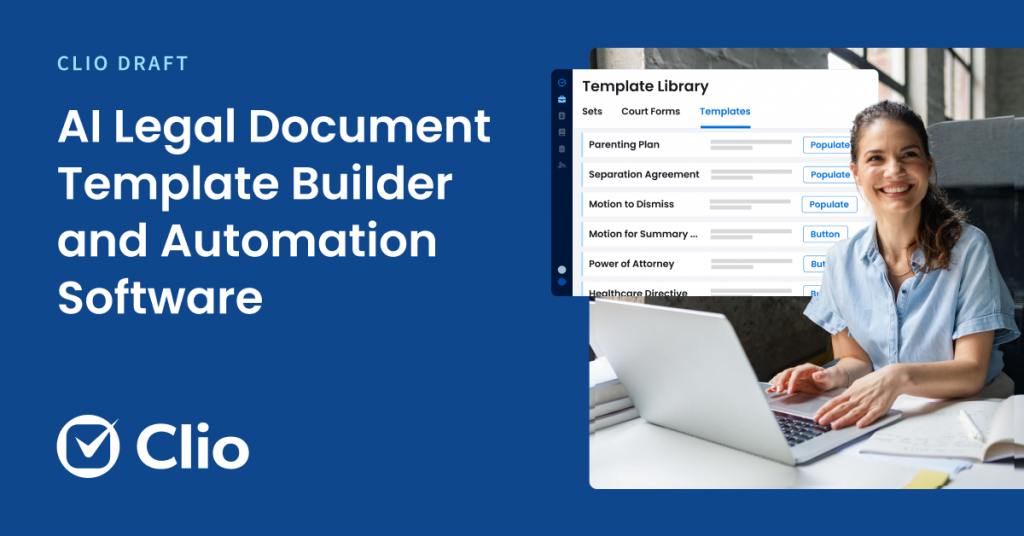
While AutoText can reduce repetitive typing, maintaining consistent, up-to-date language across documents and teams becomes difficult at scale. At this stage, firms move away from reusable text and toward structured drafting systems where tools like Clio Draft help manage clauses, templates, and document workflows more reliably.
Clio Draft is built for this kind of workflow. It standardizes clauses, templates, and document structure across matters, maintaining consistency through the system rather than by individual discipline. The language stays current because it’s managed centrally, so future documents automatically use your approved language.
AutoText’s role in modern legal drafting
AutoText is a practical tool for reducing repetitive typing in legal drafting. For small, stable text blocks like standard clauses and procedural language, it saves genuine time.
But its limitations quickly appear. Inserting AutoText leads to formatting inconsistencies. There are no variables or conditional logic. Over time and at scale, it becomes difficult to maintain consistent language across a team. These are manageable at small scale and increasingly costly as drafting volume and team size grow.
For firms that need reliable, consistent output across contributors and matters, the path forward is a structured drafting system with centralized language, controlled templates, and workflows that don’t depend on individual users maintaining their own libraries. Clio Draft provides that structure, so your documents stay consistent regardless of who drafts them or how many matters are in play.
Book a demo today to get started.
Microsoft Word AutoText for Lawyers FAQs
What is AutoText in Microsoft Word?
AutoText is a Quick Parts feature in Word that lets you save blocks of text and insert them into any document. It stores the content with its original formatting and is accessed by typing the entry name and pressing F3 or selecting it from the Quick Parts gallery.
How do lawyers use AutoText in legal documents?
Lawyers typically use AutoText to store and reuse standard clauses, procedural language, and boilerplate provisions that appear across multiple documents. Common examples include confidentiality clauses in contracts, jurisdictional statements in motions, and standard distribution language in estate documents.
Why does AutoText formatting break in Word?
AutoText entries carry the formatting and style definitions from the document they were saved in. When inserted into a document with different styles, fonts, or spacing, the entry retains its original formatting rather than adapting to the destination. This creates visible mismatches that require manual correction.
What are the limitations of AutoText in Microsoft Word?
AutoText stores static content with no support for variables, conditional logic, or document-aware formatting. Entries are saved locally, so there’s no centralized management, no version control, and no way to ensure multiple users are working from the same current language.
Is AutoText better than templates in Word?
They serve different purposes. AutoText stores small, reusable text blocks. Templates define the full structure of a document, including styles, formatting, layout, and placeholder content. For individual clause reuse, AutoText is faster. For ensuring every document starts with a consistent structural foundation, templates are more effective.
When should you move beyond AutoText for legal drafting?
When maintaining your AutoText entries takes more effort than it saves, or when inconsistencies across users and matters become a recurring problem. If your team regularly discovers outdated clause language in documents, or spends significant time fixing formatting after AutoText insertions, those are signals that a structured drafting system would be more reliable.
Mastering MS Word and AI
Learn how to put AI to work on your final review, from finding errors buried in long documents to knowing where your judgment still has to come first.
Watch on demand