
When you hear the term ‘redlining’, you probably think of Word’s Track Changes feature. That makes sense, as Track Changes is how most law firms document edits to contracts. But redlining is far broader than just documenting changes.
Redlining is about how legal meaning evolves throughout a negotiation. During the negotiation process, firms add proposed revisions, dispute contested clauses, agree on middle grounds, and create multiple versions of the same document. Agreements evolve, and redlining captures these shifts.
The problem is that the process rarely goes smoothly.
Collaboration introduces risk at every stage. When multiple parties work together on multiple versions of a document, changes are often lost between versions. Clean drafts accidentally overwriting agreed edits, while structural errors accumulate quietly across various rounds of revision.
By the time a document reaches signing, what’s on the page may not truly reflect what was negotiated.
This guide explains how to avoid that. It covers how to redline a legal document in Word correctly, legal blackline vs redline, where the process typically breaks down, and how to protect document integrity from first draft to final signature.
Redlining breaks down when changes get lost between versions and clean drafts overwrite agreed edits. Explore how Clio for Word reads your live document and proposes changes as redlines, without leaving Word..
What redlining actually means in legal drafting
Redlining tracks how legal meaning evolves across multiple versions of a document. It goes beyond simply recording changes in language, instead capturing what these changes actually mean for the parties involved.
In practice, redlining covers:
- Insertions, deletions, and substitutions.
- Changes to obligations, rights, and definitions.
- Shifts in clause structure and hierarchy.
Imagine you’re working on an indemnity clause. Any changes you make to the agreement’s wording will have a substantial impact on each party’s risk allocation. It’s important to capture this shift, and what it means for your clients, as opposed to simply focusing on how the language has changed.
That’s why tracking changes is just the starting point. It’s a useful way to record linguistic shifts, but lawyers need to look beyond surface-level edits.
- Why did the language evolve?
- What does this mean for the agreement as a whole?
- And how does it affect your clients?
True redlining is a record of legal intent in motion, rather than just visible markup. That’s why learning how to redline and revise a legal document correctly is such a key skill for legal professionals.
How redlining works in Microsoft Word
Word has three core writing and drafting tools that support redlining: Track Changes, Comments, and Compare, all found under the Review tab.
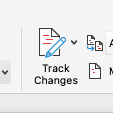
- Track Changes: Captures insertions, deletions, and formatting edits as they happen.

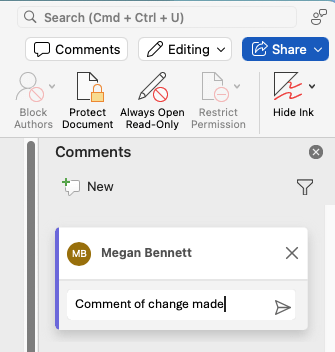
- Comments: Sit alongside the document, separate from the legal text, allowing contributors to explain the reasoning behind an edit without embedding that reasoning into the agreement itself.
- Compare: Generates a blackline between two versions, showing differences at a document level rather than an edit level.

Used correctly, these three tools give you everything you need to manage a standard redlining workflow.
How to redline and revise a legal document safely
Redlining isn’t particularly complex, so long as you follow the right process:
- Start from a single working draft: Create a single source of truth that everyone works from. Tools like Clio Draft make this easier by keeping documents centralized within a single platform, reducing the risk of people working from parallel versions.
- Enable Track Changes consistently: Ensure all contributors (both colleagues and opposing counsel) use the same settings. Agree on these settings before you start editing the document.
- Use comments for reasoning: Explain your thinking in comments rather than in-line. All edits to the document should relate to the legal matter.
- Avoid editing across multiple copies: Work from one authoritative version throughout the process to ensure nothing gets lost between different documents.
- Use Compare before merging drafts: Despite your best intentions, there might be times when opposing counsel sends their own version, or your client creates a separate document. In these events, use Compare to verify what they’ve changed before merging drafts together.
- Accept/reject changes in sequence: Be methodical as you work through proposed changes. Go in sequential order through the document rather than bouncing from one part to the next and back again.
What to avoid when redlining a legal document
There are three major errors to avoid when redlining. These are:
- Editing in multiple versions simultaneously: It’s impossible to track who changed what and why if you’re all working from multiple separate documents. This only creates confusion further down the line.
- Accepting all changes without review: Proposed changes represent potential shifts in your clients’ responsibilities. You need to review what each change means before you agree to it.
- Mixing clean drafts with redlined versions: Mixing a clean draft with a redlined version destroys the audit trail. Any changes present in the clean copy become invisible, with no record of what was altered, removed, or quietly overwritten.
Key takeaway: redlining is about process discipline more than anything else. Tracking changes is great, but it only represents a small portion of what the process requires.
Master Microsoft Word for Legal Drafting
This is just one piece of the puzzle. Explore the Master Microsoft Word for legal drafting hub for all our Word resources for legal professionals.
MS Word Hub
Reviewing and merging redlines without losing changes
At some point during the negotiation process, you’ll need to consolidate edits from multiple contributors or reconcile your working draft with a version returned by opposing counsel.
This requires merging redlines. In other words, combining two or more versions of a document into one. While this is very much possible, it can be a slightly tricky process.
Which Word feature should you use to redline?
Track Changes and Compare are both valuable features in Word, but there’s a time and a place for each.
Track Changes is best when you’re:
- Working within a single draft.
- Reviewing ongoing edits.
On the other hand, use Compare when you’re:
- Receiving a clean version.
- Reconciling multiple drafts.
- Verifying final differences.
How to merge legal documents safely
Merging is a crucial process during most legal negotiations, but can introduce risk. Merging without carefully comparing the two documents can lead to losing key clauses, duplicating provisions, or unintentionally deleting certain parts of your agreement.
Follow this 5-step process to merge legal documents safely:
- Compare versions before merging.
- Review changes section by section.
- Resolve conflicting edits deliberately.
- Confirm clause consistency throughout.
- Re-check the full document after merging.
Remember that merging redlines is a decision process rather than just a simple mechanical process. It needs careful thought and judgment. Treat it with the care, attention, and focus that it requires.
Legal redline vs blackline (and why it matters)
Redlines and blacklines are often used interchangeably. However, they’re not the same things, and they should be used at different stages of the negotiating process.
| Redline | Blackline | |
| Method | Produced through Track Changes. | Produced through Word’s Compare function. |
| Purpose | Redlines show edits within a working draft. They record who changed what, and when. | It takes two separate versions of a document and highlights every difference between them. |
| Use | During active drafting and negotiation, where you’re tracking edits as they happen. | At the verification stage, particularly when opposing counsel sends back a clean draft with no markup. |
Why does the legal blackline vs redline distinction matter for legal staff?
A redline can be incomplete, often in ways that aren’t immediately obvious. For example, it won’t show if someone has accepted or removed edits. Formatting changes don’t always surface clearly in redlines. In fact, entire sections can be rewritten without a clear record of what was there before.
A blackline, on the other hand, gives you a complete audit trail. It compares the two versions directly and shows you exactly what actually changed.
In short, redlines show specific edits whereas blacklines display the true difference between versions. During hotly-contested negotiations, knowing the difference between legal redline vs blackline matters.
Where Word falls short
For day-to-day drafting, Word handles the basics well. It tracks visible edits, attributes changes to individual users, and allows each change to be accepted or rejected on review.
But even if you master Microsoft Word, the tool does have certain limitations.
While it records what changed at the surface level, it doesn’t capture why or flag version conflicts before they cause problems. What’s more, it provides no insight into the structural damage a formatting change can cause to numbering, cross-references, and document hierarchy.
Word is a capable redlining tool. However, managing document integrity across revisions is a different problem, and one it wasn’t built to solve.
Where redlining breaks in real legal workflows

Redline issues rarely arise during initial drafting. Instead, they tend to occur during collaboration, when multiple parties gradually lose control over the workflow.
Parallel edits across versions
It’s difficult to reconcile conflicting changes when multiple contributors edit different copies of the same document. By the time someone tries to consolidate everything, it’s often unclear which version is authoritative. One solution is to use structured drafting environments like Clio Draft, which reduces version drift and ensures everyone is working on the same version of the document.
Clean draft resets
You might receive a clean copy of the draft after opposing counsel removed all markup. Despite their best intentions, they’ve made the process more difficult. The edit history is completely gone, meaning any changes they introduced in stripping the redline are now invisible.
Layered revisions
Each round of edits adds another layer of markup on top of the last. The further into the revision cycle you get, the harder it becomes to see what the document actually says underneath.
Formatting and style conflicts
Pasted content brings its own styles into the document. Numbering shifts, spacing breaks, and the document’s formatting consistency starts to degrade in ways that aren’t always obvious in the markup.
Structural drift
Clauses move or are rewritten across revision rounds without clear tracking. Cross-references that pointed to the right place no longer do.
There are multiple pitfalls to watch out for when redlining legal documents. However, these are all down to failures in the workflow, rather than a failure in the tool itself. This means that if you get your workflow right, your redlining will be too.
How redlining affects legal document structure
Redlining affects more than just your document’s text. Beneath the surface, even seemingly minor edits can also affect the underlying structure. Imagine you make a simple edit like moving a clause. Suddenly, you’ll see that your numbering has shifted but your cross-references remain unchanged, and your Table of Contents (TOC) is now inaccurate.
There are multiple ways in which redlining can silently alter your document’s structure.
Multilevel numbering
Numbered lists can reset or misalign when you move, add, or delete clauses. A clause that was previously in one position before revision may sit in a completely different place in the numbering hierarchy afterwards.
Table of contents
The TOC only reflects the document as it was when you last updated it. After multiple rounds of revision, it becomes an increasingly unreliable guide to what’s actually in the document.
Cross-references
You can move a clause, but the cross-references pointing to it will stay fixed. That means they now direct the reader to the wrong place, often without any visible indication that something has broken.
Defined terms
Defined terms can shift inconsistently during negotiation. A term redlined in one clause may still appear in its original form elsewhere, leaving genuine uncertainty about which version applies.
Exhibit references
Exhibits change during revision. However, the references to them in the body of the document don’t always keep pace, leaving labels that no longer correspond to the actual attachments.
Unfortunately, it’s not always easy to spot these kinds of changes. Redlining can silently alter document logic and navigation, even when the formatting appears correct, so pay close attention to your structure throughout the entire process.
Preparing a final legal version for signing or filing

You’ve gone through multiple rounds of revision with opposing counsel. Finally, the document is ready to be finalized and all that remains is to prepare a final version.
At this stage, it’s tempting to hit ‘Accept All’ and trust that everything’s as it should be. However, the final document might unintentionally differ from negotiated terms, include outdated references, or contain hidden structural issues.
That’s why you need to go through a structured validation process before finalizing a redlined document once and for all.
Here’s what that process should look like:
- Accept changes in logical sequence: Work through the document from start to finish, accepting or rejecting each change in order rather than jumping between sections.
- Update fields (TOC, cross-references): Then, update all fields to ensure the TOC, cross-references, and numbering reflect the document’s final structure.
- Verify numbering hierarchy: Check that multilevel numbering is consistent throughout. Accepted changes can silently reset or misalign list structures in ways that aren’t immediately visible.
- Confirm clause consistency: Read through the document to ensure defined terms, obligations, and rights are consistent across all clauses, not just the ones that were actively negotiated.
- Compare final version to prior draft: Run a blackline against the last agreed draft to confirm the final version reflects what was actually negotiated.
- Inspect metadata: Use Word’s Document Inspector to review the file for hidden comments, revision history, and author information. Metadata can inadvertently reveal earlier drafts, contributor identities, or the internal history of the negotiation to the other party or the court.
- Save a clean, final version: Save the finalized document as a separate file, distinct from the working draft, with a clear version label and no residual markup.
The goal is to ensure the final version accurately reflects the agreed terms and correct structure. Working your way through the checklist above will certainly take longer than hitting ‘Accept All’, but it’s the only way to confirm the document’s validity.
When manual redlining no longer scales
Redlining is so much more than just a markup exercise. It’s how legal meaning is tracked, contested, and settled across every version of an agreement. That’s why it’s so vital to prevent risks from creeping into the process.
When you work with multiple versions across several rounds of revision, this can lead to conflicts between versions or changes getting lost. Structural errors might go unnoticed until the final review, requiring complex untangling just when you thought the document was finished. Worst of all, if you’re not careful, you could unintentionally produce a final document that doesn’t reflect what was actually agreed.
Learning how to redline a legal document manually can certainly help, up to a point. However, as matters grow more complex, with more contributors, revision rounds, and versions, that point arrives sooner than most firms expect.
That’s where a structured drafting environment makes a real difference. Clio Draft is built to reduce that burden by moving document workflows off ad hoc Word files and onto a single, organized platform.
It converts your existing documents into reusable templates, automates population across whole sets of documents at once, and keeps client data connected throughout. This means you’ll spend less time on manual entry and version management, and more on the legal work itself.
When the drafting process is more structured from the outset, the redlining process that follows is easier to control. See how Clio Draft can bring that structure to your firm’s drafting workflows.
Book a demo today to learn more.
Redlining legal documents in Word FAQs
What is redlining in legal documents?
Redlining is the process of tracking how a legal document changes across drafts. It records insertions, deletions, and substitutions as negotiations progress, creating a visible record of how the agreement evolved between parties.
What is the difference between a redline and a blackline?
A redline tracks edits within a working draft using Track Changes. A blackline compares two separate versions of a document and shows the differences between them. Use redlines during active drafting, but use blacklines to verify what actually changed between versions.
How do you redline a legal document in Word?
Enable Track Changes before you start editing. Work from a single authoritative draft, use comments to explain your reasoning, and accept or reject changes in sequence rather than all at once. Avoid editing across multiple copies simultaneously.
How do you revise a legal document without losing changes?
Work from one version at a time. Before merging any drafts, run a comparison using Word’s Compare function to identify differences. Review and resolve changes section by section rather than accepting everything at once.
Why do redlines become confusing after multiple revisions?
Each revision round adds another layer of markup. Over time, it becomes difficult to distinguish between current edits and earlier ones, track who changed what, or see what the document actually says beneath the markup. Structural issues, shifting numbering, and inconsistent defined terms compound the problem.
How do you compare two legal documents in Word?
Go to Review, select Compare, and choose the two versions you want to compare. Word generates a blackline showing every difference between them. Run this before merging drafts or after receiving a clean version from opposing counsel.
Can redlining affect numbering and cross-references?
Yes. Moving or deleting clauses can reset multilevel numbering and leave cross-references pointing to the wrong place. These changes don’t always surface obviously in the markup, which is why structural validation is essential before finalizing any redlined document.
What is the safest way to finalize a redlined document?
Accept changes in sequence, update all fields, verify numbering, confirm clause consistency, and run a final comparison against the last agreed draft. Use Word’s Document Inspector to check for metadata before the document is circulated or filed.
When should a law firm move beyond manual redlining?
When the volume or complexity of negotiations makes version control difficult to manage manually. If your firm is regularly dealing with multiple contributors, parallel drafts, or high document volumes, the risk of manual redlining compounds quickly. That’s the point at which a more structured drafting workflow becomes worth exploring.
Master Microsoft Word for Legal Drafting
This is just one piece of the puzzle. Explore the Master Microsoft Word for legal drafting hub for all our Word resources for legal professionals.
MS Word Hub