

If you’re wondering “how do I create a fillable form in Word”, there’s good news: the technical setup is straightforward. But creating a form that works reliably in a legal workflow is about far more than just getting the fields in place.
A usable legal form needs to collect accurate, consistent information, be clear enough that clients complete it correctly, and hold its structure across repeated use. Getting the mechanics right is just the first step.
This guide covers everything you need to know about how to make a fillable form in Word for legal documents. We’ll go over how to design forms, maintain them reliably across matters, and where the process tends to break down in typical legal workflows.
A Word form collects the fields you build, until it is reused, edited, and the structure quietly stops holding. Explore how Clio Draft helps you gather client details and generate the documents from them automatically.
How fillable forms are actually used in legal workflows
Fillable forms are the foundation that drafting builds on. They collect structured information at the start of a legal matter so that what follows is faster and more accurate.
In practice, law firms tend to use fillable forms across several workflows.
Client intake forms
An intake form is usually the first document a new client completes. It collects the basic information a firm needs to open a matter: the client’s contact details, the nature of the legal issue, relevant dates, and any existing documentation.
Having a well-structured form makes it easy for clients to provide all necessary information. This speeds up the onboarding process and means firms can start billable work sooner.
Contract questionnaires
Transactional lawyers often use fillable forms to gather deal-specific information needed to populate a contract. Rather than exchanging emails with a client to collect party names, key dates, payment terms, and special conditions, a structured questionnaire gathers everything in one pass.
The accuracy of the contract depends directly on the accuracy of what the form collects. This makes field design and clear instructions particularly important.
Litigation information gathering
In litigation, forms are used to collect consistent factual information from clients before drafting pleadings and discovery responses. For example, a personal injury matter might require a structured account of the incident, medical treatment, and financial losses.
A structured form ensures the lawyer receives the information in a format that maps directly onto what the pleading requires, rather than having to extract and reorganize it from an email chain.
Estate planning questionnaires
Estate planning relies heavily on structured data collection. Firms need to gather asset inventories, beneficiary details, executor appointments, and specific bequest instructions all before any drafting begins.
A well-designed questionnaire reduces the risk of missing information and gives firms a reliable foundation before they begin to draw up a legal document.
Internal matter checklists
Fillable forms aren’t only client-facing. Internally, firms use them as matter checklists to track whether required steps have been completed, deadlines have been met, or documents have been reviewed and approved.
Consistently using structured checklists ensures that nothing is missed and that your files reflect the current state of the matter.
Step-by-step: how to create a fillable form in Word
Word’s form-building tools are tucked away behind a tab that doesn’t appear by default, but once it’s enabled, the rest of the process is relatively straightforward.
Here’s how to make a fillable form in Word in seven steps:
- Enable the Developer tab:
- Windows: Go to File → Options → Customize Ribbon. In the right-hand column, check the box next to Developer and click OK.
- Mac: File → Preferences → Ribbon & Toolbar. In the “Customize the Ribbon” section, check the box next to Developer in the right-hand column and click Save.



- Open the document you want to turn into a form, or start from a clean template. For legal forms, you should ideally start from a properly configured template.
- Position your cursor where you want to add a field, go to the Developer tab, and select the appropriate content control for each field type:
- Plain Text for unformatted input, which keeps responses consistent.
- Rich Text where formatted input is needed.
- Dropdown lists to restrict responses to a defined set of options.
- Checkboxes for yes/no questions.
- Date pickers to enforce consistent date formatting.
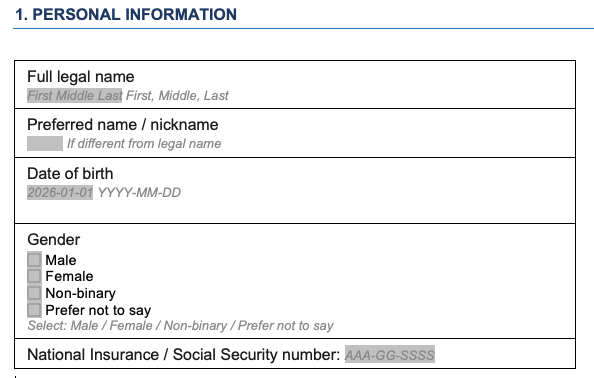
- Label each field clearly. Double-click the field to open the Properties option to add an instructional placeholder text, or items for a dropdown list.
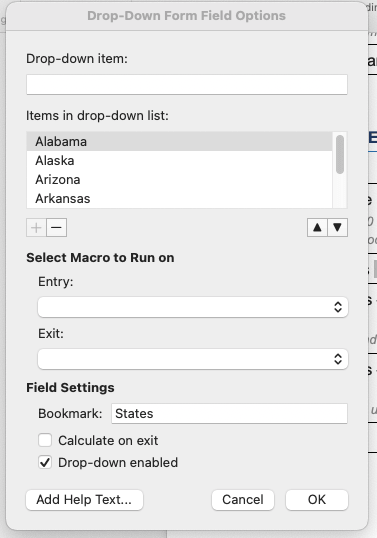
- Group fields logically by section so that related information sits together and the form follows a sequence the lawyer can use directly.
- Restrict editing via the Developer tab once the form is complete, allowing only form field entry. This keeps the structure intact while the form is in use.

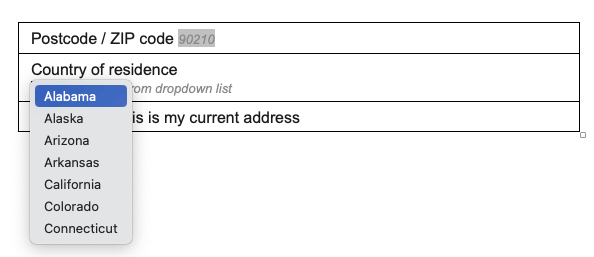
- Save as a Word template (.dotx) so each new instance opens as a clean copy.

The technical steps are straightforward, but a form’s design determines whether or not it works properly in a legal workflow.
Designing legal forms that actually work
Learning how to create fillable forms in Word is just the first step. Building a form that functions technically and works in practice are two different things. A form can have perfectly configured content controls and still produce unreliable, inconsistent data if it wasn’t designed with the person completing it in mind.
Here are some of the key areas to prioritize when designing legal forms.
Logical field grouping
The most common design failure is poor field grouping. A form that jumps between unrelated topics, asking for contact details, then specific matter information, then back to personal details, creates confusion and increases the likelihood of fields being skipped or completed incorrectly.
Information should flow in the same sequence a lawyer would need to use it, with related fields grouped together and each section clearly labelled.
Clear labeling
Clear labeling matters just as much as logical structure. Placeholder text that simply restates the field label adds nothing. Useful placeholder text tells the user what format is expected, what level of detail is required, and why the information is being collected.
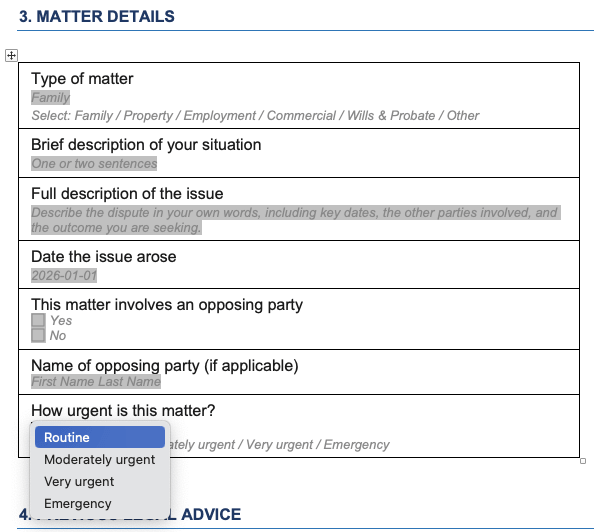
A field asking for a description of a legal dispute will return more useful information if the placeholder text specifies what’s needed. For example, “Describe the dispute in your own words, including key dates, the other parties involved, and the outcome you are seeking.” is more useful than a field that simply says “describe your issue.”
Consistent data
Forms collect information that feeds directly into drafted documents. Therefore, if there are any inconsistencies in this data, you have to manually resolve them before they can be used.
For example, if one field collects a date as “January 1, 2026” and another collects it as “01/01/26,” it’s harder for a lawyer (or an automated system) to reconcile these different formats.
If you’re asking for a date, use a date picker rather than a plain text field. It enforces a single format regardless of what the user would otherwise type. For fields where the answer should come from a defined set of options, such as matter type or jurisdiction, a dropdown removes the variation that a free-text field would introduce.
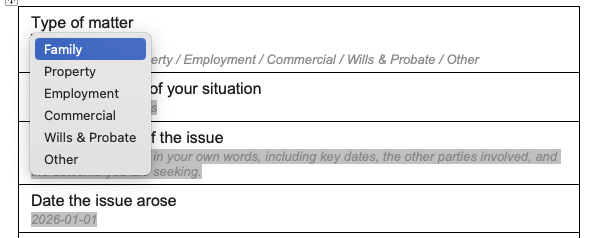
If you get these choices right at the design stage, this means the data will arrive in a usable state rather than requiring you to correct it first.
Defined scope
Scope is the final consideration. A form that tries to collect anything and everything will be completed less carefully than one focused on what a specific matter actually requires.
Having separate forms for separate purposes tends to produce better data than a single form covering every eventuality. In turn, receiving better data at the intake stage requires less corrective work throughout the matter.
Making the right design decisions significantly reduces the risk of incomplete or inconsistent data reaching the drafting stage. A well-designed form is more likely to be completed accurately, more likely to produce usable data, and easier to maintain across matters.
Even so, some problems have less to do with how a form was designed and more to do with how Word’s form tools behave in practice.
What breaks in Word forms (and why)

Under controlled conditions, Word’s form tools are reasonably reliable. However, problems occur when forms meet real legal workflows, with multiple contributors working on a variety of devices on documents that have been reused across several matters.
Here are a few ways in which these issues might crop up during your firm’s legal workflows.
Formatting inconsistencies
Word fields have no size or style constraints, which means legal forms often break down visually when users complete them.
A plain text field expands to fit whatever a user types, pushing subsequent fields out of position and breaking the form’s layout. A rich text field accepts pasted content from external sources, importing conflicting styles that disrupt the document’s visual consistency.
This means a form that leaves the firm looking clean and professional can return looking nothing like the original.
Unpredictable field behavior
Content controls don’t always behave consistently across different versions of Word or different operating systems. For example, a date picker configured to enforce one date format can display or behave differently on a machine with different regional settings. Forms that have been edited or reused across multiple machines can also accumulate inconsistencies in how fields behave, even when the underlying template hasn’t been deliberately changed.
The result is that two lawyers completing the same form on different machines can return data in different formats, undermining the consistency that the form was designed to produce in the first place.
User input errors
Word forms have no built-in validation. A plain text field will accept anything: a name where a date is expected, a partial address, a string of placeholder text that a user forgot to replace. There’s no mechanism to flag missing fields, enforce a required format, or prevent a form from being returned incomplete.
This means errors and omissions only surface when the lawyer sits down to use the information, often under time pressure.
Reuse and version drift
Forms that are reused across matters without a controlled template process accumulate changes over time. A lawyer who adjusts a field for one matter and saves over the original template introduces a modification that might not be appropriate for the next time someone uses the form.
Across enough reuse cycles, the form starts to drift away from its intended structure. Fields are added, removed, or relabelled inconsistently. Firms eventually end up with multiple versions of what’s supposed to be the same form.
Most of these problems aren’t visible until the data comes back wrong. Lawyers are left reconciling inconsistencies under deadline pressure rather than focusing on drafting the document itself.
How to reuse legal forms without losing consistency
Saving a form as a Word template is the right starting point, but it doesn’t automatically protect against the consistency problems that develop as the form gets used across matters.
Version drift tends to start in one of two ways. Someone edits the master template directly and saves over it, introducing a change that was never formally approved but now affects every subsequent use; or lawyers pull an old copy from their desktop and work from that instead of the current version, without realizing the two have diverged.
Either way, the firm ends up with a form that collects different information depending on who’s using it, or a document where the fields vary between matters. The data stops being comparable across cases, and any drafting that depends on it inherits the inconsistency.
The practical fix is to restrict edit access to the master template and establish a clear process for distributing updates. When the template changes, everyone using it should be working from the same new version.
Naming conventions help here too. A form saved as “ClientIntake_Residential_v3.dotx” is easier to manage than one saved as “intake form final.docx.” When version numbers are visible in the filename, it’s at least clear when something might be out of date.
Ideally, firms shouldn’t use the same form across multiple practice areas. A residential conveyancing matter and a commercial acquisition require different information. Having separate templates, maintained and updated independently, produces cleaner data and gives lawyers fewer reasons to modify fields on the fly.
Mastering MS Word and AI
Learn how to put AI to work on your final review, from finding errors buried in long documents to knowing where your judgment still has to come first.
Watch on demand
When Word forms are not enough for legal workflows
Word forms work well enough when all you need is structured information sitting in a document. But the moment that information needs to go somewhere, adapt to the user completing it, or stay consistent across a whole team, the tool starts to show its limits.
Here are some of the most common limitations when you try to use Word forms within a legal context:
- There’s no conditional logic: Word presents every field to every user regardless of whether it’s relevant to them. A form asking about spousal assets has no way to skip those fields if the client is single. Every user sees every question, which makes forms longer, harder to complete, and more likely to come back with irrelevant fields filled in and relevant ones missed.
- They require manual data transfer: Whatever information a form collects, someone still has to move it into the documents that depend on it. There’s no automatic connection between a completed Word form and the contract, pleading, or letter it’s meant to inform. Across a busy practice, that manual step can often lead to transcription errors.
- There’s no way to enforce consistency across teams: Keeping forms consistent across a team depends on everyone using the same current version and following the same process. Word has no mechanism to enforce either, which is why version drift is such a common problem.
Word is a drafting tool, and its form functionality reflects that. At a certain point, its limitations start affecting the quality of the legal work downstream.
From manual forms to automated legal drafting workflows
Collecting structured information is only valuable if that information flows seamlessly into the work that follows.
In many firms, intake data lives in one place, while documents are created somewhere else. This disconnect forces teams to manually re-enter the same information across forms, engagement letters, and contracts, introducing delays, inconsistencies, and risk.
An automated drafting workflow removes that gap.

With Clio Draft, the information you collect from clients doesn’t sit in isolation. Client questionnaires become the starting point for the entire drafting process. As clients submit structured information, that data automatically flows into your documents, populating the right fields, clauses, court forms, and templates for review by a legal professional.
Because Clio Draft is built to work the way lawyers already do, it fits directly into your existing workflows:
- Client questionnaires capture clean, structured client data, giving AI and automation high-quality inputs from the start.
- The Microsoft Word add-in lets you build and edit templates directly in Word, while AI helps accelerate drafting within a familiar environment.
- Conditional logic and smart fields ensure documents adapt automatically, while AI can assist in refining language in your questionnaires and reducing manual edits.
- AI-powered drafting support helps you build templates, pull Clio Manage fields directly into documents, and write client-facing questionnaires in plain, conversational language.
- Native integration with Clio Manage connects matter and client data, so AI-generated drafts are grounded in real case information, not disconnected inputs.
Instead of treating forms, client information gathering, and drafting as separate steps, Clio Draft connects them into a single, continuous workflow.
The result is more than just faster document creation. It’s a fundamentally better way to work, one where structured data flows from intake to final document without friction, helping your firm reduce administrative effort, improve accuracy, and scale consistently across matters.
As automation becomes more central to legal work, tools like Clio Draft help firms shift time away from repetitive, information-heavy tasks—work that is increasingly well-suited to automation—and toward higher-value legal work that drives better client outcomes.
Getting fillable forms right
A well-designed Word form is a genuinely useful tool. The firms that get the most out of them treat form design and workflow design as the same problem.
Getting the fields right matters. So does the instructional text, the field types, the scope, and the template management process that keeps the form consistent across matters. Most form failures in legal workflows trace back to one of these areas, and most of them are avoidable.
What’s harder to solve with good design alone is what happens to the data after the form comes back. In a Word-based workflow, someone still has to move it into the documents that depend on it. At low volume that’s manageable. As matters and contributors multiply, it becomes the point where time is lost and errors enter the process.
Clio Draft takes a different approach. Start with an unlocked template, add Draft fields to map where data should go, then use AI to build a client questionnaire that collects the information directly. When the client submits their answers, Clio Draft populates the document automatically, with no manual re-entry and no copy-paste errors.
Book a demo today to see how Clio Draft connects your forms, your data, and your documents in one seamless workflow.
Creating legal fillable Forms in Word FAQs
How do I create a fillable form in Word?
Enable the Developer tab via File, Options, Customize Ribbon. From there, add content controls to your document: plain text fields for open responses, dropdowns for defined options, checkboxes for yes/no questions, and date pickers to enforce consistent date formatting. Label each field clearly, group related fields by section, restrict editing once the form is complete, and save as a .dotx template so each new instance opens as a clean copy.
What are fillable forms used for in legal documents?
Law firms use fillable forms to collect structured information before drafting begins. Common uses include client intake, contract questionnaires, litigation information gathering, and estate planning data collection.
Why do Word forms break or behave inconsistently?
Word’s form tools have no size, style, or validation constraints. Fields expand unpredictably when users type too much, rich text fields import conflicting styles from external sources, and date pickers can behave differently depending on a machine’s regional settings. Forms that have been edited or reused across multiple matters without a controlled process accumulate structural damage over time.
Can Microsoft Word forms be reused across legal documents?
Yes, but only reliably if the form is saved as a controlled template with restricted edit access and a clear distribution process. Without that, version drift is inevitable. Fields get tweaked for individual matters, outdated copies circulate alongside current ones, and the firm ends up with multiple versions of the same form that collect inconsistent data across matters.
What are the limitations of fillable forms in Word?
Word forms have no conditional logic, so every user sees every field regardless of relevance. There’s no input validation, so incomplete or incorrectly formatted responses aren’t flagged. Collected data doesn’t automatically populate drafted documents, requiring manual transfer that takes time and introduces transcription errors. And there’s no audit trail recording who completed a form or whether it was modified after submission.
When should law firms use form automation instead of Word?
Law firms should consider form automation instead of Word when their current process is creating inefficiency or risk. If manual data transfer between forms and documents is a recurring source of errors, if forms need conditional logic to adapt based on earlier answers, or if maintaining consistency across a team in Word has become unreliable, a tool built to connect structured data collection to automated document generation will serve the firm better.
Mastering MS Word and AI
Learn how to put AI to work on your final review, from finding errors buried in long documents to knowing where your judgment still has to come first.
Watch on demand