



Lawyers draft, revise, and share nearly every document that leaves the firm in Microsoft Word, and metadata in a Word document accumulates automatically across every step of the process. Most lawyers assume a document looks the same to the recipient as it does to the sender, and in terms of visible text, that’s usually true.
But Word documents carry more than just text.
Every time a lawyer modifies a document, Word records information (metadata) in the background. Metadata like author names, revision history, comments, and document properties all accumulate as a natural byproduct of drafting.
There’s nothing inherently wrong with metadata. But many lawyers don’t realize how much of it travels with a document when they send it to others outside their firm.
This guide explains where metadata comes from in real legal workflows, what it can reveal, how to change metadata in a Word document, and how to bring it under control before it creates risk for your clients or your firm.
A document reused across matters carries years of authors, comments, and revision history with it. Explore how Clio Draft helps you generate fresh documents from templates instead of forwarding old files.
What metadata in Word documents actually looks like in legal drafting
Metadata isn’t a secret feature, or “hidden” information. It’s a normal byproduct of how documents are created.
When you edit a brief, Word records who made each change and when. When you redline a contract, the revision history captures every insertion and deletion, along with the name of the attorney who made them. And when you copy clauses from a prior matter, the document properties from that file can travel with the content into the new one.
Think of metadata as drafting residue, rather than abstract technical data. It records things like:
- Track Changes history that wasn’t fully accepted.
- Comments that explained negotiating strategy, which were left in place after the redline was returned.
- An author field still showing the name of a lawyer who’s no longer working for the firm or someone else the source document was copied from (e.g., opposing counsel, bar association, website).
- Document properties listing a client name from a different matter.
The issue is that metadata sits in places lawyers don’t routinely look, which means there could be a gap between what the document appears to contain and what it actually contains. This gap presents potential legal risk.
Where metadata is created in everyday legal workflows
Metadata logs a document’s activity history, accumulating across every stage of the drafting process rather than suddenly appearing at a single moment.
Drafting
Word immediately begins recording metadata as soon as you start drafting, embedding author information from the moment you create a file. Every subsequent edit leaves a trace in the revision history, even if you haven’t enabled Track Changes. Comments added to flag a clause for review or to explain a decision to a colleague are logged as part of the document’s record.
Reusing documents
Metadata compounds when documents are reused across several matters. Just as a clause copied from an old engagement letter brings its formatting properties into the new file, a template that has passed through multiple matters carries the accumulated revision history of all of them.
When a lawyer opens a contract from a prior matter and begins editing it for a new client, the document arrives with the structural and authorship history of everything it’s been through before.
Formatting
Document properties, table of contents fields, custom styles, and embedded XML data all carry information about how the document was structured and by whom. These elements are rarely examined before a document is sent, and they’re rarely visible to anyone who doesn’t know to look for them.
The key point to remember is that by the time a legal document reaches a recipient, it reflects the entire history of its creation, not just its current state.
Collaborating across a team
Every person who touches the file adds their own authorship trail. Incorporating edits from outside counsel, co-authoring across a team, or circulating drafts for internal review all create new metadata.
Passing documents back and forth by email compounds this further, as each exchange adds another layer of revision history to a file that may already be carrying the history of several previous contributors.
What metadata can be hidden in a Word document (and why it matters legally)
Word documents can contain several categories of information that aren’t visible in the body of the document itself. Each one carries a different type of risk in legal contexts:
- Comments and tracked revisions: A document returned to opposing counsel with all changes accepted may still contain comments that were never deleted. Those comments can include notes about negotiating position, internal disagreements about clause language, or instructions from a supervising partner.
- Document properties: Word embeds author names, company names, and client or matter references the moment you create a file. Lawyers rarely update these fields when repurposing a document, which means a contract sent to a new client can still identify a previous one in its metadata.
- Hidden text and previous versions: Hidden content (as opposed to deleted) can persist through multiple rounds of editing without surfacing during a normal review.
- Custom XML fields: Structural data embedded in the document’s underlying code can carry information about how the file was built and by whom, none of which is visible on screen.
Metadata can have serious legal consequences. For example, a comment thread exposing internal negotiating strategy creates a privilege risk when opposing counsel opens the file. Document properties referencing a previous client are a confidentiality concern that’s difficult to undo once the document has been received. A brief filed with the court containing another client’s name becomes part of the record.
In each case, the damage is done before anyone realizes the information was there. That’s why it’s vital to check a document’s metadata before it leaves your firm.
How lawyers accidentally expose metadata (real scenarios)

Most metadata disclosures are workflow failures rather than knowledge gaps.
Imagine a document that’s been through multiple rounds of revision. By the time it reaches its final version, all changes have been accepted, comments appear to have been resolved, and the document looks clean. Except behind the scenes, its revision history is still there.
The metadata that Word has been accumulating throughout the drafting process doesn’t suddenly disappear once you’ve produced a clean copy and turned off Track Changes.
Filenames often signal this pattern. A document saved as final_v7_clean2.docx looks like it has been through multiple cleanup passes. In practice, the repeated “clean” suffixes usually mean the file was renamed rather than inspected. Each save adds another layer of revision history without touching the metadata underneath.
A common version of this: a lawyer works through tracked changes, accepts everything, and sends the document off without realizing the comments pane is still populated. Accepting changes and deleting comments are separate actions in Word. Finishing one doesn’t complete the other, and a document with all revisions accepted can still carry every internal note about strategy, clause concerns, and partner instructions that was ever attached to it.
But what if you convert to PDF?
Lawyers who treat PDF conversion as a cleaning step are relying on a process that doesn’t necessarily do what they assume it does. A PDF exported directly from Word can still retain the document properties, author information, and in some cases embedded comments from the source file.
The same applies when language is copied from a prior matter. A clause pulled from an old contract and dropped into a new one can bring tracked changes and revision history with it, including edits and comments from the original drafting process that the lawyer copying the clause may never have reviewed. What looks like clean text in the new document might be carrying a history that has nothing to do with the current matter.
Finally, one of the most common ways that lawyers accidentally expose metadata is by sending a Word file directly, rather than exporting to PDF first. A .docx contains everything Word has recorded throughout the drafting process. However, a properly exported PDF strips much of that out. Skipping that conversion step, even inadvertently, removes the last opportunity to limit what the recipient receives.
The main issue across all of these examples is that the standard drafting workflow doesn’t include a reliable point when lawyers examine and address a document’s metadata.
How to view metadata in a Word document
To fix your document’s metadata, you first have to find it. But how do you view metadata in a Word document?
The answer is to open Word’s Document Inspector tool, which should be a standard step before any document leaves the firm. Here’s how to use this tool:
Windows users:
- Go to File >Info > Check for Issues > Inspect Document.
- Select the categories you want Word to scan. For legal documents, leave all categories checked.
- When Document Inspector returns its results, read each flag carefully before doing anything. If it flags comments and revisions, you need to decide whether any of those comments contain privileged strategy, client instructions, or internal disagreements that would be damaging if seen by the recipient.
- If it flags document properties, check whose name is on the file and whether the company name and any client or matter references actually belong to the current instruction. An unexpected name here usually means the document originated from a template or prior matter that wasn’t cleaned before reuse.
- If it flags hidden text, consider whether it was hidden deliberately and whether it still needs to remain hidden. Hidden text that was meant to be removed at an earlier stage and wasn’t is a common source of inadvertent disclosure.
- Check the Track Changes pane and Comments pane independently after running the inspector. Document Inspector gives you a summary, but reviewing these panes directly shows you what those revisions and comments actually say.
The inspector tells you what’s present. However, it won’t make decisions for you. Deciding what to do with each result requires legal judgment, which means you have to read and analyze the content rather than simply clicking remove.
Mac users:
- Go to File > Info > Check for Issues > Inspect Document. If this option appears, your version supports Document Inspector and the Windows steps apply equally.
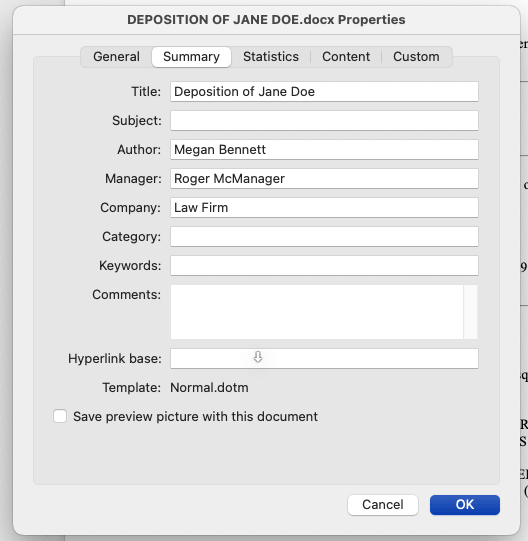
- If Document Inspector is not available, go to File > Properties > Summary. Check the author name, company, and any other fields. Edit or delete anything that should not travel with the document.
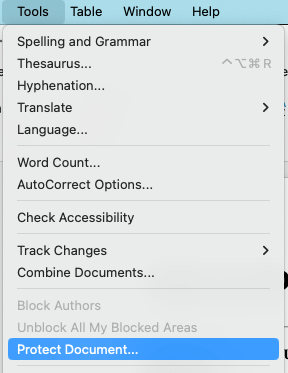
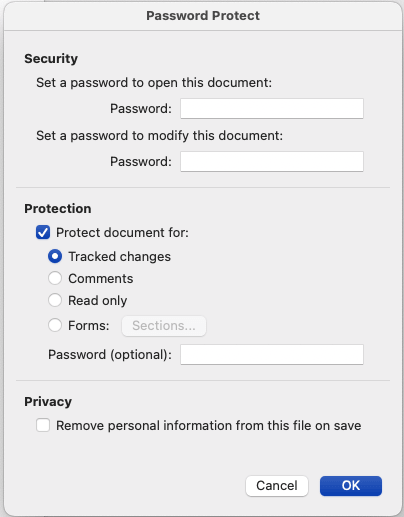
- Go to Tools > Protect Document and check the box next to Remove personal information from this file on save. This strips author and editor names on the next save.
- Open the Review tab and check the Track Changes pane manually. Unlike Windows, Mac has no automated flag for this, so you need to read through each revision and decide whether any contain privileged strategy, client instructions, or internal disagreements that would be damaging if seen by the recipient.

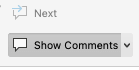
- Check the Comments pane in the same way. Delete any comments that should not leave the firm.
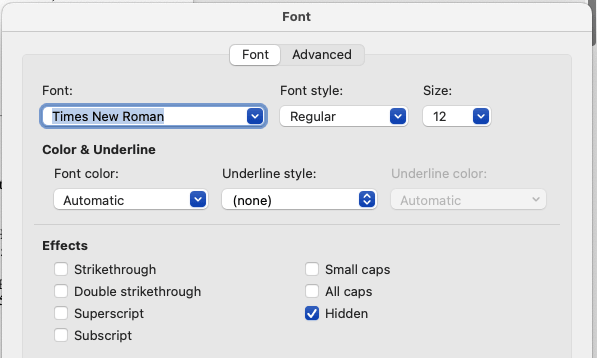
- To find hidden text, go to Format > Font and look for text formatted with the hidden attribute, or turn on Show All Formatting Marks from the Home tab to surface any hidden text. Consider whether it was meant to be removed at an earlier stage and was not.
- Save the document after completing these steps, so the personal information removal setting takes effect.
Important note for Mac users: Steps 4 through 6 require manual review that Windows handles automatically through Document Inspector. Build extra time into your pre-send checklist to account for this.
How to remove and control metadata in Word documents
Understanding how to change metadata in a Word document is only half the process. You also need to create a workflow that limits how much of it accumulates in the first place.
Here’s how to tackle both of those steps.
Removing metadata
- Run Document Inspector via File > Info > Check for Issues > Inspect Document. Review each category of results before removing anything. Once Document Inspector removes content, this can’t be undone.
- Accept or reject all tracked changes explicitly. Don’t rely on Document Inspector to automatically handle this for you. Work through the changes deliberately, since accepting them all at once without review can silently alter the document’s agreed content.
- Delete all comments manually after reviewing them. Confirm none contains information that still needs to be acted on before removing them.
- Check document properties directly via File > Info and clear any author, company, or client fields that shouldn’t transfer with the document.
- Save the cleaned file as a new document rather than overwriting the working draft. This preserves the revision history internally while ensuring the version sent externally contains only what it should.
Mac users: If your version does not have Document Inspector, skip to steps 2 through 4 and complete those manually. Steps 2, 3, and 4 are required regardless of platform.
Controlling metadata going forward
Knowing how to remove metadata is important, but it’s ultimately a reactive step. The more valuable approach is learning how to limit its accumulation in the first place.
Start by building good template hygiene into your workflow. When you create a document from a clean, properly configured template, it carries no inherited author information or revision history. On the other hand, templates that have passed through multiple matters without being cleaned are a persistent source of metadata risk.
When reusing clauses from other documents, follow a deliberate process rather than just copying and pasting. Before reusing anything, check the source document for unaccepted tracked changes. Any changes that haven’t been accepted or rejected are active edits, and copying a clause that contains them can import those changes directly into the destination document.
Once you’ve confirmed the source text is clean, paste into the destination using Paste Special and select “Match Destination Formatting” to avoid carrying across unwanted style and formatting properties from the original file.
Finally, establish a pre-send checklist that includes opening Document Inspector as a required step rather than an optional one. When this sits outside the everyday workflow, it gets skipped under deadline pressure, which is exactly when the risk is highest.
Mastering MS Word and AI
Learn how to put AI to work on your final review, from finding errors buried in long documents to knowing where your judgment still has to come first.
Watch on demand
Why metadata issues increase as legal documents become more complex
For a single lawyer drafting a straightforward agreement from a clean template, you can simply use the steps above to manage metadata risk. Most legal work is far more complex than this.
The more people who touch a document, the more metadata it accumulates. A matter involving partners, associates, paralegals, and outside counsel generates a layered revision history across every draft. Each handoff is another opportunity for cleaning steps to be skipped.
Metadata risk also increases as you work on longer, more complex documents. A commercial contract or appellate brief that has been through ten rounds of revision carries far more tracked changes, embedded fields, and structural data than a two-page letter. The sheer volume of metadata that you have to manage makes manual inspection harder and more unreliable.
But there’s one area in particular where metadata risk quickly accumulates: repeatedly reusing templates (and language) from across matters.
A template that has passed through several matters without being properly reset carries the history of all of them: inconsistent formatting, mixed styles from different source documents, and revision traces from work that has nothing to do with the current matter. By the time it reaches a new client, it may have accumulated significant metadata from previous work that has nothing to do with this particular matter.
Word handles drafting well. But managing document lifecycle across a busy practice is a different problem, and one it wasn’t built to solve.
From fixing metadata to building safer legal drafting workflows
Metadata risk is a symptom of unstructured drafting. The inspection steps covered earlier are worth following, but they’re catching problems that a better-designed workflow would generate less of in the first place.
The firms that manage this most reliably start from clean, properly configured templates. No inherited revision history, no previous author information, no accumulated history from prior matters. When clause reuse is controlled through a managed library rather than copy-pasting from old files, the metadata that travels with that content is predictable and limited.
At a certain volume of work, maintaining this manually stops being reliable. Templates drift, clause libraries become inconsistent, and the pre-send checklist gets skipped when a deadline arrives.
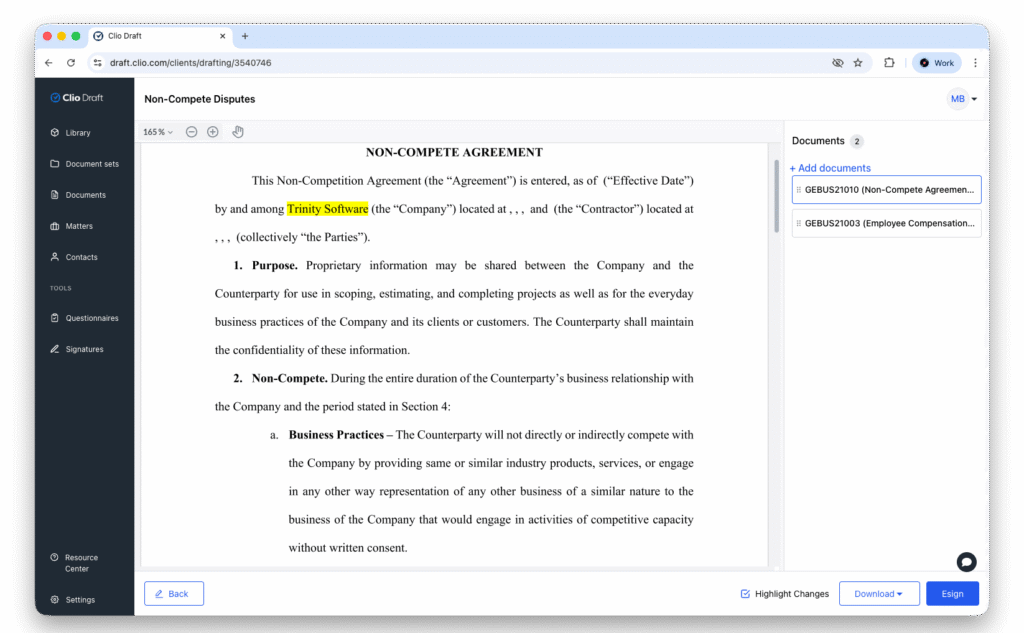
Clio Draft is built to keep that structure intact as volume scales. It converts existing documents into clean, reusable templates, and automates document population across matters, which centralizes clause management. The result is that lawyers are always pulling from controlled, current sources rather than reaching back into old files.
Metadata control at the source
Metadata accumulates as a natural result of how legal documents are created. Every edit, every reuse, and every collaboration adds to it. You can’t change this. But you can change how much metadata reaches a recipient.
The inspection steps in this guide will catch problems that would otherwise go unnoticed. However, the firms that manage this most reliably don’t depend on the inspection step alone. They generate less metadata worth catching in the first place, because their documents start from clean templates and their clause reuse is controlled.
Clio Draft is built to support that kind of approach. It gives firms clean templates to work from, a centralized library of metadata-free clauses to pull from, and automatically populates documents with matter-specific information rather than carrying it over from a previous file.
Book a free demo to learn more.
Metadata in MS Word for Lawyers FAQs
What is metadata in a Word document?
Metadata is information Word records automatically as a document is created, edited, and shared. It includes author names, revision history, comments, document properties, and tracked changes. In legal drafting, it accumulates as a byproduct of normal workflow activity: editing a brief, redlining a contract, copying clauses from a prior matter. Most lawyers don’t realize how much of it travels with a document when it leaves the firm.
How do you view metadata in a Word document?
Use Word’s Document Inspector. Go to File > Info > Check for Issues > Inspect Document. Leave all categories checked and review the results before taking any action. Also check the Track Changes pane and Comments pane independently, as Document Inspector gives you a summary rather than the full picture of what those revisions and comments actually contain. Check document properties manually via File > Info to see author name, company, and any client or matter references attached to the file.
What metadata can be hidden in a Word document?
Comments and tracked revisions, document properties including author names and client references, hidden text, previous versions stored within the file, and custom XML fields. Comments can expose privileged strategy, document properties can identify previous clients or lawyers from prior firms, and hidden text can surface information that was never meant to leave the firm.
How do you remove metadata from a Word document?
Run Document Inspector via File > Info > Check for Issues > Inspect Document, and review each category before removing anything. Accept or reject all tracked changes explicitly rather than relying on the inspector to handle them. Delete comments manually after confirming none still needs to be acted on. Clear document properties via File > Info. Save the cleaned version as a new file rather than overwriting the working draft.
Document Inspector removal can’t be undone, and it doesn’t catch everything. The Track Changes and Comments panes need to be reviewed separately, and some embedded metadata requires manual attention rather than a single click to remove.
Can metadata still exist after converting to PDF?
Yes. A PDF exported directly from Word can retain document properties, author information, and in some cases embedded comments from the source file. PDF conversion alone doesn’t clean metadata reliably. The export method matters: printing to PDF carries more risk than using Word’s built-in export function, but neither guarantees a clean file without running Document Inspector first.
Why is metadata a risk for lawyers?
Because it can expose information that was never intended to leave the firm. Comments containing negotiating strategies create privilege risk. Document properties identifying previous clients raise confidentiality concerns. Author fields showing lawyers from prior firms can create awkward disclosures. In court filings, metadata becomes part of the record. The ethical obligation to protect client confidences doesn’t stop at the visible text of a document.
Mastering MS Word and AI
Learn how to put AI to work on your final review, from finding errors buried in long documents to knowing where your judgment still has to come first.
Watch on demand