

You built a clean pleading template. By the time it comes back from review, it has manual bold applied over the heading styles, a broken Table of Contents, and a font you didn’t choose. You spend 45 minutes on formatting and 10 minutes on the actual content review.
This is a normal part of how legal documents move through a firm. A partner or senior associate owns the final work product, but drafting, formatting, and populating templates is typically shared across paralegals, legal assistants, and junior lawyers, often across multiple matters at once. Documents travel between contributors, get opened in different environments, and pick up formatting changes before anyone signs off.
Three things account for most of the damage: paste behavior that imports styles from external sources, manual formatting applied outside the style system, and differences in how Word behaves across Windows, Mac, and browser versions.
This article covers what Word’s built-in formatting protection features actually do in legal drafting contexts, how to apply them to templates and collaborative documents, where they fall short, and what workflow-level and software solutions fill the gaps.
Spending more time cleaning up formatting than doing the actual review? Explore how Clio Draft helps keep template structure locked no matter who edits it.
Why legal document formatting breaks during collaboration
Formatting breaks in collaborative legal documents for structural reasons. It comes down to how these documents get drafted: passed between attorneys, built from prior matter files, and edited by multiple contributors working in different environments.
Three causes account for most of the damage.
- Paste behavior. When a colleague copies text from a PDF conversion, an opposing counsel’s document, or a different template and pastes it into your document, Word imports the source’s styles alongside the content. The pasted paragraph arrives carrying formatting from wherever it came from, and Word applies that formatting to your document. This happens regardless of whether the document is protected. Formatting restrictions are a behavioral guardrail; they don’t intercept what arrives through the clipboard.
- Manual formatting. Contributors who format by appearance rather than by style (e.g., clicking Bold instead of applying a Heading style, or dragging the indent marker instead of using paragraph settings) create invisible direct formatting overrides that sit on top of the style hierarchy. These overrides break style-dependent features: Tables of Contents stop updating correctly, automatic numbering loses its sequence, and global style changes stop applying because the overrides block them. For a detailed guide on diagnosing and fixing style failures in legal documents, see our article on why Microsoft Word styles break in legal documents.
- Cross-platform inconsistency. Word for Windows, Word for Mac, and Word Online are different programs. Formatting restrictions configured on a Windows desktop may not be enforced in Word for Mac or Word Online. This is a documented platform gap, not user error. Attorneys who share documents with colleagues or opposing counsel on different platforms will encounter this.
All three causes are real, and only one of them (manual formatting) is directly addressed by Word’s protection features. The other two require workflow solutions. The sections that follow cover both.
What Word’s formatting protection actually does, and doesn’t do

Restrict Editing, found on the Review tab (Word for Windows), gives you two controls that are relevant to formatting protection in legal documents.
Formatting restrictions limit which styles users can apply. Enable “Limit formatting to a selection of styles,” select the approved styles for your template, and contributors can only apply styles from that list. Manual formatting through the ribbon (changing fonts, adjusting spacing, applying Bold outside of a style) is blocked.
Editing restrictions limit which parts of the document can be changed at all. Set the document to read-only and then mark specific regions as editable. Contributors can type in the unlocked regions; the rest of the document is protected.
Both can be password-protected. Without a password, any user who knows to click “Stop Protection” can disable restrictions in two clicks. With a password, the protection holds, but if you lose the password, Microsoft can’t recover it. Store template passwords in a firm-level password manager.
On Mac, the equivalent is Review > Protect > Protect Document, which covers password protection and whole-document read-only or form-filling modes. Style-level restrictions and region-level editing exceptions are not available. The steps later in this article cover what Mac users can do instead.
What formatting restrictions do not do:
- They do not block pasted content from external documents. Styles travel in through the clipboard regardless of restrictions.
- They do not function in Word for Mac or Word Online. Editing restrictions work partially on these platforms; formatting restrictions do not.
- A document protected without a password provides no meaningful barrier to anyone who knows Word.
Formatting restrictions are a guardrail against accidental manual formatting by well-intentioned collaborators. They are not a firewall against formatting corruption from external sources. Understanding that distinction is the foundation of using them correctly.
Note: Restrict Editing and document automation don’t mix. If you plan to use a template with an automation platform, don’t apply Restrict Editing to it. Editing restrictions block the field merging and content insertion that automation depends on, and the template will fail to populate. For templates that will run through an automation platform, the protection is built into the automation itself (covered later in this article).
How to lock formatting in a legal document template
Before applying any protection, confirm that your template is worth protecting. Formatting restrictions lock the document’s current state. If that state includes manual formatting overrides, broken styles, or inconsistent spacing, the restrictions will lock those problems in alongside everything else.
On Windows: Run the Style Inspector (Home > Styles panel launcher > Style Inspector button) across the key paragraph types in the template before proceeding.
On Mac: Use View > Reveal Formatting, which breaks down every formatting attribute for the selected text. Any paragraph showing direct formatting alongside its style name has an override that should be cleared before you protect the document.

Step 1: Open Restrict Editing
On Windows:
Review tab > Restrict Editing. The pane opens on the right side of the document.
On Mac:
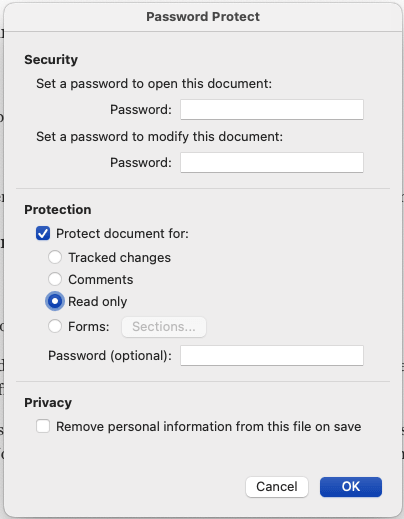
Review > Protect > Protect Document. This opens a password protection panel where you can require a password to open or modify the document.

Step 2: Enable formatting restrictions and select your styles
On Windows:
Check “Limit formatting to a selection of styles,” then click Settings.
The dialog shows every style in the document. For most legal templates, the approved style set includes: Normal, Heading 1 through Heading 3, Body Text, Block Quote, List Paragraph, Footnote Text, and any firm-specific styles for signature blocks or defined terms.
“Recommended Minimum” is a reasonable starting point for most legal templates. It includes the styles Word considers essential and excludes most decorative options. If you want maximum control, click None and build the approved list from scratch. This takes more time but produces a tighter restriction.
On Mac:
Style-level restrictions are not available in Word for Mac. The closest alternative is to lock the whole document via Protect Document and use the “Protect document for Forms” option, which prevents contributors from applying any formatting outside designated form fields. It is more restrictive than Windows-style formatting controls, but it does prevent manual formatting changes to boilerplate sections.
Step 3: Add editing restrictions if needed
On Windows:
For templates where you want to lock boilerplate but leave specific sections editable (e.g., a contract with locked standard clauses but open party name fields, or an engagement letter with locked terms but an open fee section), enable editing restrictions.
- Select “No changes (Read only)” from the editing restrictions dropdown.
- Then, in the document, select the regions that should remain editable and check “Everyone” under Exceptions. Those regions stay open, while the rest of the document is locked.
“Filling in forms” mode works similarly and is useful for intake documents and client-facing forms.
On Mac:
Word for Mac supports section-based protection:
- Insert section breaks via Layout > Breaks to divide the document into sections.
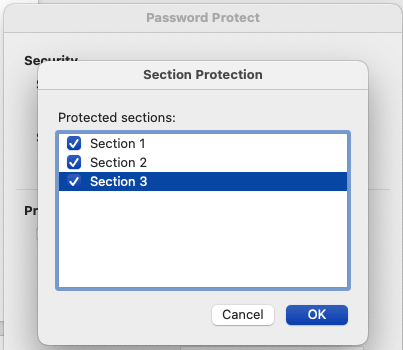
- Then go to Protect Document and use “Protect document for Forms,” selecting which sections to restrict via the Sections button. Within each protected section the content is fully locked. Within each unprotected section it is fully open.
Step 4: Set a password
On Windows:
For any template leaving the firm (e.g., sent to opposing counsel, a client, or external co-counsel), set a password. Click “Yes, Start Enforcing Protection” and enter a password in the dialog. Store it in your firm’s password manager. Keep an unprotected master copy in a secure internal location.
On Mac:
In the Protect Document panel, enter a password under “Password to modify.” This prevents the protection from being removed without the password. Store it in your firm’s password manager and keep an unprotected master copy in a secure internal location.
Step 5: Test before distributing
Send the protected template to yourself on a different device, ideally on Word for Mac or in a browser if your firm has Mac users or uses Word Online. Try pasting content from an external document, applying manual bold, and clicking “Stop Protection.” Confirm the restrictions behave as intended before the template goes anywhere.
How to protect specific sections without locking the whole legal document

Full document protection makes sense for static templates. For collaborative legal documents like negotiated contracts, redlined agreements, and co-authored motions, partial protection is often more practical.
For example, in a negotiated contract, the standard boilerplate should be locked. The defined terms section, party name fields, recitals, and signature block need to remain editable as the matter progresses or the template is used in multiple matters.
To set this up on Word for Windows:
- Review tab > Restrict Editing.
- Under editing restrictions, select “No changes (Read only).”
- In the document, select the regions that should remain editable: the signature block, the defined terms, the date fields.
- Under Exceptions, check “Everyone.” Those selected regions become editable. Everything else is locked.
For firms running on a Windows domain network, you can grant editing access to specific users by network ID rather than “Everyone.” This is worth configuring for larger firms where consistent IT environments make user authentication reliable. For smaller firms or documents shared externally, the named-user approach adds complexity without meaningful security benefit.
To set this up on Word for Mac:
Word for Mac protects by section rather than by selected region. The document structure needs to reflect that boundary before you apply protection.
- Place your cursor at the start of each section you want to keep editable and insert a section break via Layout > Breaks > Continuous.

- Repeat at the end of each editable section.
- Go to Review > Protect > Protect Document.
- Check “Protect document for Forms,” then click the Sections button.

- Uncheck the sections that should remain editable. Leave the boilerplate sections checked.
- Set a password and click OK.
The paste problem: what protection can’t stop
Word’s protection features don’t stop pasted formatting, and pasting is the cause of most formatting corruption in legal documents.
When a collaborator copies text from a PDF conversion, an opposing counsel’s document, or any external source and pastes it into your protected template, the styles from that source arrive with the text. Word doesn’t strip them at the clipboard. The formatting restrictions prevent the user from manually applying a foreign style, but the paste bypasses that control entirely. The styles are imported before the restriction has a chance to intervene.
Legal professionals who have spent time troubleshooting formatting corruption after collaboration have often been blaming themselves, or blaming Word, for a known architectural limitation. The paste pathway is outside the scope of what formatting restrictions protect.
The practical fixes are workflow-level rather than technica. For Windows users:
-
- Train collaborators to use Paste Special > Keep Text Only when pasting content from any source outside the template. Include this instruction explicitly in the template’s usage notes. Note that text pasted from a PDF conversion will often retain hard line breaks in the middle of sentences even with Keep Text Only. These need to be cleaned up manually with Find & Replace before the text will wrap properly.
- After any external collaboration round, run a style audit using Manage Styles (Home > Styles panel launcher > Manage Styles) before filing or delivering the document. Look for styles that weren’t in the original template: names with “(2)” suffixes, firm-specific style names from the other party, or styles that don’t match your set.
- Use Find & Replace with style criteria (Ctrl+H > More > Format > Style) to replace any imported styles with the correct ones before the document moves further.
On Mac, the equivalent steps are:
-
- Train collaborators to paste without formatting, use Edit > Paste Special > Unformatted Text (or the keyboard shortcut Cmd+Shift+V).


- After any external collaboration round, run a style audit by opening the Styles pane (Home > Styles button) and setting the filter at the bottom to “All Styles.” Look for unfamiliar style names, “(2)” suffixes, or styles from another firm’s template. Right-click any rogue style and select Delete to remove it.
- Use Find & Replace with style criteria (Cmd+Shift+H > Format > Style) to replace any imported styles with the correct ones before the document moves further.
Building a collaboration-ready legal template that holds its formatting
Formatting restrictions applied to a well-built template hold up. Formatting restrictions applied to a template with pre-existing direct formatting overrides lock those problems in. The sequence matters.
Before protecting any template intended for firm-wide use:
Audit the styles first. Open the Style Inspector and click through the document’s key paragraph types: body text, headings, numbered provisions, and signature blocks. Any paragraph carrying both a style and direct formatting overrides is a problem waiting to surface. Clear the overrides using the Style Inspector’s Clear buttons before applying restrictions.
Include usage instructions inside the template. A protected template without usage guidance will be used incorrectly. Include a locked “How to use this template” section that tells collaborators: use Paste Special when pasting from external sources; use only the styles visible in the Styles gallery; do not drag indent markers; do not change fonts through the ribbon. This takes five minutes to write and prevents the most common causes of formatting corruption.
Maintain an unprotected master. Before distributing the protected template, save a clean unprotected version as the master. Store it where only the template owner can access it. When the template needs updating, work from the master, re-test, and distribute a fresh protected copy.
Clean before finalizing. Even with restrictions in place, paste behavior means external collaboration rounds can import rogue styles. Before any document goes to filing or final delivery, run a style audit and normalize anything that doesn’t belong.
Attorneys who have been through Clio’s CLE sessions often describe templates that “work at first and then break over time.” The protection feature isn’t the problem in those cases. The template it was applied to was already inconsistent, or the paste pathway was never addressed. The steps above fix both.
Master Microsoft Word for Legal Drafting
This is just one piece of the puzzle. Explore the Master Microsoft Word for legal drafting hub for all our Word resources for legal professionals.
MS Word Hub
When Word’s protection isn’t enough for your legal workflow
For documents shared within a firm on a consistent environment, with collaborators who understand the template and follow the paste guidelines, formatting restrictions work well. The setup described in this article will hold up in that context.
External collaboration is a different picture. Opposing counsel’s firm uses different templates, different style sets, and possibly different Word versions. They may also not follow your firm’s paste guidelines. The document that comes back has been through a different environment, and Word’s protection, if they even respected it, has no jurisdiction over what happened on their end.
Volume is the other variable. Manually protecting individual templates, maintaining unprotected master copies, re-protecting after each update, and auditing styles after each collaboration round is manageable for a handful of templates. For a firm maintaining dozens of templates across multiple practice groups, it becomes continuous overhead rather than a one-time setup.
For firms operating in these conditions (high external collaboration, high document volume, or both), Word’s protection features are a foundation, not a complete answer.
How Clio Draft solves what Word protection can’t

Mastering Word’s formatting protection keeps your documents clean. Clio Draft keeps your entire firm’s drafting consistent by automating the template process so protection, structure, and style integrity are built in from the start, rather than applied manually after the fact.
Clio Draft uses AI-powered document automation to turn Word templates into reusable workflows. The approved styles, the correct structure, and the formatting standards are built into the document generation process, so consistency doesn’t depend on each collaborator applying restrictions correctly or remembering to use Paste Special.
For firms where template maintenance has become a recurring task rather than an occasional one, Clio Draft removes the manual overhead and addresses the root cause: consistency across the firm, not just protection of a single document.
Getting formatting protection right
Formatting protection in Word works when it’s built on the right foundation. Properly styled templates, clear collaborator instructions, and honest expectations about what the feature does and doesn’t do. The paste pathway is outside its scope. The Mac and Online limitations are real. Password-free protection is a suggestion, not a lock.
For firms managing high-volume drafting or regular external collaboration, the steps in this article are a starting point. Clio Draft is where the process scales: document automation that makes formatting consistency the default rather than something each template owner has to enforce manually.
Protecting legal Word document formatting FAQs
Does protecting a Word document prevent someone from changing the formatting?
Formatting restrictions prevent users from manually applying styles or direct formatting within Word (e.g., clicking Bold, changing font sizes, and dragging indent markers). They don’t stop paste-from-outside from importing incompatible styles. A collaborator who copies from an external document and pastes into your protected template will import those styles regardless of restrictions. Formatting protection is useful for preventing accidental manual formatting; it is not a complete barrier against formatting corruption from external sources.
Can I protect a Word template so legal collaborators can add content but not change the layout?
Yes. Use formatting restrictions to limit which styles can be applied, and editing restrictions with exceptions to mark specific regions as editable. Collaborators can type in the unlocked regions (party name fields, signature blocks, defined terms sections) while the boilerplate and structural elements remain locked. “Filling in forms” mode is an alternative for intake documents and client-facing forms, with the caveat that behavior varies across Word for Mac and Word Online.
Why does my Word document formatting protection not work on Mac?
Formatting restrictions (the “Limit formatting to a selection of styles” feature) don’t function in Word for Mac or Word Online. Editing restrictions work partially on these platforms. This is a documented platform gap between Word for Windows and the Mac and browser versions, not a configuration error. Firms with attorneys on Macs or using Word Online will see inconsistent protection behavior, which is a reason to test templates across platforms before distributing them.
What happens if I forget the password on a protected legal Word document?
Microsoft can’t recover it. Third-party tools exist that can brute-force simple passwords, but there is no official recovery path. The practical safeguards: store template passwords in a firm-level password manager with access limited to template owners, and always maintain an unprotected master copy in a secure internal location. Never store the password in the document filename.
How do I stop collaborators from pasting formatting into my protected Word document?
Formatting restrictions don’t block paste behavior. Styles imported through the clipboard bypass the restriction. The fix is workflow-level: include paste instructions in the template’s usage notes, train collaborators to use Paste Special > Keep Text Only when pasting from external sources, and run a style audit using Manage Styles after each external collaboration round before the document moves to filing or delivery.
Is Word’s Restrict Editing feature good enough for legal documents shared with opposing counsel?
It depends on what you’re protecting against. Within a controlled firm environment, with collaborators who follow paste guidelines and use Windows Word, formatting restrictions work well. For documents shared externally with opposing counsel, where you have no control over their environment, their Word version, or their formatting habits, Word’s native protection has real limitations. Paste behavior bypasses it, Mac and Online versions don’t enforce it fully, and a password-free restriction can be disabled by anyone who knows where to look. For documents where formatting integrity is critical across external collaboration, additional workflow controls are worth building in.
Master Microsoft Word for Legal Drafting
This is just one piece of the puzzle. Explore the Master Microsoft Word for legal drafting hub for all our Word resources for legal professionals.
MS Word Hub