

Contents: Microsoft Word for Lawyers: Master Legal Drafting & Templates
-


5. How to Convert PDF Legal Documents to Word
When training to practice law, you probably thought your days would be spent meeting clients, debating with opposing counsel, and poring over case law.
You probably didn’t think you’d spend so much time fixing formatting errors caused by converting PDF documents to Word.
In theory, converting PDFs to Word documents should be a simple task. It only takes a few clicks. However, fixing the issues this creates can take hours.
Clause numbering collapses into plain text, for no apparent reason. Heading styles disappear, cross-references no longer work, and citations merge into unbroken blocks. You notice that captions are suddenly misaligned, while the table of authorities (TOA) has become corrupted.
Why does this happen?
There’s a fundamental difference between the two file formats. PDFs store visual layout, whereas Word stores structural formatting logic. When you convert PDF legal documents to Word, that structure has to be reconstructed from scratch. Unfortunately, the reconstruction is rarely perfect.
Let’s explore:
- Why legal professionals convert PDFs to Word documents.
- Why PDF-to-Word conversion breaks legal formatting.
- Which structural elements are most at risk.
- How to repair a converted document.
- How to avoid the most common problems in the first place.
Common legal workflows that require PDF-to-Word conversion
There are a handful of common scenarios that require firms to convert PDF legal documents to Word. Here are four common workflows that you’ll likely encounter on a daily basis, and tips on what to look out for in each:
Editing a contract returned by opposing counsel
Contracts routinely circulate as PDFs, and converting them for redline purposes risks collapsing clause numbering and stripping defined term formatting.
Tip: If you do convert, run a clause-by-clause comparison against the original PDF before beginning any redlining, so conversion errors don’t get mistaken for your edits.
Revising a court-filed brief
Filed briefs are typically PDFs. Converting for revision risks disrupting pleading line numbers, caption formatting, and citation structure.
Tip: For court documents, manual reconstruction is often safer than automated conversion.
Extracting clauses from a PDF contract
Copy-paste is the instinctive approach here, but numbered clauses and indented subclauses frequently collapse during extraction.
Tip: Paste as plain text first to strip residual PDF formatting, then reapply styles and numbering manually rather than trying to preserve structure during the paste.
Updating settlement agreements circulated as PDFs
Settlement agreements tend to be structurally dense: defined terms, cross-references, numbered schedules, and attached exhibits. Conversion can disrupt any of these, often in ways that are not immediately obvious on screen.
Tip: Rather than a general visual check after converting, verify each structural element specifically before the document goes back into circulation.
Why converting PDFs to Word breaks legal formatting
A PDF is essentially a photograph of a document. It records where to place each piece of text on a page, what size and font to use, and how much space to leave around it. However, it doesn’t store paragraph styles, numbering logic, or heading hierarchies. Those structural elements are Word concepts that don’t exist in PDFs.
Generating a PDF from a Word document strips out that structural information:
- A heading that was formatted with a Heading 2 style becomes a visual instruction: display this text at this size, in this position.
- Multilevel clause numbering becomes a series of positioned text fragments.
- Cross-reference fields become static text.
- Field codes and paragraph styles all disappear into static visual instructions.
When you then convert that PDF back into Word, the conversion tool has to work backwards. It looks at the visual layout and tries to infer what the original structure might have been. Sometimes it gets it right. Often, particularly with complex legal document formats, it doesn’t.
And that’s where the issue lies.
Types of legal PDFs lawyers encounter
Not all PDFs behave the same way during Word conversion. The type of PDF you’re working with determines how much structural information survives, and therefore how much repair work you should expect afterwards.
Native PDFs generated from Word
These files originated in Word or a similar document editor and were exported to PDF. Because the source document had structured formatting, the PDF often retains enough information for a conversion tool to reconstruct paragraph structure with reasonable accuracy. These files give you the best conversion results.
Flattened PDFs distributed for review
Many contracts and negotiation drafts are circulated as flattened PDFs. The text is selectable, but the formatting logic has been removed. Paragraph styles, list structures, and heading hierarchy are gone. Conversion tools must reconstruct structure from visual layout alone, which produces more formatting errors than native PDF conversion.
What is a flattened PDF?
A flattened PDF is a PDF where all interactive elements such as form fields, annotations, signatures, and layers have been permanently merged into a single static page. Nothing can be edited, moved, or extracted. Courts and clients often flatten PDFs deliberately to prevent further changes or to lock in signatures.
Scanned court filings
Some PDFs contain only images of text rather than actual text content. These require OCR (optical character recognition) before they can be edited in Word at all. OCR conversion frequently introduces character errors, broken paragraph structure, and inconsistent spacing. Converted scanned documents should always be carefully reviewed before use.
It’s important to know which type you’re working with before you start, as this will save you a significant amount of time and stress.
How to identify what type of PDF you received
Before choosing a conversion method, it’s worth spending a minute to work out what kind of PDF you’re dealing with.
Conversion accuracy depends less on the tool you use and more on the underlying structure of the file. Each type behaves very differently when converted, so knowing which one you have determines which approach to take.
Native PDFs generated from Word
You can identify these by the following:
- Text can be selected as complete paragraphs.
- Line wrapping behaves consistently.
- Copying a paragraph preserves sentence structure.
- Margins and spacing appear uniform throughout.
These files usually convert with the highest accuracy because the original document contained structured paragraph styles.
Flattened PDFs exported for review
Tell-tale signs include:
- Text is selectable but breaks across unexpected lines.
- Copy-paste creates fragmented sentences.
- Spacing appears inconsistent between paragraphs.
In these files, paragraph styles, list structures, and heading hierarchy have been removed. Word must reconstruct structure from visual layout, which often produces formatting errors.
Scanned court filings and exhibits
With these types of files, you’ll find that:
- Text can’t be selected at all.
- The cursor jumps across the page rather than following text.
- Zooming in reveals slight image distortion or pixelation.
These files require OCR before they can be edited. Identifying this early saves time and sets the right expectations for how much repair work will be needed after conversion.
What is OCR?
OCR stands for Optical Character Recognition. It is a technology that scans an image or PDF and identifies the characters it sees, converting them into editable text. When you convert a scanned PDF to Word, OCR is what makes the text selectable and editable rather than leaving it as a static image.
What breaks during PDF-to-Word conversion and how to fix it
Some PDF-to-Word conversion formatting issues will be easy fixes. Others, however, will require more than a simple touch-up, especially if they’re structural in nature.
Here are some of the most common PDF-to-Word conversion formatting issues that you might encounter.
Clause numbering collapses
Conversion wreaks havoc on multilevel numbering systems. Nested structures like Section 3, Section 3(a), and Section 3(a)(i) often convert to plain text, losing both the hierarchy and the indentation. The numbers appear on the page but are no longer connected to any numbering system, which means they won’t update correctly and can’t be used as cross-reference targets.
How to restore multilevel numbering in Word for Mac
- Select the text that should be a numbered clause.
- Go to the Home tab.
- In the Paragraph group, click the Multilevel List button (the icon showing a numbered list with indented levels).
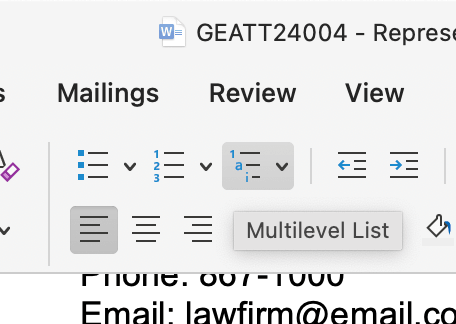
- Select Define New Multilevel List to set up or match your numbering format.
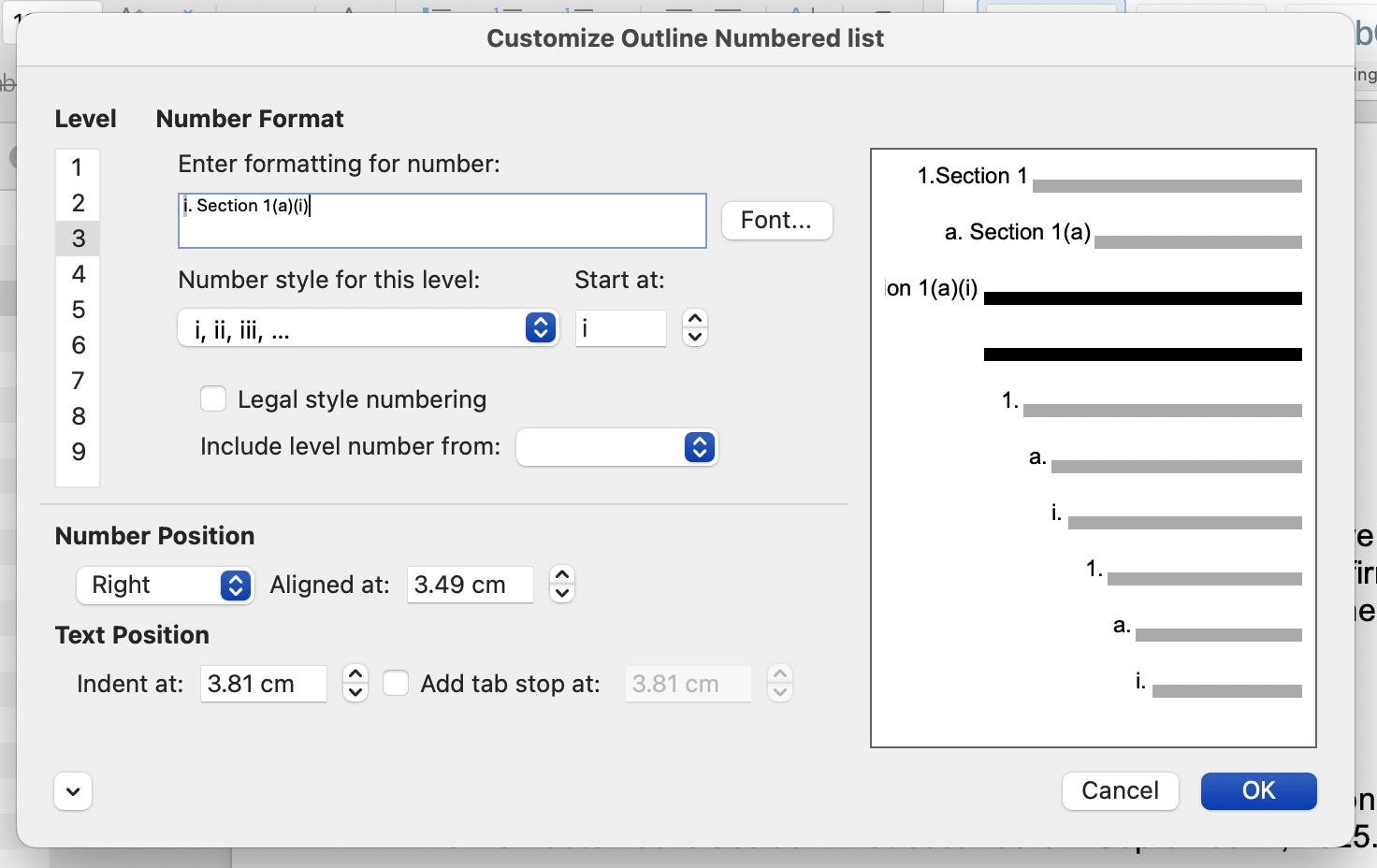
- In the dialog, configure each level:
- Level 1: Section 1, Section 2, etc.
- Level 2: Section 1(a), Section 1(b), etc.
- Level 3: Section 1(a)(i), Section 1(a)(ii), etc.
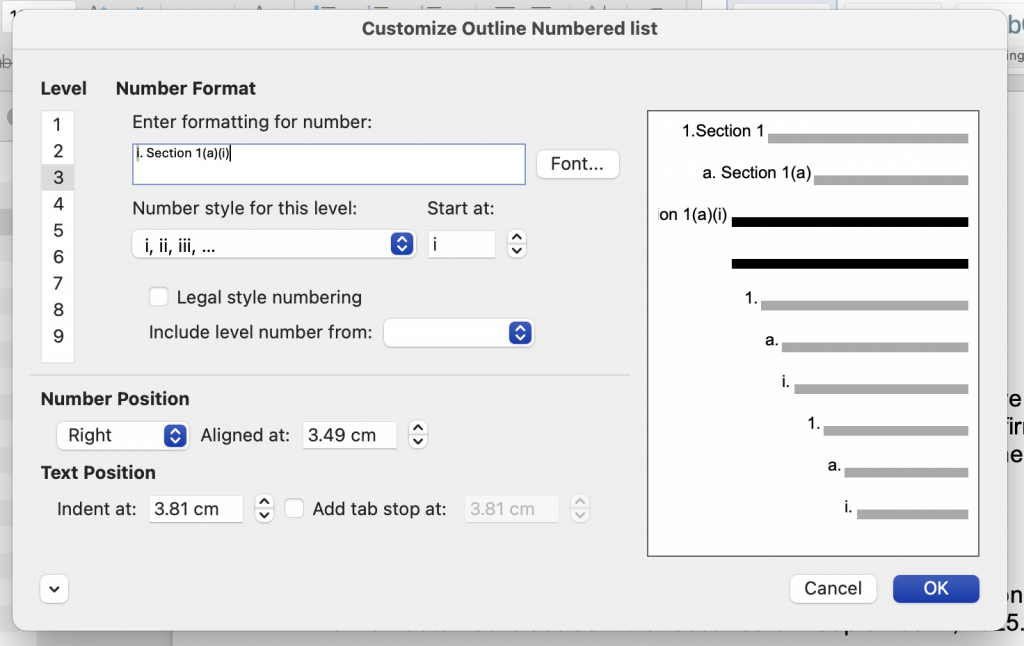
- Click OK.
- Apply the correct level to each clause by selecting the text and using Tab to demote or Shift + Tab to promote a level.
- Repeat throughout the document.
The steps are the same for Word on Windows.
Heading hierarchy disappears
Heading styles are a Word construct. After conversion, what were Heading 1 and Heading 2 paragraphs often become standard body text formatted to look like headings. The visual appearance may survive, but the structural hierarchy doesn’t. This breaks any Table of Contents, navigation, and style-based formatting that depends on those headings.
How to restore heading styles in Word for Mac
- Open your converted document.
- Click on a paragraph that should be a heading.
- Go to the Home tab.
- In the Styles panel, select the correct heading level (Heading 1, Heading 2, etc.).
- Repeat for each heading throughout the document.
- To verify the hierarchy is restored, go to View → Navigation Pane — headings should appear as a structured outline on the left.
- This will highlight all heading structures so you can easily see if you missed some.

- This will highlight all heading structures so you can easily see if you missed some.
- If you have a Table of Contents, click on it and select Update Table to refresh it based on the restored headings.

The steps are the same for Word on Windows.
Cross-references break
Cross-references in Word are field codes that point to specific locations in the document. Unfortunately, PDFs don’t support these fields. After conversion, cross-references become static text rather than live fields that update as sections move. In a long brief or contract, an outdated cross-reference that slips through review can be a substantive error.
How to add cross-references in Word for Mac
- Place your cursor where you want the cross-reference to appear.
- Go to the References tab.
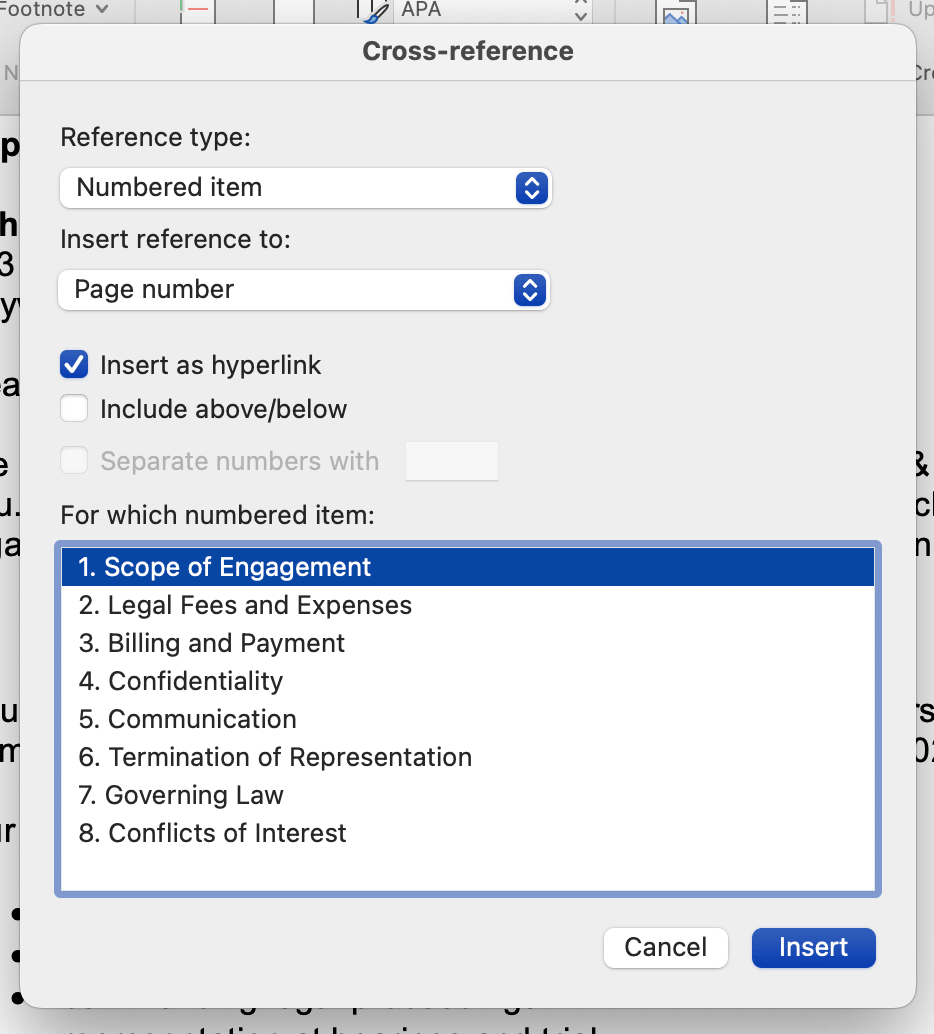
- Click Cross-reference.

- In the dialog box, choose the Reference type (heading, numbered item, figure, etc.).
- Choose what to insert (page number, text, paragraph number, etc.).
- Select the specific item you want to reference from the list.
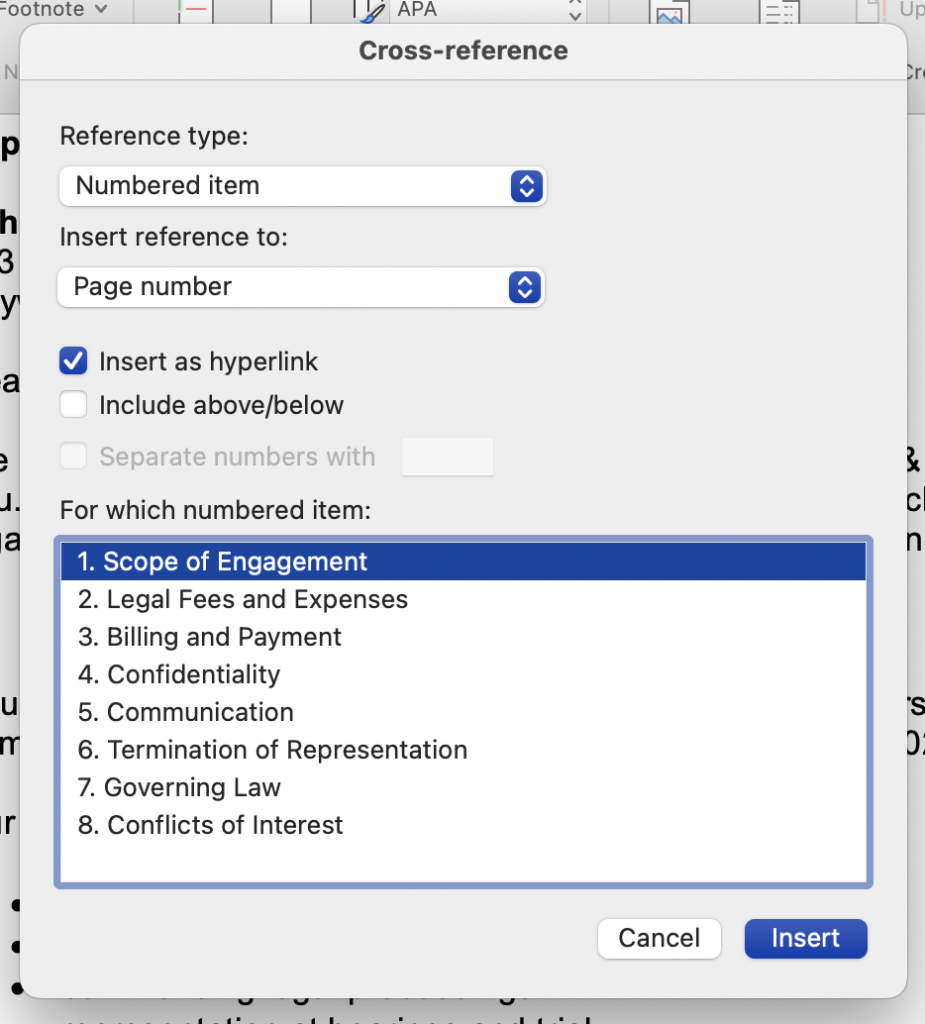
- Click Insert.

The steps are the same for Word on Windows.
Tables of authorities lose structure
Word builds Tables of Authorities using TA field codes embedded throughout the document. Conversion removes those fields entirely, leaving behind either static text or nothing at all. If you need a working TOA in the converted document, you’ll need to rebuild it from scratch.
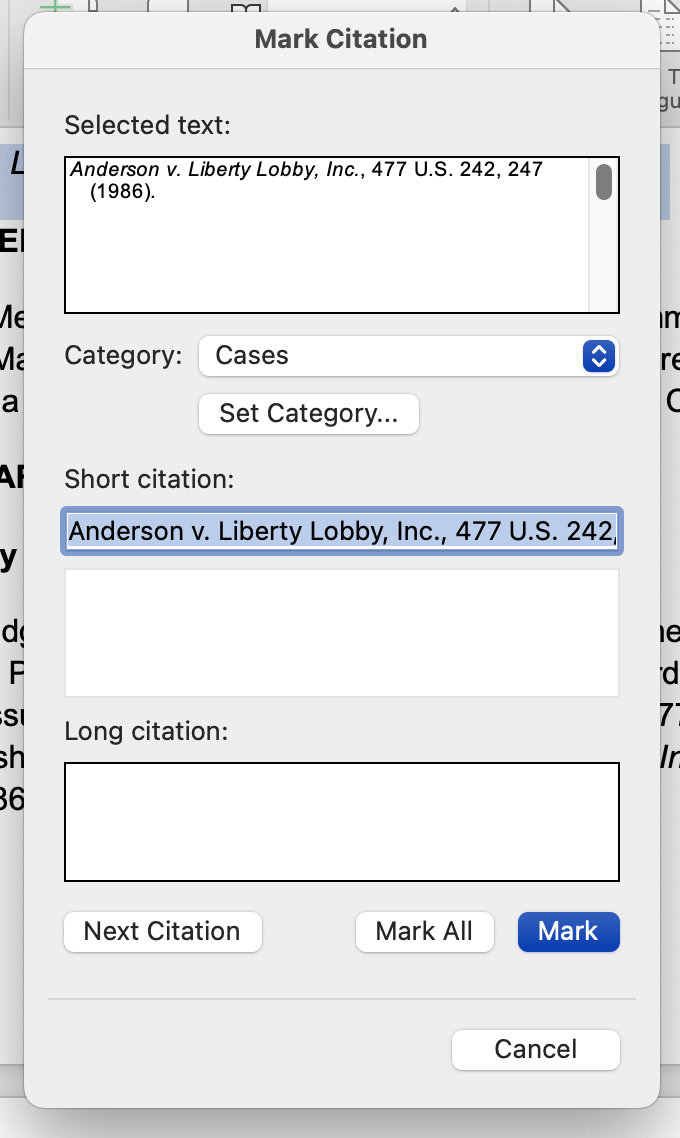
Step 1: Re-mark your citations in Word for Mac
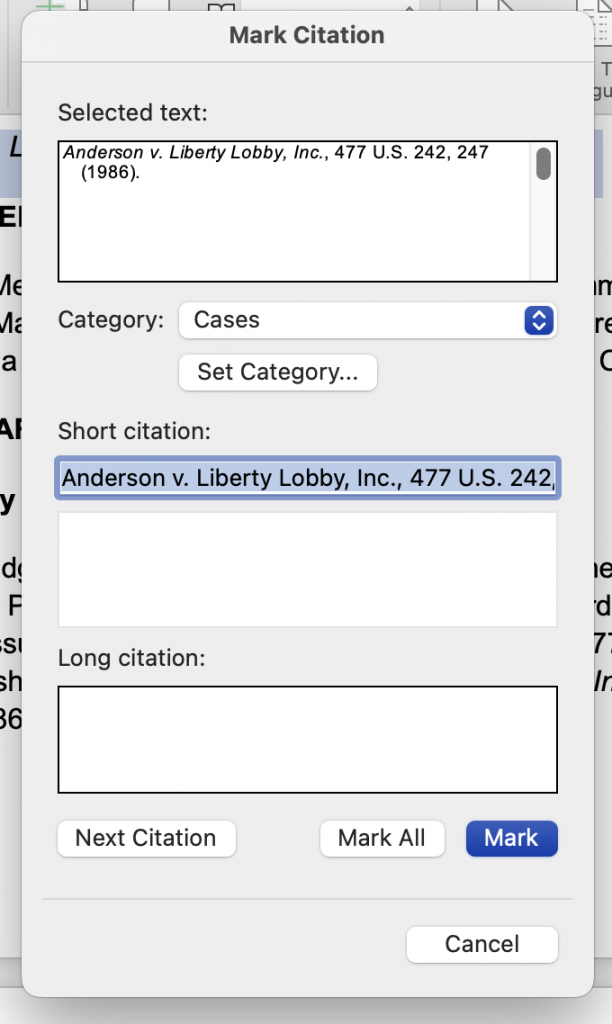
- Select the citation text in your document.
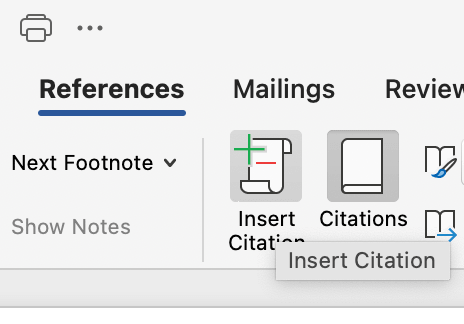
- Go to the References tab.
- Click Mark Citation or click Insert Table of Authorities.

- In the dialog box, confirm or edit the selected text.
- Choose the category (Cases, Statutes, etc.).
- Click Mark to mark that instance, or Mark All to mark every instance in the document.
- Repeat for every citation in the document.
Step 2: Insert the Table of Authorities
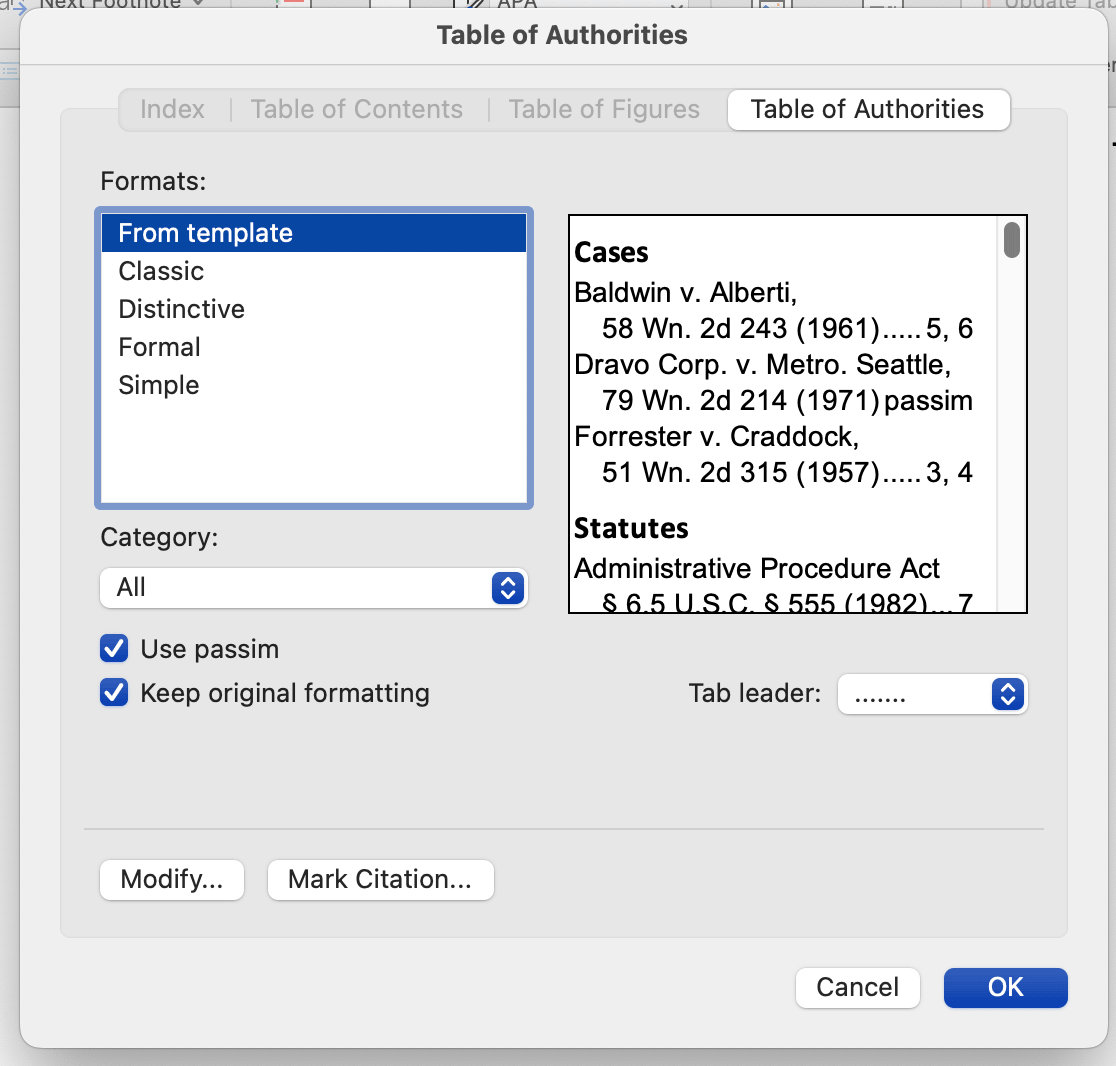
- Place your cursor where the TOA should appear.
- Go to the References tab.
- Click Insert Table of Authorities.
- Choose your formatting preferences.
- Click OK.
The steps are the same for Word on Windows.
Learn more about how to create a Table of Authorities in Word.
Pleading line numbers shift
Pleading paper relies on precise margin and line spacing settings to align text with printed line numbers. Conversion tools frequently miscalculate these settings, causing text to shift relative to the line numbers. The document may look acceptable on screen but print incorrectly, which is a serious problem for court filings.
How to set up pleading line numbers in Word for Mac
- Open a new document or your converted document.
- Go to the Layout tab.
- Click Margins and set your margins to match court requirements (typically 1.5″ left, 1″ right).

- Click Line Numbers in the Layout tab.
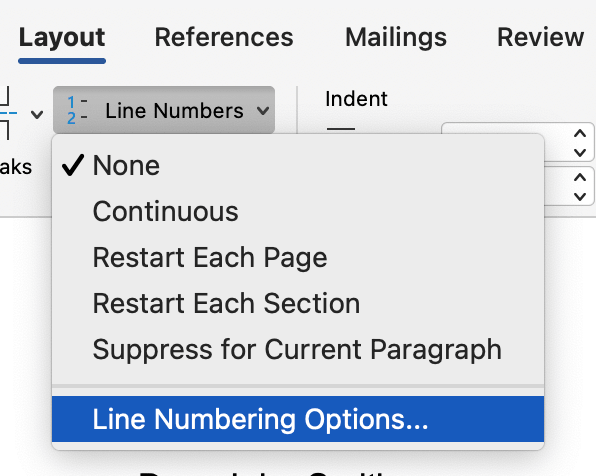
- Select Add Line Numbers.
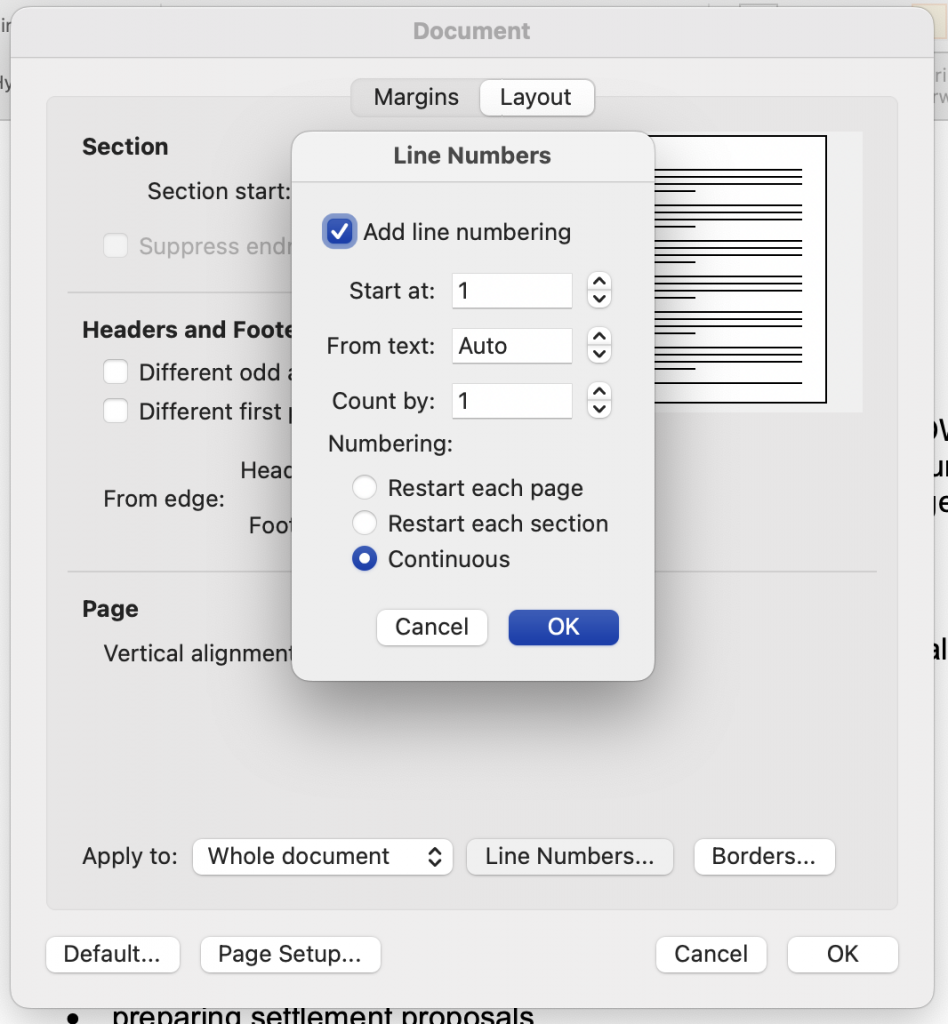
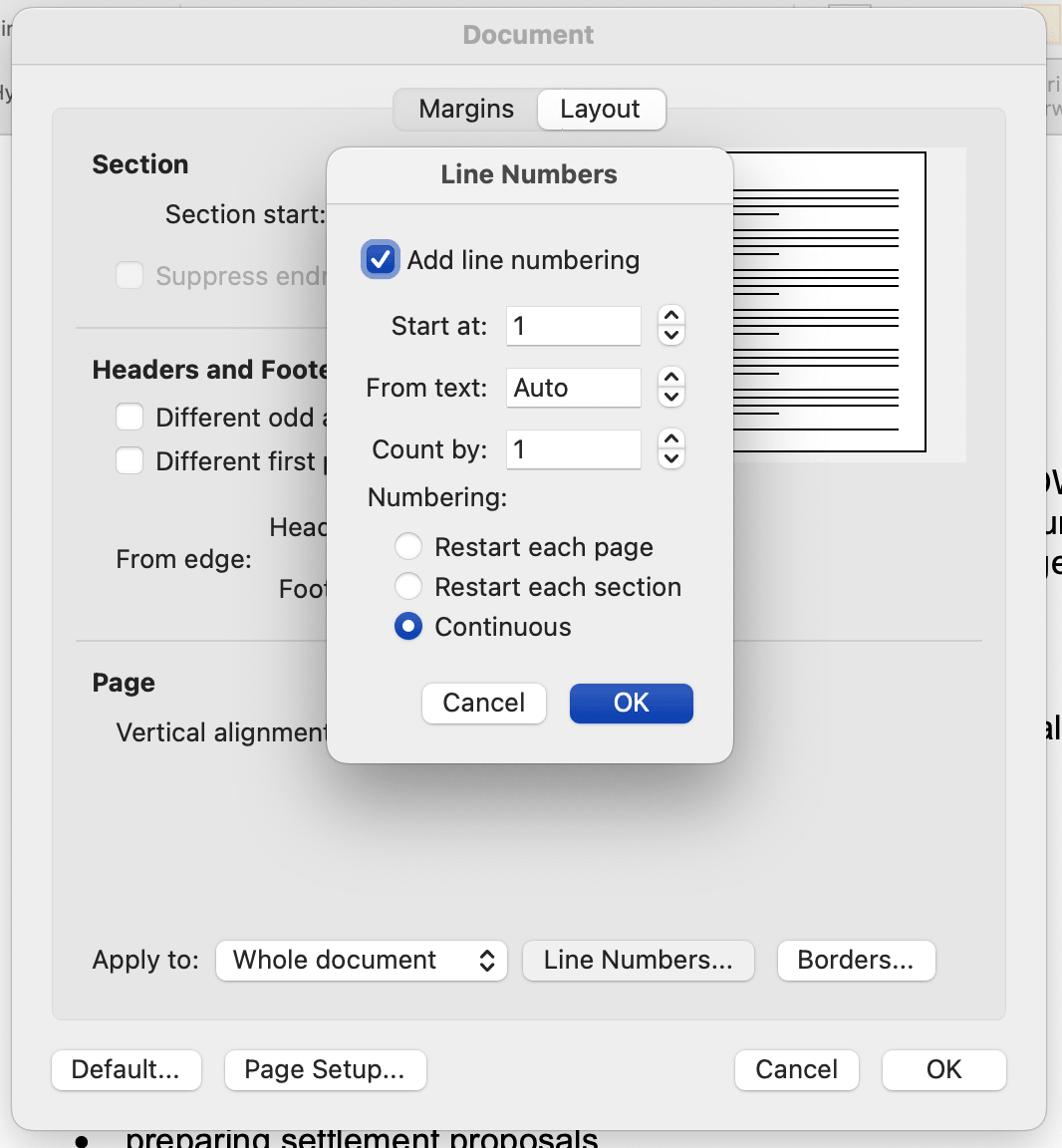
- In the Line Numbers under Layout select Add line numbering, and set:
- Start at: 1
- From text: as Auto (or adjust if your court requires a specific distance).
- Count by: 1
- Numbering to Continuous for pleading paper (so line numbers run 1–28 and don’t restart on each page).
- Click OK.
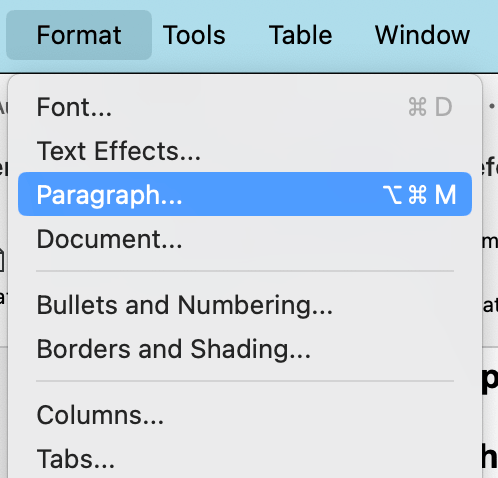
- Go to Format → Paragraph.
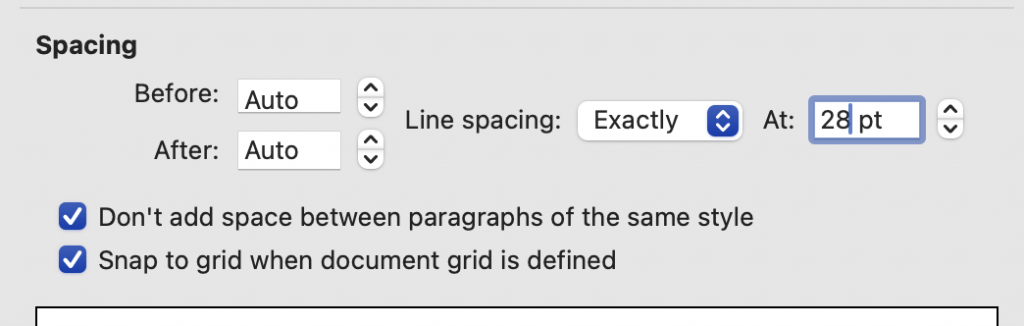
- Under Line Spacing, select Exactly and set the value to 28pt.
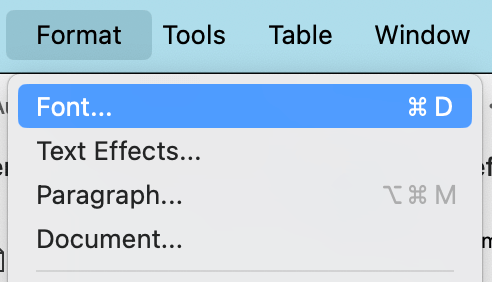
- Go to Format → Fonts.
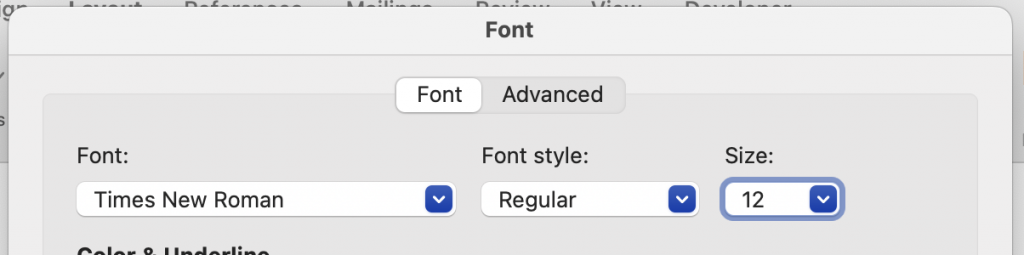
- Select a court-approved font and size throughout the document (commonly Times New Roman 12pt).
- Print a test page and compare against a known correct pleading to verify alignment before filing.


How to set up pleading line numbers in Word for Windows
- Open a new document or your converted document.
- Go to File → New and search for “pleading” to check if the Pleading Wizard is available in your version of Word.
- If the Pleading Wizard is available, follow the prompts—it will set up margins, line spacing, and line numbers automatically.
- If not, go to the Layout tab.
- Click Margins and set your margins to match court requirements (typically 1.5″ left, 1″ right).
- Click Line Numbers in the Layout tab.
- Select Add Line Numbers.
- In the Line Numbers dialog, set:
- Start at: 1
- Count by: 1
- Position: Left
- Go to Format → Paragraph.
- Under Line Spacing, select Exactly and set the value to 28pt.
- Select a court-approved font and size throughout the document (commonly Times New Roman 12pt).
- Print a test page and compare against a known correct pleading to verify alignment before filing.
Defined term references lose formatting
In contracts, defined terms are typically formatted in a specific way: capitalized, sometimes bolded, and consistently applied throughout the document. Conversion can strip this formatting inconsistently, leaving some instances capitalized and others not. In a document where defined terms carry legal weight, this kind of inconsistency matters.
Formatting errors after conversion are usually structural failures, rather than cosmetic ones. Fixing the appearance without fixing the structure might leave the document looking right, but you’ll likely find it starts behaving incorrectly as you continue working on it.
How to reformat defined terms in Word for Mac
- Press Cmd + Shift + H to open Find & Replace.
- Place your cursor in the Find field and type the defined term.
- Place your cursor in the Replace field and type the same term correctly formatted.
- Click Format at the bottom of the dialog.
- Select Font from the dropdown.
- Apply the correct formatting (bold, capitalization, etc.).
- Click OK.
- Click Replace All.
- Repeat for each defined term in the document.

How to reformat defined terms in Word for Windows
- Press Ctrl + H to open Find & Replace.
- Click More to expand the dialog.
- Place your cursor in the Find field and type the defined term.
- Place your cursor in the Replace field and type the same term correctly formatted.
- Click Format at the bottom of the dialog.
- Select Font from the dropdown.
- Apply the correct formatting (bold, capitalization, etc.).
- Click OK.
- Click Replace All.
- Repeat for each defined term in the document.
Footnotes lose their references
Footnotes may survive visually after conversion but lose their connection to the footnote reference in the body text. Conversion occasionally duplicates or drops footnote markers entirely, meaning the numbering can appear correct on screen while the underlying references are broken.
How to restore footnotes in Word for Mac
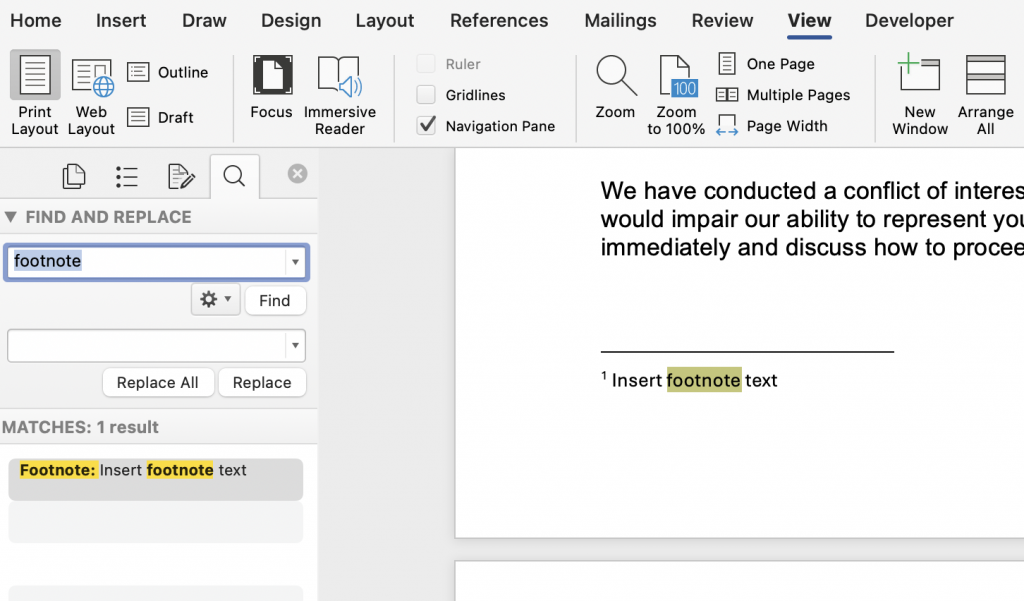
- Go to View → Navigation Pane to check footnote markers are sequential.
- Click on a broken footnote marker in the body text.
- Go to the References tab.
- Click Insert Footnote to create a new linked footnote at that location.

- Copy the surviving footnote text into the new footnote field.
- Delete the old unlinked footnote text.
- Repeat for each broken footnote throughout the document.

The steps are the same for Word on Windows.
Table of Contents loses its structure
If the document has a Table of Contents, conversion will break it. The TOC depends on heading styles to generate accurately, and since heading styles are stripped during conversion, the TOC becomes a static block of text that won’t update as the document changes.
How to restore a Table of Contents in Word for Mac
- First restore all heading styles in the document (see above).
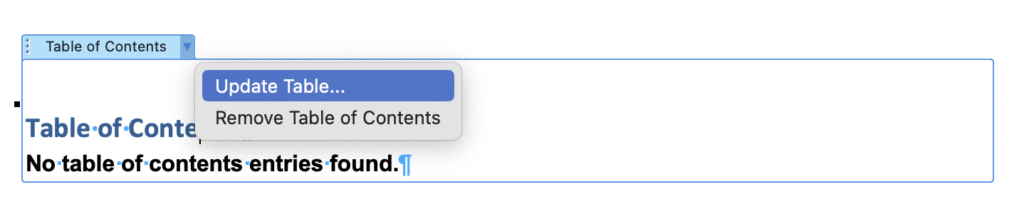
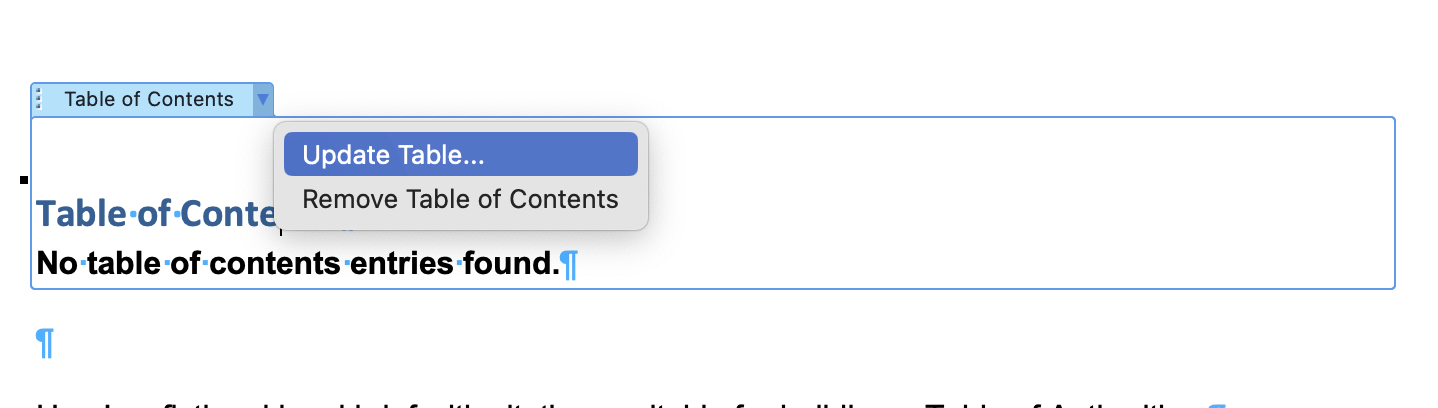
- Click on the existing TOC.
- Select Update Table.
- Choose Update entire table.
- Click OK.

- If the TOC is too badly broken to update, delete it entirely.
- Place your cursor where the TOC should appear.
- Go to the References tab.
- Click Table of Contents.
- Select your preferred style from the dropdown.

The steps are the same for Word on Windows.
How to repair formatting after converting a legal PDF: six important steps
Once you’ve converted your legal PDF into a Word document, it’s worth first running through a structured six-step repair process to restore the document’s formatting integrity.
- Normalize paragraph styles: Select the document and apply the correct base styles. Remove any direct formatting that was introduced during conversion.
- Rebuild heading hierarchy: Reapply Heading 1, Heading 2, and Heading 3 styles to the appropriate paragraphs. Don’t rely on visual formatting that looks like a heading but lacks the appropriate style.
- Reapply numbering structures: Remove any plain-text numbering and replace it with Word’s multilevel list system. Reconnect numbering to the correct styles and verify indentation hierarchy.
- Inspect margins and spacing: Check that page margins, paragraph spacing, and indentation match the original document or your firm’s template.
- Reconstruct cross-references: Replace any static cross-reference text with live field codes pointing to the correct bookmarks or headings.
- Verify citation formatting: Check that legal citations haven’t merged across lines, lost spacing, or been split incorrectly during conversion.
The most important thing is to resist the temptation to fix formatting visually. Restore the underlying structure first, and the appearance will follow.
Verifying structural integrity after converting a legal PDF: a checklist
Structural problems that are easy to fix at the start become significantly harder to unpick once editing has begun. Work through this checklist to confirm your document is structurally sound before it enters the drafting or negotiation workflow:
-
- Clause numbering is live, sequential, and correctly hierarchical.
- Heading styles are applied correctly throughout the document.
- Cross-references are live field codes, not static text.
- The Table of Authorities has been regenerated from marked citations.
- Citation formatting is correct and consistent.
- Page numbering is accurate and continuous.
- Footnote references are sequential and correctly linked.
- Margins and spacing match the original or the firm template.
Hidden metadata risks when converting legal PDFs
Converted Word files often carry metadata that wasn’t visible in the PDF. Before circulating a converted document, it’s worth checking for:
- Hidden comments or annotations carried over from the original file.
- Author names from the conversion tool or the original document.
- Embedded revision data that may reveal earlier drafts or edits.
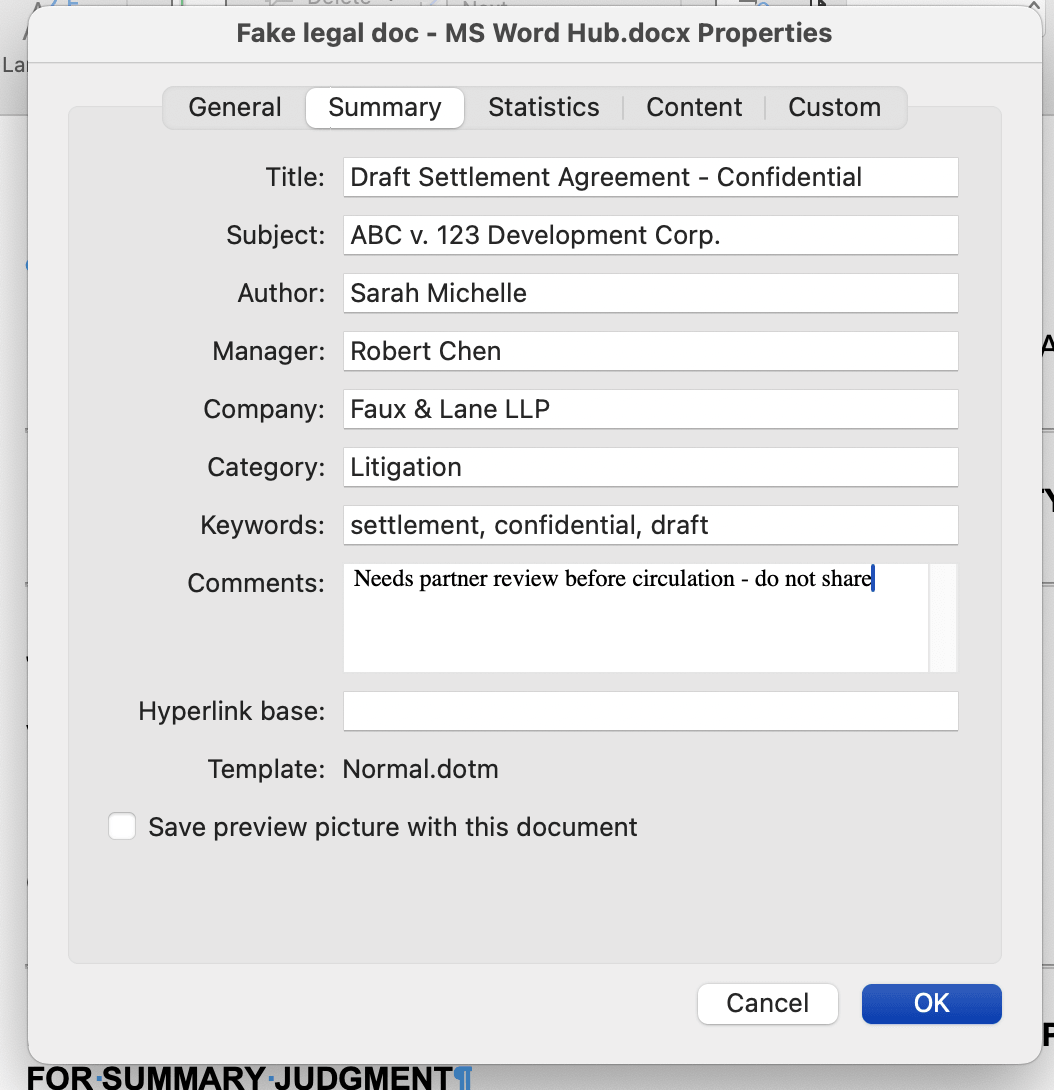
- Document properties that identify the originating firm or author.
In litigation and transactional work, circulating a document with unintended metadata is a professional risk. Use Word’s Document Inspector options to review and remove metadata before sharing any converted file.
How to review metadata in Word for Mac (Path 1)
- Go to Tools in the menu bar.
- Click Protect Document.
- Select Remove Personal Information.

How to review metadata in Word for Mac (Alternative path)
- Go to File.
- Click Properties.
- Review the Summary and Custom tabs for metadata.

How to review metadata in Word for Windows
- Go to File.
- Click Info.
- Click Check for Issues.
- Click Inspect Document.
- Check the categories you want to inspect.
- Click Inspect.
- Review the results and click Remove All next to any category you want to clear.
- Click Close.
Copy-pasting from PDFs vs converting the whole document
If converting PDFs leads to formatting inconsistencies, what about simply copy-pasting text into Word instead?
While this is certainly an approach you can take, it unfortunately presents similar challenges to direct PDF conversion. Here’s why.
Direct PDF conversion
Conversion tools attempt to preserve the visual layout of the document. This usually keeps the page layout, paragraph placement, and margins roughly intact. However, as mentioned earlier, structural elements won’t carry over from the original document.
Copy-paste extraction
Copy-pasting removes the PDF layout entirely and forces Word to reconstruct the document structure from fragmented text elements. This often produces significant formatting errors, particularly in documents with complex structure.
Common copy-pasting from PDF to Word issues include:
- Paragraphs merging into a single block, with line breaks disappearing and entire sections becoming continuous text.
- Numbered clauses losing their hierarchy, so that a structure like 3(a)(i) becomes three separate fragments: 3, a, i.
- Indentation collapsing, stripping contracts of their clause structure.
- Citations merging across lines or losing spacing.
Why copy-pasted legal text breaks formatting
You might be wondering why Word-to-PDF conversion issues are so common. Essentially, the issue lies with how PDFs store text.
Rather than structured paragraphs, PDF text exists as positioned fragments: individual pieces of content placed at specific coordinates on the page.
When you copy that text into Word, Word has to reconstruct everything from those coordinates: paragraph boundaries, indentation, numbering hierarchy, citation spacing, and so on. Word has to guess at the structure based on where things appeared on the page.
Unfortunately, it rarely guesses correctly.
PDF-to-Word conversion formatting issues are predictable once you know what to look for. The most common include:
- Paragraphs merging into single unbroken blocks because Word can’t reliably identify where one ends and the next begins.
- Numbered clauses losing their hierarchy entirely, meaning a structure like 3(a)(i) arrives in Word as three separate fragments: 3, a, and i.
- Indentation collapsing and stripping contracts of the visual clause structure that makes them readable.
- Legal citations merging across lines or losing the spacing between elements.
Copy-paste works well enough for pulling out an individual clause, a definition, or a short passage where you plan to reformat anyway. For anything larger, such as a full contract section, a brief argument, or a numbered schedule, it quickly becomes unreliable.
Choosing the safest way to convert a legal PDF to Word
There’s no one-size-fits-all method for converting a legal PDF to Word. The best approach depends on how the original PDF was created and how much structural integrity the converted document needs to preserve.
Here are a few different methods to consider, depending on the original document’s structure.
Open the PDF directly in Word
This is best for PDFs originally generated from Microsoft Word.
Word can often reconstruct paragraph structure, headings, and basic formatting when opening a native PDF directly.
This is a reasonable starting point for straightforward documents. However, numbering, styles, and citations should still be verified after conversion.
Export using Adobe Acrobat or a dedicated PDF tool
Ideally suited for documents with complex layout, tables, or multi-column formatting. Dedicated PDF tools, such as Adobe Acrobat, tend to preserve column layouts, table structures, and spacing more reliably than Word’s built-in converter.
Structural elements like numbering and styles may still need repair, but the visual fidelity is usually better.
OCR conversion for scanned filings
Required for image-based PDFs such as scanned pleadings or exhibits. OCR tools, such as Adobe Acrobat Pro and Microsoft OneNote, attempt to recognize text from images and reconstruct editable content. The output should always be reviewed carefully before editing, as OCR frequently introduces character errors and broken paragraph structure.
Manual reconstruction
Best when formatting integrity matters more than speed. In high-stakes documents such as contracts being negotiated or briefs being filed, it’s sometimes safer to manually rebuild the document structure in Word rather than rely on automated conversion.
This takes longer, but it guarantees that clause numbering, heading hierarchy, citation formatting, and template consistency are correct from the start.
Master Microsoft Word for Legal Drafting
This is just one piece of the puzzle. Explore the Master Microsoft Word for legal drafting hub for all our Word resources for legal professionals.
MS Word Hub
When conversion should not be used
Sometimes the right answer is to leave the PDF as is. In certain situations, converting a PDF to Word introduces more risk than it resolves.
Avoid conversion when:
- The document contains complex clause numbering: Multilevel numbering such as 3(a)(i) often collapses into plain text during conversion, and rebuilding it correctly takes significant time.
- The document will be filed with the court: Conversion can disrupt pleading line numbers, margins, captions, and citation formatting. For court filings, the risk of introducing errors is rarely worth it.
- The PDF is a scanned document: OCR conversion frequently introduces character errors and broken paragraph structure. For anything that needs to be accurate, manual reconstruction is safer.
- Accurate redline comparisons are required: Conversion can corrupt numbering or paragraph boundaries, producing unreliable comparisons that are difficult to review and easy to misread.
In these situations, consider these alternatives:
- Request the native Word document from whoever sent the PDF.
- Manually reconstruct the key clauses or sections you need to edit.
- Use a document comparison tool to annotate the PDF directly rather than converting it.
Preventing formatting corruption during legal conversion
Prevention is better than cure, which means the most effective fix for PDF conversion problems is to avoid them in the first place. Most formatting failures are preventable, and they tend to share a common cause: conversion happening too late in the drafting cycle, on documents already deep into revision, under time pressure.
Follow these tips to eliminate most common conversion problems:
- Request native Word files when possible: If you’re receiving a document from opposing counsel or a client, ask for the Word version rather than the PDF.
- Convert before revisions begin: If you have to convert a document, do it at the start of the workflow rather than partway through. Converting a clean document is much easier than converting one that is already mid-revision.
- Maintain style-based templates: Documents built on proper paragraph styles convert better and repair faster. Using consistent templates means you’ll have a reliable structure to rebuild converted documents against.
- Normalize formatting immediately after conversion: Don’t start editing until you’ve completed the repair steps. Editing a structurally broken document embeds errors deeper into the file.
Preparing the legal document for redlines after conversion
Converting a PDF to Word is often the first step in a negotiation or revision workflow. However, before enabling Track Changes and sending the document to the other side, it’s worth first validating the document structure.
Redlines made against a structurally broken document can produce comparison errors that are difficult to fix, or even explain to the other side.
Work through these steps in order before beginning redline edits:
- Verify heading hierarchy: Confirm that all heading styles are correctly applied and that the document structure matches the original.
- Confirm numbering integrity: Check that clause numbering is live, sequential, and correctly hierarchical. Insert a test clause to confirm that numbering updates automatically.
- Normalize styles: Remove any residual direct formatting from the conversion and ensure all paragraphs are using the correct styles.
- Enable Track Changes: Turn on Track Changes before making any substantive edits, so that all changes from this point are recorded.
- Compare against the original PDF: Use Word’s Compare Documents feature to run a comparison against the original PDF. This helps identify any unintended changes introduced during conversion or repair.
Having validated the document’s structure, you can then start editing the content during negotiation.
When law firms move beyond manual PDF conversion
Manual conversion is manageable once in a while. But for firms handling a steady volume of complex documents, it quietly becomes a significant drain on billable time.
The firms that handle this most effectively tend to share a common approach: rather than repairing formatting after conversion, they maintain structured documents from the start.
They use clause libraries, style-based templates, and drafting systems that preserve document structure throughout the revision cycle. Word-to-PDF conversion issues occur far less frequently, because fewer documents need to be rebuilt from a PDF.
Clio Draft is built around this exact principle. Where a manually converted document requires a repair workflow before it can be safely edited, Clio Draft maintains clause numbering, styles, and document structure automatically throughout the drafting process. As a result, it significantly reduces the risk of structural errors accumulating across revision rounds.
If your firm handles a high volume of complex documents, it’s worth exploring how a structured drafting system reduces your reliance on PDF conversion workflows.
Request a demo to see Clio Draft in action and learn how it can help your firm.
Book a Clio demoHow do I convert a PDF legal document to Word without losing formatting?
Start by identifying what type of PDF you have. Native PDFs generated from Word convert most accurately. Open the PDF directly in Word or use a dedicated tool like Adobe Acrobat. After conversion, work through a structured repair process: normalize paragraph styles, rebuild heading hierarchy, reapply numbering, and verify citations and cross-references. However, note that no conversion method automatically preserves all structural formatting.
Why does formatting break when converting PDFs to Word?
PDFs only store visual layout instructions. Paragraph styles, numbering hierarchy, heading levels, and field codes are all Word constructs that simply don’t exist inside a PDF. When you convert a PDF back into Word, the tool has to infer that structure from the visual layout, and that inference is often incomplete or incorrect.
Why does numbering disappear after converting a PDF to Word?
Multilevel numbering in Word is built on a list system linked to paragraph styles. PDFs don’t preserve that system. After conversion, clause numbers typically appear as plain text fragments rather than as part of a live numbering structure. The numbers look correct on the page but won’t update automatically and can’t be used as cross-reference targets without being rebuilt.
Is it better to copy and paste from a PDF into Word?
It depends on what you’re extracting. Copy-paste works for individual clauses or short passages. For anything with complex numbering or heading structure, a full conversion followed by a repair workflow will give you a more reliable starting point.
How do I fix formatting after copying from a PDF to Word?
Start by pasting as plain text to remove any residual PDF formatting. Then work through the document in order: apply the correct paragraph styles, rebuild heading hierarchy, reapply multilevel numbering, and check that citations and cross-references are correctly formatted. Don’t try to fix formatting visually. Rebuild the underlying structure and the appearance will follow.
Why do legal citations break after conversion?
Citation formatting in Word is often field-based. PDF conversion removes those fields entirely, replacing them with static text. Additionally, PDF text is stored as positioned fragments rather than continuous paragraphs, which means citations can merge across lines, split incorrectly, or lose the spacing between elements during conversion. Each citation should be checked individually after converting a document that contains legal references.
How can I prevent PDF-to-Word formatting problems in legal documents?
The most effective route is requesting native Word files rather than PDFs wherever possible. When conversion is unavoidable, convert at the start of the workflow before edits begin, use style-based templates that give the converted document a reliable structure to rebuild against, and normalize formatting immediately after conversion rather than editing into a broken document.
Should lawyers convert court filings to Word before editing them?
Generally, no. Court filings rely on precise margin, line number, and caption settings that conversion tools frequently miscalculate. Converting a filed pleading risks disrupting the formatting in ways that are difficult to detect visually but serious in practice. If edits are needed, manually reconstructing the relevant sections is usually safer than converting the entire document and attempting to repair the formatting afterwards.
Master Microsoft Word for Legal Drafting
This is just one piece of the puzzle. Explore the Master Microsoft Word for legal drafting hub for all our Word resources for legal professionals.
MS Word Hub